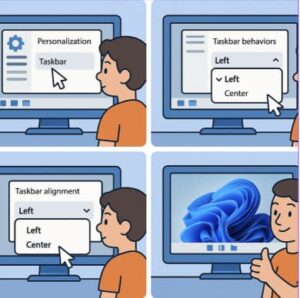
Windows 11 introduced a sleek, modern interface with centered taskbar icons — a big change from the traditional layout. While the new design is clean and user-friendly, many users prefer customizing the taskbar to fit their workflow. Whether you want to move the taskbar to a different screen position or modify the appearance of your icons, Windows 11 gives you several ways to do it.
In this guide, we’ll walk you through how to change the taskbar position, adjust icon alignment, and personalize your desktop experience.
1. Changing Taskbar Alignment (Center or Left)
By default, Windows 11 centers your taskbar icons, but you can easily shift them to the left for a more classic Windows feel.
Steps:
- Right-click anywhere on the taskbar.
- Select Taskbar settings.
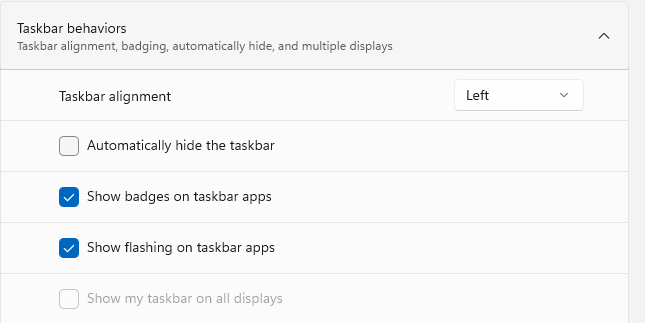
- Under Taskbar behaviors, look for Taskbar alignment.
- From the dropdown menu, choose Left or Center.
- Your icons will instantly shift to the new alignment.
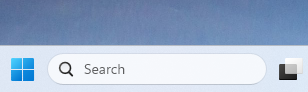
This small tweak can make your desktop feel familiar if you’ve upgraded from Windows 10.
2. Moving the Taskbar to the Top, Left, or Right
Windows 11 officially restricts the taskbar to the bottom of the screen. However, with registry tweaks, you can move it elsewhere.
⚠️ Important: Registry changes should be done carefully — create a restore point before proceeding.
Steps:
- Press Win + R, type
regedit, and hit Enter. - Navigate to:
HKEY_CURRENT_USER\Software\Microsoft\Windows\CurrentVersion\Explorer\StuckRects3 - Double-click the Settings binary value.
- In the Value data panel, locate the 03 value in the second row and fifth column.
- 00 = Top
- 01 = Left
- 02 = Right
- 03 = Bottom (default)
- Change it to your desired position (e.g., 00 for Top).
- Click OK, close the Registry Editor, and restart Windows Explorer or reboot your PC.
Your taskbar should now appear in the new position.
3. Customizing Taskbar Icons
You can personalize icons on your taskbar to make them more functional or visually appealing.
To Pin or Unpin Apps:
- Pin: Right-click an app in the Start Menu or desktop, then select Pin to taskbar.
- Unpin: Right-click the icon on the taskbar and select Unpin from taskbar.
To Change Icon Size:
- Open Taskbar settings.
- Under Taskbar behaviors, look for Taskbar size.
- Choose Small, Medium, or Large (if available).
4. Additional Taskbar Customization Tips
- Show or Hide System Icons:
In Taskbar settings, go to Other system tray icons and toggle visibility for icons like Bluetooth, Network, or Volume. - Auto-Hide Taskbar:
Enable Automatically hide the taskbar under Taskbar behaviors for a cleaner desktop. - Transparency Effect:
Turn on Transparency effects in Personalization > Colors to make your taskbar blend smoothly with your wallpaper.
Customizing your Windows 11 taskbar is a simple way to make your workspace feel uniquely yours. Whether you prefer the classic left-aligned look, want the taskbar at the top of your screen, or enjoy a minimalist icon layout, Windows 11 offers the flexibility to suit your style.
With a few tweaks — and a touch of creativity — you can transform your taskbar from basic to brilliant.
Extra posts:
 Step-by-Step Guide to Changing Desktop Icons in Windows 11
  How to Clean Install Windows 11 — Step-by-Step (The Friendly, No-Nonsense Guide)
  Setting Up Windows Hello Face and Fingerprint Sign-In A Step-by-Step Guide
  Customizing the Lock Screen in Windows 11 A Step-by-Step Guide to Personalize and Optimize
  How to Map Network Drives in Windows 11: A Complete Step-by-Step Guide
  Windows 11 Privacy Settings You Should Change Right Now