
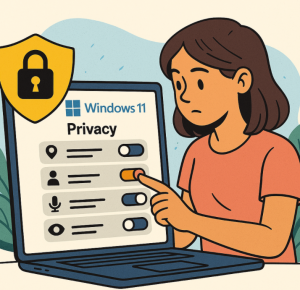
Windows 11 is sleek, fast, and full of features—but like most modern operating systems, it collects a lot of data about how you use your device. By default, Microsoft enables several settings that send diagnostic information, personalize ads, and track your activity across devices.
If you value your privacy, it’s worth taking a few minutes to adjust these settings. Here are the most important Windows 11 privacy settings you should change right now.
1. Turn Off Advertising ID Tracking
Windows 11 assigns an advertising ID that helps apps show you personalized ads. While it doesn’t expose your personal identity, it still tracks how you use apps and the web.
- Go to: Settings → Privacy & Security → General
- Toggle off: “Let apps show me personalized ads by using my advertising ID.”
2. Limit Diagnostic Data Collection
Microsoft collects diagnostic data to improve Windows, but you can limit how much is sent.
- Go to: Settings → Privacy & Security → Diagnostics & Feedback
- Select “Required diagnostic data” instead of “Optional diagnostic data.”
- Scroll down and turn off “Tailored experiences.”
3. Disable Location Tracking (Unless You Really Need It)
Location services are useful for maps or weather apps, but not everyone wants constant tracking.
- Go to: Settings → Privacy & Security → Location
- Toggle off Location services or disable location access for specific apps.
4. Manage App Permissions
Many apps request access to your camera, microphone, contacts, and more—even if they don’t need it.
- Go to: Settings → Privacy & Security → App permissions
- Review each category (Camera, Microphone, Contacts, etc.) and turn off access for apps that shouldn’t have it.
5. Stop Windows From Tracking Your Typing & Inking
Windows can collect typing and handwriting data to improve text suggestions. If that feels intrusive:
- Go to: Settings → Privacy & Security → Inking & Typing personalization
- Toggle off “Personal inking and typing dictionary.”
6. Disable Activity History Syncing
Windows can save your activity history (apps, websites, documents) and sync it across devices.
- Go to: Settings → Privacy & Security → Activity History
- Uncheck “Store my activity history on this device” and “Send my activity history to Microsoft.”
7. Control Background Apps
Background apps can consume resources and quietly send data.
- Go to: Settings → Apps → Installed apps
- For each app, click the three dots → Advanced options
- Under “Background apps permissions,” choose Never for apps you don’t need running in the background.
💡 Pro tip: Revisit these settings after major Windows updates—sometimes Microsoft resets preferences back to defaults.
Extra posts:
 Privacy Settings to Review Right After Installing Windows 11
  How to Manage Teams Permissions and Privacy Settings
  How to Change Taskbar Position and Icons in Windows 11 (Step-by-Step Guide)
  Windows 11 for Gamers Settings That Actually Boost FPS
  Hidden Settings That Make Multitasking Easier in Windows 11
  Managing Bluetooth Devices and Settings in Windows 11: A Complete Guide