
OneDrive is not just a cloud storage solution; it’s a productivity powerhouse—especially when integrated with Power Automate (formerly Microsoft Flow). Whether you want to automate file organization, streamline approvals, or back up your data, Power Automate can help.
In this blog post, we’ll walk you through how to automatically copy files from one folder to another in OneDrive using Power Automate, without writing any code.
📌 Use Case Example
Let’s say you receive daily reports in a “Incoming Reports” folder and want them to be automatically copied to a “Processed Reports” folder for archiving or further workflows.
🧰 Prerequisites
- A Microsoft account with OneDrive for Business
- Access to Power Automate (included with most Microsoft 365 plans)
- At least two folders in your OneDrive (Source and Destination)
🛠️ Step-by-Step Guide to Copy Files Using Power Automate
✅ Step 1: Open Power Automate
- Go to https://flow.microsoft.com
- Sign in with your Microsoft 365 credentials.
✅ Step 2: Create a New Flow
- Click Create from the left pane.
- Choose Automated cloud flow.
- Name your flow (e.g., Copy Files from Incoming to Processed).
- Set the trigger to When a file is created (properties only) from OneDrive for Business.
✅ Step 3: Configure the Trigger
- Under “Folder”, select the folder where new files are uploaded (e.g.,
/Incoming Reports). - This trigger will fire whenever a new file is created in that folder.
✅ Step 4: Add a Delay (Optional)
Sometimes OneDrive takes a moment to finish uploading the full file. To avoid copying incomplete files, you can add a delay:
- Click + New Step
- Search for Delay
- Set a delay (e.g., 30 seconds)
✅ Step 5: Get File Content
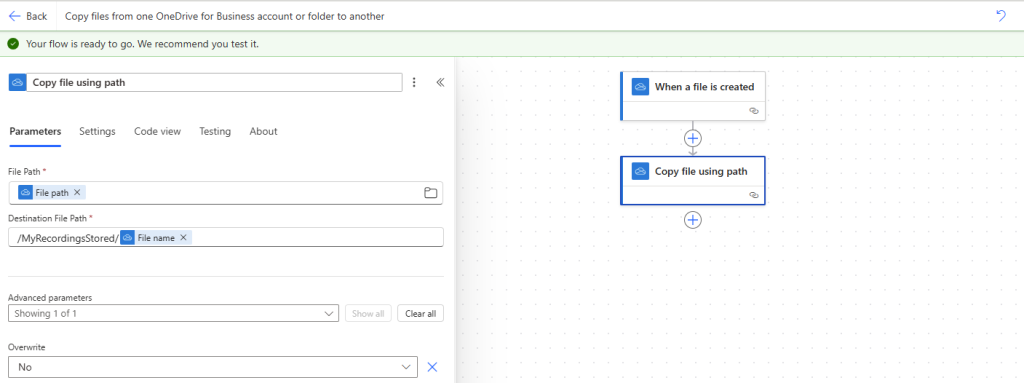
- Add a new step: Get file content (OneDrive for Business).
- Use Identifier from the trigger as the File Identifier input.
✅ Step 6: Copy to Destination Folder
- Add another action: Create file (OneDrive for Business).
- Set the Folder Path to your destination (e.g.,
/Processed Reports). - Use the same file Name and the File Content from the previous step.
🧪 Optional Enhancements
- Filter by file type using a condition step (e.g., only copy PDFs).
- Rename files during copying to include a timestamp or prefix.
- Notify users via email or Teams after successful copy.
🧼 Clean-Up Suggestion
If you want to move (not just copy) the file, you can add a final step:
- Delete file (OneDrive for Business)
- Provide the same Identifier to remove it from the source folder.
Extra posts:
 How to know files you shared in OneDrive
  Prevent sharing of OneDrive files outside your company
  Azure Functions vs Logic Apps vs Power Automate When to Use What?
  Automating Microsoft Teams Meeting Summaries with Power Automate
  Save Hours Every Week with Power Automate Workflows in Microsoft 365
  M365 Integration with Power Automate