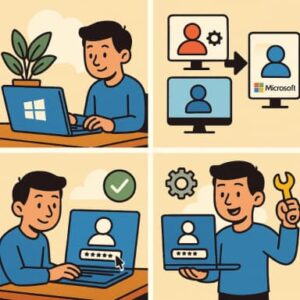
When you set up Windows 11, one of the first decisions you’ll face is whether to use a local account or a Microsoft account to sign in. Each option has benefits and drawbacks depending on your usage, privacy preferences, and how much you rely on Microsoft’s ecosystem. In this post we’ll walk you through:
Best practices for managing them
What each account type is
Pros & cons of local vs Microsoft accounts
How to create and switch between them
1. What is a Local Account vs a Microsoft Account?
Local account: A user account that exists only on the device and isn’t tied to your Microsoft identity. You create a username and password and log in directly to the computer. Your profile, settings, and data stay local and don’t sync automatically.
Microsoft account: A free personal account (such as @outlook.com or @hotmail.com) that connects to Microsoft’s cloud services. Signing in with a Microsoft account enables access to the Microsoft Store, OneDrive, and device sync.
Key differences:
- A local account works completely offline and stays on the device.
- A Microsoft account allows syncing across devices, access to cloud storage, and other Microsoft services.
- Microsoft recommends using a Microsoft account for seamless integration and enhanced security.
2. Pros & Cons: Which One Should You Use?
Pros of Using a Microsoft Account
- Centralized access: One login for Windows, Microsoft Store, Office, and OneDrive.
- Syncing: Settings, themes, and preferences automatically roam across devices.
- Security: Better recovery options, two-factor authentication, and cloud-based backup.
Cons of Using a Microsoft Account
- Privacy concerns: More data may be shared or synced to the cloud.
- Dependency: Losing access to your Microsoft account could complicate logging in.
Pros of Using a Local Account
- Privacy: No cloud integration—your data stays offline and private.
- Simplicity: Great for single-device users who don’t need sync features.
Cons of Using a Local Account
- No cloud integration: You’ll miss automatic syncing and OneDrive backup.
- Manual setup: Preferences and files don’t transfer automatically between devices.
Recommendation:
- Use a Microsoft account if you want syncing, OneDrive, and integration across devices.
- Use a local account if you value privacy and mostly use one computer.
3. How to Create and Manage Accounts in Windows 11
Creating a Microsoft Account Login (During Setup)
- During Windows 11 setup, sign in with your Microsoft account email and password.
- If you don’t have one, you can create it directly from the setup screen.
- Follow the prompts to finish setup (PIN, OneDrive, etc.).
Creating a Local Account (After Setup)
- Open Settings → Accounts → Family & other users.
- Under “Add other user,” select Add a user without a Microsoft account.
- Enter a username and password, then complete the setup.
Switching Between Account Types
- Microsoft → Local Account:
- Go to Settings → Accounts → Your info.
- Click Sign in with a local account instead, then follow the prompts.
- Local → Microsoft Account:
- Go to Settings → Accounts → Your info.
- Click Sign in with a Microsoft account instead, and sign in.
Managing Account Settings
- Change account type or permissions: Settings → Accounts → Family & other users.
- Manage linked devices: Visit your Microsoft account online and review connected PCs.
- If you’re using a local account, you can still sign into individual apps (OneDrive, Store) separately.
4. Best Practices & Tips
- Keep recovery information updated: Enable two-factor authentication on Microsoft accounts.
- Back up your data: Use OneDrive or an external drive for local accounts.
- Use a strong password or PIN: Especially for local accounts.
- Limit admin rights: Create a standard user for everyday tasks to reduce risk.
- Understand trade-offs: Choose what best fits your privacy vs. convenience needs.
- Switch when needed: You can change account types anytime without reinstalling Windows.
- Stay informed: Microsoft increasingly encourages Microsoft accounts for Windows 11 setup.
Choosing between a local and a Microsoft account in Windows 11 depends on your needs.
- Microsoft account: Best for convenience, syncing, and integration.
- Local account: Best for privacy, simplicity, and offline control.
You can switch anytime—just be mindful of how it affects your data and apps.
Extra posts:
 How to Create User Accounts in Microsoft 365
  How to Create and Manage Approvals Flow in Microsoft Teams
  How to Create and Manage Contacts in Exchange Online Microsoft 365 Create and Manage Groups in Microsoft 365 A Practical Guide
  Create and Manage Guest Users Using B2B Collaboration in Microsoft 365
  How do I manage app permissions in Windows 11?