
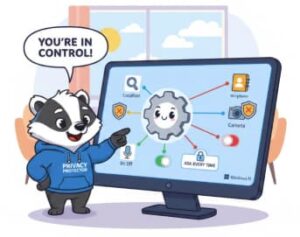
Definitely now is the most important time to start worrying about protecting your personal information as protecting this information is just as important as the hardware and software you use. With Windows 11, Microsoft introduced a more user friendly approach for managing app permissions. If you are worried about apps that access your microphone, camera, location, or personal data Windows 11 gives you clear easy way to decide what you want to share and what you do not want to share
In this blog we will walkthrough how Windows 11 handles app permissions and how to take control of privacy with easy steps that you can follow
Why App Permissions Matter More Than Ever
Currently every app that we try or install requests access to information and may be sensitive one like location, camera, contacts, files and even the clipboard. while apps most of the time legally that need those permissions to work properly but other times they may request data that not needed.
Unwanted permissions can lead to:
- not allowed data sharing
- Potential tracking or profiling
- Privacy breaches
- Risk of unauthorized access in case of malware
Windows 11 recognizes those concerns and includes built-in tools that allow you to review and modify privacy settings quickly. The goal is to ensure you always stay in control of your personal information.
Location of App Permission Settings in Windows 11
Windows 11 centralizes its privacy controls within the Settings app. follow those steps to access the settings:
- Click Start → Settings
- Select Privacy & security from the left sidebar.
- Scroll down to the App permissions section.

You will find all permission types grouped like location, Camera, Microphone, Contacts, Phone Calls, Email, Messages, and more.
Each type allows you to toggle access for both system apps and apps downloaded from the Microsoft Store or install manually.
Main Permission category types and What they mean
To use these controls effectively, it’s important to understand what each permission does. Below are the most important ones you should pay attention to.

1. Location
Location permission allows apps to track your location geographically.
- Recommended ON Setting for: Maps, weather apps, device tracking.
- Recommended OFF setting for: Apps that is not requiring location to work.
Windows 11 also lets you set a default location, useful when apps not needing precise GPS tracking.
2. Camera
Camera access can override personal privacy specially when apps ask for it unnecessarily.
- Recommended ON Setting for: Video conferencing apps like Zoom, Teams, Skype.
- Recommended OFF setting for: Most other apps unless required.
You can also disable the camera entirely if you do not use it that much.
3. Microphone
The microphone is one of the most commonly used devices, and can be misused.
- Recommended ON Setting for: Voice chat apps, virtual meeting software, dictation tools.
- Recommended OFF setting for: Games or random apps that shouldn’t need it.
Windows 11 also gives you a notification indicator if your microphone is in use.
4. Notifications
Apps can send notifications to keep you informed, but too many notifications can go wild and interrupt you.
What you can do:
- Disable them entirely for specific apps.
- Turn off banners.
- Hide notification content on the lock screen.
- Prioritize important alerts.
5. File System & Documents Folder
Some apps request access to your files or entire folders.
- Recommended ON Setting for: Cloud storage apps like OneDrive, Google Drive, Dropbox.
- Recommended OFF setting for: Apps unrelated to file editing or management.
Always pay attention when third-party apps want access to your file system as this is behavior can be a common malware attitude.
6. Contacts & Emails
Only a small amount of apps need access to your contacts or email information.
- Recommended ON Setting for: Email clients, messaging apps.
- Recommended OFF setting for Games, media players, or any unrelated app.
7. Background Apps
Background activity can drain your battery and track data silently.
Windows 11 allows you to:
- Disable background activity for specific apps.
- Stop apps from running when you close them.
- Improve performance and privacy at the same time.
How to check and review App permissions quickly
Windows 11 includes a Permissions usage history feature that allows you to see which apps have accessed sensitive data in the last 7 days.
To check this:
- Go to Settings
- Select Privacy & security
- Scroll to App permissions
- Click on any of the Apps
- Click Recent Activity
This shows you exactly when and how your microphone, camera, or location were used.

If you notice something suspicious like an app accessing your microphone without your knowledge then you can instantly revoke permissions.
Smart tips for maintaining Strong privacy in Windows 11
Here are a few additional strategies to keep your privacy in top shape:
1. Turn Off Permissions by Default
Only enable permissions when needed.
2. Disable Unused Apps
Uninstall apps you don’t use that will decrease the privacy risks.
3. Regularly Check Permission Usage
Make it a monthly habit to review which apps accessed sensitive data.
4. Use Windows Security
Windows 11 includes a powerful built-in security suite for blocking suspicious activity.
5. Update Apps Frequently
Updates often include privacy improvements and security patches.
At the end
Managing app permissions in Windows 11 isn’t just a technical task, it is an important task for protecting your digital life. Windows 11 makes the process simple and transparent by giving you full control over what each app can access. Whether you are tightening security, stopping unwanted tracking, or simply ensuring apps behave the way they should, taking a few minutes to review your permissions can go a long way in safeguarding your privacy.
Take control today your personal information is worth protecting.
Extra posts:
 Managing App Permissions for Better Privacy in Windows 11 A Complete Guide
  How to Manage Teams Permissions and Privacy Settings
  How to Create and Manage Local vs Microsoft Accounts in Windows 11
  How to Manage Multiple Monitors on Windows 11 A Complete and Human-Friendly Guide
  Enhance Productivity with the Link to Windows Mobile App
  The Office app for Windows 10 Now Available to Everyone