
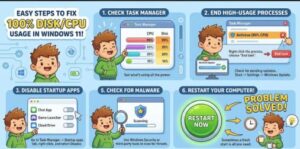
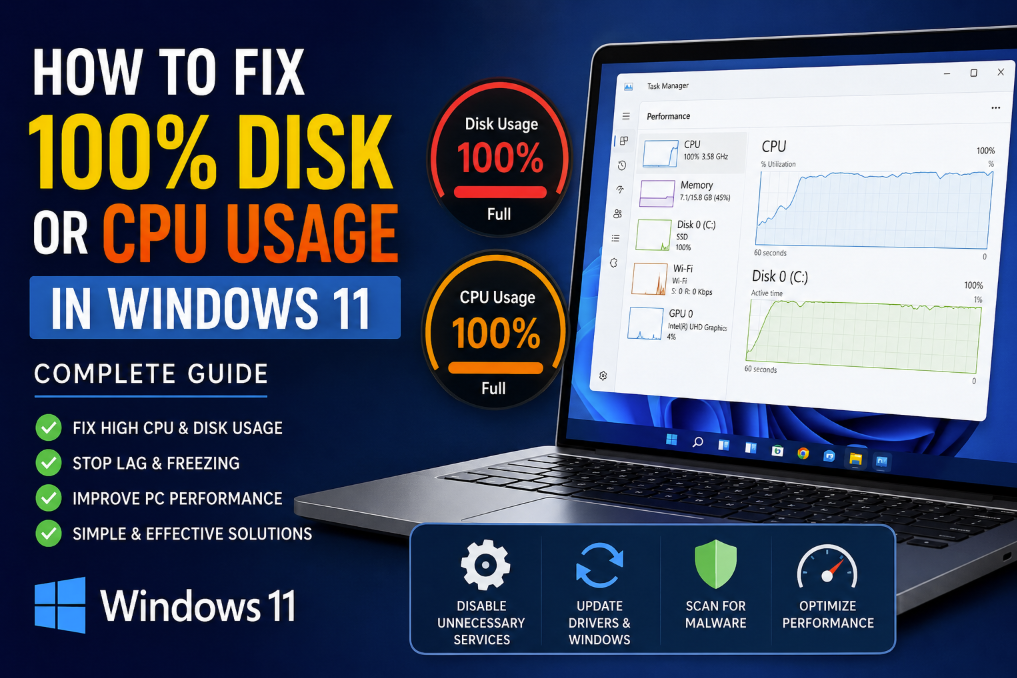
If your Windows 11 PC suddenly becomes slow, freezes randomly, or takes forever to open apps, there’s a good chance your system is suffering from 100% disk usage or high CPU usage. This is one of the most common Windows 11 performance problems, and it can make even a powerful computer feel unusable.
The good news is that you usually don’t need to replace your hardware. In many cases, the issue can be fixed with a few simple adjustments in Windows settings, startup programs, drivers, or background services.
In this guide, you’ll learn what causes high disk and CPU usage in Windows 11 and the best proven methods to fix it permanently.
What Does 100% Disk or CPU Usage Mean?
Before jumping into the fixes, it helps to understand the problem.
100% Disk Usage
This happens when your hard drive or SSD is constantly busy reading or writing data. Even if no apps are open, background processes may overload the disk, causing lag and freezing.
High CPU Usage
The CPU (processor) handles all system tasks. If usage stays near 100% for long periods, your computer struggles to process tasks efficiently.
Common symptoms include:
- Slow boot times
- System freezing
- Loud fan noise
- Programs not responding
- Mouse lag
- Stuttering audio or video
You can check usage levels by opening Task Manager using:
Ctrl + Shift + Esc
Then click the Processes tab.
Common Causes of High Disk or CPU Usage in Windows 11
Several things can trigger the problem:
- Too many startup applications
- Windows Search indexing
- SysMain (Superfetch) service
- Malware or viruses
- Corrupted system files
- Outdated drivers
- Windows updates running in the background
- Insufficient RAM
- Browser tabs consuming resources
- Antivirus scans
Identifying the cause is the first step toward fixing it.
1. Restart Your Computer
It may sound basic, but restarting Windows can clear temporary processes and memory issues.
Many users leave their PCs running for days or weeks, allowing background tasks to pile up.
To Restart:
- Click the Start Menu
- Select Power
- Click Restart
After rebooting, check Task Manager again.
2. Disable Startup Programs
Too many apps launching during startup can heavily impact CPU and disk performance.
How to Disable Startup Apps:
- Open Task Manager
- Go to the Startup Apps tab
- Disable unnecessary applications
Apps like Discord, Spotify, Adobe services, and gaming launchers often consume resources in the background.
Only keep essential security or driver-related apps enabled.
3. Turn Off SysMain Service
The SysMain service (formerly called Superfetch) tries to preload apps into memory for faster performance. However, on some systems, it causes excessive disk usage.
Disable SysMain:
- Press Windows + R
- Type:
services.msc - Find SysMain
- Double-click it
- Set Startup Type to Disabled
- Click Stop
- Press Apply
Restart your PC afterward.
Many users notice immediate improvements after disabling this service.
4. Disable Windows Search Indexing
Windows Search indexing can constantly scan files and folders, leading to high disk usage.
To Disable Windows Search:
- Press Windows + R
- Type:
services.msc - Locate Windows Search
- Double-click it
- Click Stop
- Change Startup Type to Disabled
This may slightly slow file searching, but it often resolves constant disk activity.
5. Scan for Malware and Viruses
Malware is a major cause of abnormal CPU usage.
Cryptominers, spyware, and malicious background scripts can silently consume resources.
Run a Windows Security Scan:
- Open Settings
- Go to Privacy & Security
- Click Windows Security
- Open Virus & Threat Protection
- Select Quick Scan
For deeper scanning, use the Full Scan option.
6. Update Windows 11
Microsoft regularly releases performance patches and bug fixes.
An outdated system may contain glitches causing resource spikes.
Update Windows:
- Open Settings
- Navigate to Windows Update
- Click Check for Updates
Install all pending updates and restart your PC.
7. Update Device Drivers
Faulty or outdated drivers can create abnormal CPU or disk behavior.
This commonly affects:
- Storage drivers
- GPU drivers
- Audio drivers
- Network adapters
Update Drivers:
- Right-click the Start Menu
- Open Device Manager
- Expand categories
- Right-click a device
- Select Update Driver
Graphics drivers from NVIDIA, AMD, or Intel should ideally be updated directly from their official websites.
8. Check for Background Apps
Some applications continue running even when closed.
Browsers with many tabs, cloud syncing apps, and RGB software are common offenders.
Reduce Background Activity:
- Close unused browser tabs
- Exit unnecessary software
- Pause OneDrive or Dropbox syncing
- Disable overlays from gaming apps
Task Manager can help identify which apps consume the most resources.
9. Run System File Checker (SFC)
Corrupted Windows files can trigger performance issues.
Run SFC Scan:
- Open Command Prompt as Administrator
- Enter:
sfc /scannow - Press Enter
The scan may take several minutes.
If corruption is found, Windows will automatically repair system files.
10. Use DISM Command
If SFC doesn’t solve the problem, use DISM.
Run DISM:
Open Command Prompt as Administrator and type:
DISM /Online /Cleanup-Image /RestoreHealthRestart your PC after completion.
11. Upgrade from HDD to SSD
If you still use a traditional hard drive (HDD), upgrading to an SSD can dramatically improve performance.
Windows 11 performs much better on SSD storage because:
- Faster boot times
- Reduced disk usage
- Quicker app loading
- Better multitasking
This is one of the best long-term solutions.
12. Increase Virtual Memory
Low RAM can force Windows to overuse the disk through paging.
Increase Virtual Memory:
- Search Advanced System Settings
- Open Performance Settings
- Go to the Advanced tab
- Click Virtual Memory
- Increase paging file size
This helps systems with limited memory handle multitasking better.
13. Perform a Clean Boot
A clean boot helps identify software conflicts.
Steps:
- Press Windows + R
- Type:
msconfig - Open the Services tab
- Check:
Hide all Microsoft services - Disable remaining services
- Restart your PC
If performance improves, one of the disabled programs is likely causing the issue.
14. Reset Windows 11
If nothing works, resetting Windows may solve deeply rooted system corruption.
Reset Windows:
- Open Settings
- Go to System > Recovery
- Select Reset This PC
Choose:
- Keep my files
or - Remove everything
Back up important data first.
Tips to Prevent High CPU and Disk Usage
To keep your system running smoothly:
- Keep Windows updated
- Avoid installing unnecessary software
- Limit startup programs
- Use trusted antivirus software
- Clean temporary files regularly
- Upgrade RAM if multitasking heavily
- Use SSD storage instead of HDD
Regular maintenance can prevent future slowdowns.
High CPU or 100% disk usage in Windows 11 can be frustrating, but it’s usually fixable without replacing your computer. Most issues are caused by overloaded startup apps, background services, outdated drivers, or corrupted files.
By following the steps in this guide, you can significantly improve your PC’s speed and stability.
Start with the simpler fixes like disabling startup apps and updating Windows before moving to advanced solutions such as SFC scans or resetting the system.
A properly optimized Windows 11 PC should run smoothly, respond quickly, and stay efficient even during multitasking.
Extra posts:
 Free Up Disk Space with Storage Sense & Disk Cleanup in Windows 11 A Complete Guide
  How to Fix Windows 11 Not Responding
  Disk Cleanup vs Storage Sense – Which Should You Use in Windows 11?
  Storage Sense and Disk Cleanup Tips in Windows 11
  How to Fix Windows 11 Problems Without Calling IT
  Why Is My Windows 11 Sandbox Not Working? 10 Ways to Fix It