In today’s workplace, a computer is no longer just a machine used to write documents or browse the internet. Modern businesses need devices that are secure, connected to the cloud, easy to manage remotely, and powerful enough to support hybrid work. That is where the concept of a “Microsoft 365 PC” comes in.
A Microsoft 365 PC is not a completely different type of computer. Instead, it refers to a Windows PC that is fully integrated with the Microsoft 365 ecosystem — including Windows 11, Microsoft Office apps, Teams, OneDrive, security tools, cloud management, and remote administration.
For businesses, this creates a smarter and more secure work environment. For employees, it means a smoother experience whether they are working from the office, home, or while traveling.
In this blog, we will explore:
- What a Microsoft 365 PC is
- Key benefits for businesses and users
- How IT administrators configure and manage it
- Microsoft 365 PC plans and pricing
- Why companies are moving toward this model
What Is a Microsoft 365 PC?
A Microsoft 365 PC is essentially a Windows device connected to Microsoft’s cloud-based productivity and security platform.
Instead of operating as a standalone computer, the PC becomes part of a centralized environment where:
- Files are stored in the cloud
- Applications are managed remotely
- Security policies are enforced automatically
- User accounts are synchronized
- Updates are deployed centrally
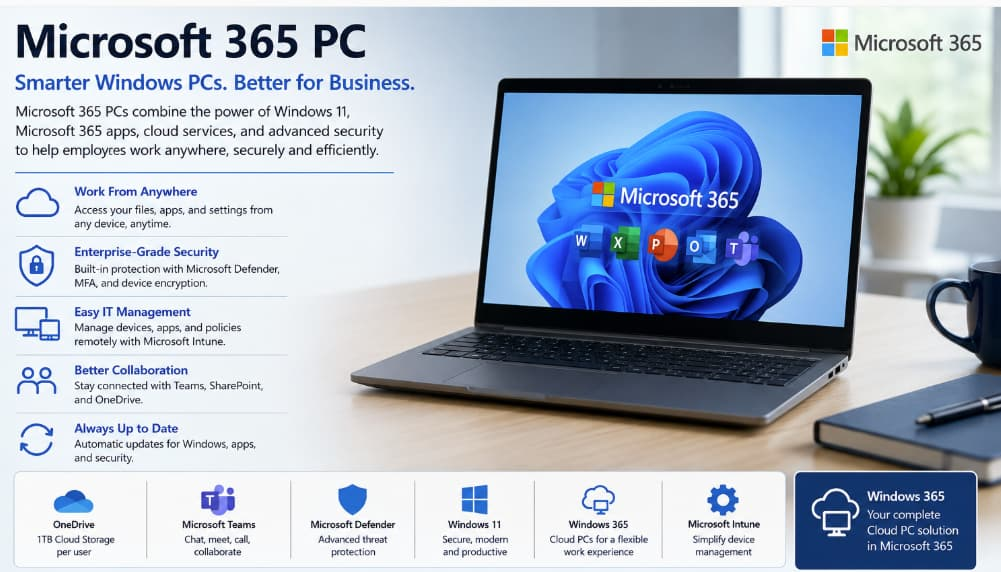
Most Microsoft 365 PCs run:
- Windows 11 Pro or Enterprise
- Microsoft 365 Apps for Enterprise
- Microsoft Teams
- OneDrive
- Microsoft Defender
- Intune device management
This setup creates a consistent experience across all company devices.
Why Businesses Prefer Microsoft 365 PCs
1. Work From Anywhere
One of the biggest reasons companies adopt Microsoft 365 PCs is flexibility.
Employees can:
- Access files from any location
- Join Teams meetings instantly
- Continue work across multiple devices
- Collaborate in real time
With OneDrive and SharePoint integration, documents automatically sync between devices. This means users rarely worry about losing files or carrying USB drives.
A salesperson can start a presentation on an office desktop, continue editing on a laptop at home, and review it later from a mobile device.
That level of flexibility has become essential in modern workplaces.
2. Built-In Security
Cybersecurity threats continue to increase every year. A traditional PC setup often relies on separate tools for antivirus, device management, and user authentication.
Microsoft 365 PCs combine these capabilities into one platform.
Security features commonly include:
- Multi-factor authentication (MFA)
- Device encryption with BitLocker
- Microsoft Defender Antivirus
- Endpoint detection and response
- Conditional access policies
- Cloud-based threat monitoring
This layered security approach helps businesses reduce risks such as:
- Ransomware attacks
- Phishing emails
- Unauthorized access
- Data leaks
For IT teams, centralized security management is much easier than managing multiple third-party solutions separately.
Easier Device Management for IT Teams
Traditional PC management required administrators to manually configure devices one by one.
Microsoft 365 PCs simplify this process through cloud management tools like Microsoft Intune.
Using Intune, administrators can:
- Deploy applications remotely
- Configure security settings
- Push Windows updates
- Enforce password policies
- Lock or wipe lost devices
- Monitor compliance
This becomes especially useful for companies with remote employees or multiple office locations.
Instead of shipping a laptop to the IT department for setup, a user can receive a new device, sign in with their company account, and automatically receive all company settings and applications.
This process is known as Windows Autopilot.
Productivity Benefits
Microsoft Teams Integration
Microsoft Teams is deeply integrated into Microsoft 365 PCs.
Employees can:
- Chat instantly
- Join video meetings
- Share files
- Collaborate on documents
- Communicate across departments
Because Teams works directly with Outlook, SharePoint, and Office apps, collaboration becomes much smoother.
Cloud File Storage
OneDrive gives users cloud-based file storage.
Benefits include:
- Automatic backup
- Version history
- Easy file sharing
- Recovery from accidental deletion
- Access from anywhere
Most Microsoft 365 business plans include at least 1 TB of cloud storage per user.
Automatic Updates
One of the most frustrating aspects of older Windows environments was dealing with outdated systems.
Microsoft 365 PCs receive:
- Security patches
- Office updates
- Feature improvements
- Windows enhancements
Updates can also be controlled by IT administrators to minimize disruptions.
This ensures devices stay secure and modern without requiring constant manual maintenance.
How Administrators Configure Microsoft 365 PCs
Now let’s look at the administrative side.
Step 1: Create a Microsoft 365 Environment
The first step is setting up a Microsoft 365 tenant through the admin portal.
Administrators manage:
- User accounts
- Licenses
- Devices
- Applications
- Security policies
The central management portal is available here:
Step 2: Configure User Accounts
Admins can:
- Create users manually
- Sync users from Active Directory
- Assign licenses
- Enable MFA
Best practices include:
- Using role-based access control
- Limiting global administrator accounts
- Enforcing strong authentication policies
Step 3: Enroll Devices Into Intune
Microsoft Intune is the core device management platform for Microsoft 365 PCs.
IT teams use Intune to:
- Register Windows devices
- Apply compliance policies
- Configure Wi-Fi profiles
- Deploy business applications
- Monitor device health
The Intune management portal is available here:
Step 4: Configure Security Policies
Security policies are critical for protecting business data.
Popular configurations include:
Conditional Access
Conditional access allows admins to:
- Block risky sign-ins
- Require MFA
- Restrict access by country or location
- Require compliant devices
BitLocker Encryption
BitLocker protects sensitive company data by encrypting the device storage.
If a laptop is stolen, the data remains protected.
Microsoft Defender
Defender provides:
- Antivirus protection
- Threat monitoring
- Endpoint security
- Attack detection
Enterprise plans include advanced Defender capabilities for larger organizations.
Microsoft 365 PC Plans and Pricing
Microsoft offers several plans suitable for Microsoft 365 PCs.
Microsoft 365 Business Premium
This plan is popular for small and medium-sized businesses.
It includes:
- Office desktop apps
- Teams
- OneDrive
- Intune
- Basic security tools
- Windows business management features
Business Premium is ideal for companies with up to 300 users.
Microsoft 365 E3
E3 is designed for larger organizations.
Features include:
- Windows 11 Enterprise
- Advanced compliance
- Enhanced device management
- Enterprise security features
This plan is commonly used by mid-sized and enterprise businesses.
Microsoft 365 E5
E5 is Microsoft’s premium enterprise offering.
Additional features include:
- Advanced cybersecurity tools
- Microsoft Defender suite
- Extended threat detection
- Advanced compliance
- Analytics and reporting
E5 is often chosen by organizations with strict compliance or security requirements.
Which Microsoft 365 PC Plan Should You Choose?
Small Businesses
For startups and small companies, Business Premium is usually the best option because it balances affordability and functionality.
Growing Companies
Organizations scaling beyond 300 users often move to E3 for better enterprise management.
Security-Focused Enterprises
Companies in industries like healthcare, banking, or government may prefer E5 because of its advanced security and compliance capabilities.
Best Practices for Managing Microsoft 365 PCs
Enable MFA for All Users
Multi-factor authentication dramatically reduces the risk of account compromise.
Standardize Device Policies
Using consistent security and update policies simplifies administration and improves security.
Monitor Device Compliance
Administrators should regularly review:
- Security alerts
- Device health
- User sign-ins
- Threat reports
Use Windows Autopilot
Autopilot reduces deployment time and improves consistency across devices.
The Microsoft 365 PC model represents the future of business computing.
Instead of isolated desktop computers managed manually, businesses now use cloud-connected Windows devices that are:
- Easier to manage
- More secure
- Better for collaboration
- Ready for remote work
- Automatically updated
For employees, the experience is smoother and more flexible.
For IT administrators, centralized management dramatically reduces workload.
For businesses, Microsoft 365 PCs provide a modern foundation for productivity, security, and growth.
As remote and hybrid work continue to evolve, Microsoft 365 PCs are becoming the standard choice for organizations that want secure, scalable, and cloud-powered Windows environments.