Few Windows problems are as frustrating as clicking File Explorer and getting nothing but a frozen window. You may see the familiar “Not Responding” message, the folders may stop loading, or File Explorer may open and then become completely unresponsive. Sometimes the desktop and other Windows features continue working normally, which makes the problem even more confusing.
The good news is that Windows 11 File Explorer not responding is usually caused by a software issue rather than a serious hardware failure. Common causes include temporary system glitches, corrupted system files, problematic startup applications, outdated Windows components, overloaded File Explorer history, or issues with connected drives.
In this guide, we’ll go through practical solutions from the quickest fixes to more advanced troubleshooting steps. You do not need to try everything at once. Start with the first method and move down the list if File Explorer continues to freeze.
Why Is File Explorer Not Responding in Windows 11?
Before fixing the problem, it helps to understand what might be causing it.
File Explorer is responsible for much more than opening folders. It manages access to your files, drives, desktop folders, network locations, and many parts of the Windows interface. Because it is deeply integrated into Windows, a relatively small problem can make it appear frozen.
Some common causes include:
- A temporary File Explorer process glitch
- Too many files or folders being loaded at once
- Corrupted system files
- A problematic Quick Access or Recent Files entry
- Outdated Windows updates
- Third-party software or shell extensions
- Problems with external USB drives
- Insufficient available system resources
- Damaged Windows user profile settings
- Issues with hard drives or other storage devices
Now let’s look at how to fix the problem.
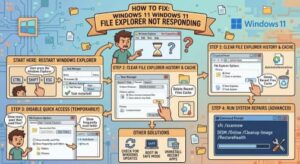
1. Restart Windows File Explorer
The easiest solution is often to restart the File Explorer process. This can clear a temporary glitch without requiring you to restart the entire computer.
Press Ctrl + Shift + Esc to open Task Manager. If Task Manager opens in its simplified view, select More details.
Find Windows Explorer in the list of processes. Right-click it and select Restart.
Your taskbar and desktop may briefly disappear and then return. This is normal.
Once Windows Explorer restarts, try opening File Explorer again. If it works normally, the problem was likely a temporary process issue.
2. Restart Your Computer
It sounds simple, but restarting Windows can solve problems that a File Explorer restart cannot.
A computer that has been running for a long time can accumulate background processes, temporary files, and memory usage that may interfere with normal Windows operations.
Select Start > Power > Restart and allow Windows 11 to reboot completely.
After restarting, open File Explorer and check whether the problem has disappeared.
If File Explorer becomes unresponsive immediately after every restart, however, you may need to look at the more specific solutions below.
3. Check Your External Drives
Sometimes File Explorer itself is not the real problem. A connected device may be causing it to hang while Windows tries to read its contents.
Think about what is connected to your computer. This could include:
- USB flash drives
- External hard drives
- SD card readers
- Smartphones
- Cameras
- Network drives
Safely disconnect unnecessary external devices and then restart File Explorer.
If File Explorer suddenly works normally, reconnect the devices one at a time. This can help you identify which device is causing the issue.
If one particular drive consistently makes File Explorer freeze, check that drive for errors and make sure important files are backed up.
4. Clear File Explorer History
File Explorer keeps information about recently accessed locations. In some situations, corrupted or problematic history data can contribute to slow loading or freezing.
To clear File Explorer history, open File Explorer Options. You can search for “File Explorer Options” from the Windows search box.
Under the General tab, look for the Privacy section. Click Clear to remove File Explorer history.
You can also change the File Explorer opening location from Home to This PC and see whether that improves performance.
After applying the changes, close File Explorer and open it again.
5. Turn Off Unnecessary Startup Applications
Third-party applications can sometimes interfere with File Explorer. Programs that add options to the right-click menu or integrate themselves into File Explorer are particularly worth investigating.
Open Task Manager by pressing Ctrl + Shift + Esc and select the Startup apps section.
Look through the list and identify applications you do not need to start automatically. Disable unnecessary startup programs, then restart Windows.
Be careful not to disable Windows system components or software you rely on for essential hardware functions.
If File Explorer starts working correctly after disabling a particular application, that application may be contributing to the problem.
6. Run the System File Checker
If Windows system files have become corrupted, File Explorer can behave unpredictably.
Windows includes a built-in tool called System File Checker, commonly known as SFC, that can scan protected system files and attempt to repair corrupted ones.
Open Windows Terminal or Command Prompt as an administrator. Then run:
sfc /scannowAllow the scan to complete. Depending on your system, it may take some time.
When the process finishes, restart your computer and test File Explorer again.
If SFC reports that it found and repaired corrupted files, there is a good chance those files were contributing to the problem.
7. Use DISM to Repair the Windows Image
If SFC cannot fix the issue, the Windows deployment image itself may need repair.
Open Windows Terminal as an administrator and run:
DISM /Online /Cleanup-Image /RestoreHealthWait for the operation to finish. Do not close the Terminal window while the process is running.
Afterward, run:
sfc /scannowRestart your computer when both operations are complete.
Using DISM followed by SFC can be particularly helpful when Windows components are damaged or corrupted.
8. Install Windows 11 Updates
Microsoft regularly releases Windows updates containing bug fixes, security improvements, and reliability updates. If your computer is running an older Windows 11 build, updating it may resolve File Explorer problems.
Go to:
Settings > Windows Update
Select Check for updates.
Install available updates and restart your computer if Windows asks you to do so.
If the File Explorer issue began immediately after a recent update, the situation can be different. In that case, check Microsoft’s current support information and known-issue reports before making major changes to your installation.
9. Check Your Storage Drive
A failing or heavily overloaded storage drive can cause File Explorer to become extremely slow or appear frozen.
Check how much free space is available on your Windows drive. If the drive is nearly full, remove unnecessary files or use Windows’ built-in storage management features to free up space.
You should also pay attention to other warning signs, such as:
- Files taking unusually long to open
- Frequent application crashes
- Strange noises from an older mechanical hard drive
- Unexpected file corruption
- Windows taking much longer than usual to start
If you notice several of these symptoms, back up important files before performing more troubleshooting.
10. Try a Clean Boot
If File Explorer works normally when third-party programs are not running, a clean boot can help identify a software conflict.
A clean boot starts Windows with a limited set of drivers and startup programs. This allows you to determine whether background software is interfering with Windows.
This method is more advanced, so make changes carefully and document what you disable. Once you identify the problematic application or service, you can re-enable the other startup items.
Clean boot troubleshooting is especially useful when the problem began after installing new software.
11. Create a New Windows User Account
Sometimes the problem is limited to a particular Windows user profile rather than the entire operating system.
Creating a temporary local user account can help you test this.
Go to Settings > Accounts > Other users and add another user. Sign into that account and try opening File Explorer.
If File Explorer works perfectly in the new account, your original Windows profile may contain corrupted settings or configuration data.
You should not immediately delete your old profile. First, back up your files and determine which settings or applications are causing the problem.
12. Reset or Repair Windows as a Last Resort
If none of the previous solutions work and File Explorer continues to freeze, Windows itself may have a deeper problem.
Before considering a reset or reinstall, make sure your important files are backed up. You should also make a list of applications you need to reinstall.
Windows 11 includes recovery options under:
Settings > System > Recovery
Depending on your situation, you may have options to repair or reset the system while keeping personal files.
A reset should generally be treated as a last resort rather than the first solution. Most File Explorer problems can be resolved without reinstalling Windows.

When Windows 11 File Explorer is not responding, the problem can feel much worse than it actually is. In many cases, restarting Windows Explorer, rebooting the PC, clearing File Explorer history, or disconnecting a problematic external drive is enough to get everything working again.
If those quick solutions do not help, move on to system-level troubleshooting. Running SFC and DISM, installing Windows updates, checking your storage drive, and investigating third-party applications can help identify deeper causes.
The important thing is to work through the solutions methodically. Do not make several major changes at once because that can make it difficult to determine which solution actually fixed the problem.
If File Explorer freezes frequently even after these steps, pay attention to other symptoms such as storage errors, application crashes, or Windows instability. Those signs may indicate that the issue goes beyond File Explorer itself.
With a little troubleshooting, you can usually restore File Explorer and get back to managing your files without the frustrating “Not Responding” message.