
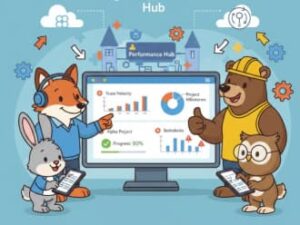
In today’s fast-paced business environment, tracking performance accurately is critical for project success, team accountability, and informed decision-making. Organizations need more than spreadsheets and email updates to monitor progress effectively. This is where Microsoft SharePoint stands out as a powerful performance tracking solution.
While SharePoint is often known as a document management platform, it offers much more. With the right configuration, SharePoint becomes a centralized hub for tracking tasks, monitoring key performance indicators (KPIs), and enabling real-time collaboration across teams. Whether you’re managing projects, departments, or enterprise-level initiatives, SharePoint provides the flexibility and scalability needed to track performance efficiently.
Key Benefits of Using SharePoint for Performance Tracking
Centralized Data Management
SharePoint allows organizations to store all project-related data—tasks, documents, timelines, and reports—in one secure location. This eliminates information silos and ensures stakeholders always access the latest updates.
Customizable Dashboards
Using web parts, lists, and integrations, SharePoint dashboards can be tailored to display KPIs, milestones, deadlines, and performance summaries in a visual and easy-to-understand format.
Real-Time Collaboration
Team members can update task progress, share feedback, and collaborate on documents simultaneously. Changes are reflected instantly, making performance tracking more accurate and transparent.
Power BI Integration
SharePoint integrates seamlessly with Power BI, enabling advanced data visualization, trend analysis, and interactive reporting for deeper performance insights.
Automation and Alerts
With Power Automate, routine performance updates, reminders, and reports can be automated, reducing manual effort and ensuring consistency.
Key SharePoint Features for Performance Tracking
1. Task Lists
SharePoint Task Lists are the foundation of performance tracking.
- Create tasks for individuals or teams
- Assign owners, priorities, due dates, and statuses
- Track progress in real time
- Use conditional formatting to highlight overdue or completed tasks
These lists provide instant visibility into who is responsible for what and how work is progressing.
2. Calendars
Calendars help track project schedules and important milestones.
- Monitor deadlines and deliverables
- Overlay multiple calendars (team schedules, project timelines, events)
- Get a holistic view of time-based performance
3. Project Sites
Dedicated SharePoint project sites centralize everything related to a project.
- Store files, announcements, and updates
- Add web parts like task lists, timelines, Gantt charts, and dashboards
- Provide stakeholders with a single source of truth
4. Document Libraries
Document libraries ensure controlled access and version management.
- Store and organize performance-related documents
- Use metadata for quick filtering and search
- Track version history to maintain accountability
5. Performance Dashboards
Dashboards visually represent performance metrics.
- Display KPIs, charts, and progress indicators
- Embed Excel or Power BI reports
- Provide leadership with real-time insights
6. Power Automate Integration
Automation improves efficiency and accuracy.
- Send deadline reminders automatically
- Generate weekly or monthly performance reports
- Trigger workflows based on task updates
7. Reporting and Analytics
SharePoint Lists can act as a data source for advanced analytics.
- Create dynamic Power BI reports
- Visualize trends, bottlenecks, and productivity levels
- Support data-driven decision-making
Step-by-Step Guide: Using SharePoint for Performance Tracking
Step 1: Set Up a SharePoint Project Site
Start by creating a project-specific SharePoint site.
- Go to SharePoint Home
- Select Create site
- Choose Team Site or Communication Site
- Name the site and define permissions
- Add relevant web parts such as task lists, document libraries, and dashboards
Customize the homepage to highlight key performance metrics.
Step 2: Create and Configure Task Lists
Task lists are essential for tracking progress.
- Navigate to your site
- Click New > List
- Name the list (e.g., “Project Performance Tasks”)
- Add columns such as:
- Task Owner
- Priority
- Start Date
- Due Date
- Status
- Percentage Complete
Encourage team members to update task statuses regularly.

Step 3: Configure Alerts and Notifications
Notifications keep everyone informed.
- Enable SharePoint alerts for task updates
- Use Power Automate to:
- Send reminders for approaching deadlines
- Notify managers of overdue tasks
- Share weekly progress summaries
Step 4: Integrate Power BI for Advanced Reporting
For deeper performance analysis:
- Connect SharePoint Lists to Power BI
- Create reports showing:
- Task completion rates
- Milestone tracking
- Resource utilization
- Budget vs. actual performance
- Publish reports
- Embed dashboards directly into SharePoint pages
This provides a unified and interactive reporting experience.
Step 5: Track KPIs Using SharePoint Lists
Use built-in list views and formatting:
- Apply conditional formatting to flag risks
- Group tasks by owner or phase
- Filter views to focus on specific performance metrics
This helps managers quickly identify issues and take corrective action.
Step 6: Integrate SharePoint with Microsoft Teams
For enhanced collaboration:
- Connect your SharePoint project site to Microsoft Teams
- Access files, tasks, and dashboards directly within Teams
- Share performance updates during meetings
This integration ensures performance tracking is part of daily workflows.
Best Practices for Effective Performance Tracking in SharePoint
Define Clear KPIs
Identify measurable metrics such as task completion rate, cycle time, budget utilization, or delivery accuracy.
Maintain Data Accuracy
Ensure team members consistently update tasks and documents to avoid outdated reports.
Leverage Automation
Automate repetitive tasks like reporting and reminders to save time and reduce errors.
Encourage Team Participation
Make performance tracking a shared responsibility to improve accountability.
Review Performance Regularly
Schedule weekly or monthly reviews to analyze reports, identify bottlenecks, and improve outcomes.
SharePoint is a versatile and powerful platform for performance tracking when configured correctly. By combining task lists, dashboards, automation, and analytics, organizations can gain real-time visibility into performance and drive continuous improvement. Whether used for small teams or enterprise-wide initiatives, SharePoint enables smarter, data-driven performance management.
Extra posts:
 Leveraging CQRS in Azure Separating Read and Write Operations for Performance and Scalability
  Leveraging Microsoft Copilot to Analyze IT Project Delivery vs. Milestones and Plan Due Dates
  Performance Optimization Tips for Large SharePoint Sites
  SharePoint Framework (SPFx) The Modern Development Model for SharePoint
  Microsoft SharePoint Migration Tool now supports SharePoint Server 2010 available
  How to Enhance Prompts in Copilot A Guide for Project Managers