
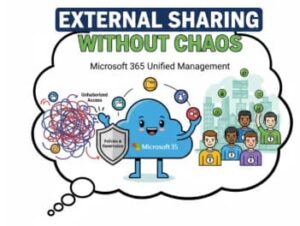
External collaboration is no longer optional. Vendors, partners, clients, and contractors all need access to files, Teams, and sometimes even entire SharePoint sites. Microsoft 365 makes this easy—but too easy if it’s not governed properly.
Unchecked external sharing can quickly turn into chaos: sensitive documents shared with the wrong people, anonymous links floating around forever, and zero visibility into who has access to what. The good news is that Microsoft 365 provides powerful controls to balance collaboration without compromising security.
This article walks through how to manage external sharing in Microsoft 365 effectively, with clear technical steps, best practices, and real-world governance tips.
Understanding External Sharing in Microsoft 365
External sharing in Microsoft 365 allows users outside your organization to access content hosted in:
- SharePoint Online
- OneDrive for Business
- Microsoft Teams
- Microsoft 365 Groups
External users are typically authenticated using:
- Microsoft accounts (Outlook, Hotmail)
- Azure AD guest accounts
- One-time passcodes (email verification)
- Anonymous sharing links (highest risk)
Each of these comes with different security implications, which is why centralized control is essential.
Common Risks of Poor External Sharing Management
Before diving into solutions, it’s important to understand the risks:
- Data leakage through anonymous links
- Over-sharing by well-meaning employees
- Guest sprawl (thousands of inactive external users)
- Compliance violations (GDPR, ISO, HIPAA)
- Lack of auditing and visibility
Most chaos doesn’t come from attackers—it comes from misconfiguration and lack of governance.
Step 1: Control External Sharing at the Tenant Level
The first and most important step is defining how much sharing is allowed globally.
Configure SharePoint & OneDrive Sharing Settings
- Go to Microsoft 365 Admin Center
- Navigate to Settings → Org settings
- Select SharePoint
- Under Sharing, configure:
- SharePoint sharing level
- OneDrive sharing level

Recommended setting for most organizations:
- SharePoint: New and existing guests
- OneDrive: New and existing guests

Avoid enabling “Anyone” links unless absolutely necessary.

Step 2: Limit Anonymous Access and Expiration
Anonymous sharing links are convenient—but dangerous.
Disable or Restrict “Anyone” Links
- In SharePoint Admin Center
- Go to Policies → Sharing
- Set “Anyone” link access to:
- Disabled, or
- Expire in 7–30 days
Set Link Expiration Automatically
- Enable “Default expiration time for anyone links”
- Set expiration to 14 days or less
This ensures forgotten links don’t live forever.
Step 3: Control External Sharing at Site Level
Not all SharePoint sites should allow the same level of sharing.
Adjust Site-Specific Sharing
- Go to SharePoint Admin Center
- Select Active sites
- Choose a site → Sharing
- Set a lower sharing level than tenant default if needed
Example:
- Finance or HR sites → Only internal users
- Project collaboration sites → New and existing guests
This layered approach prevents sensitive areas from being exposed accidentally.
Step 4: Secure External Access in Microsoft Teams
Microsoft Teams relies on SharePoint and Azure AD, but has its own controls.
Configure Guest Access in Teams
- Open Teams Admin Center
- Go to Users → Guest access
- Enable guest access selectively
- Restrict capabilities like:
- Screen sharing
- Channel creation
- File editing (if required)
Control External Access (Federation)
Navigate to:
Users → External access
- Allow or block specific domains
- Disable open federation if not needed
Step 5: Use Azure AD for Guest User Governance
Azure Active Directory (Entra ID) is the backbone of external identity management.
Review Guest User Settings
- Go to Azure AD → External identities
- Configure:
- Guest invite restrictions
- Who can invite guests
- Collaboration restrictions by domain
Enable Access Reviews
Access Reviews help prevent guest sprawl.
- Go to Azure AD → Identity Governance
- Create an Access Review
- Target:
- Guest users
- Microsoft 365 Groups
- Schedule recurring reviews (quarterly)
Inactive guests are automatically removed if not approved.
Step 6: Apply Conditional Access for External Users
Conditional Access adds another layer of protection.
Recommended Conditional Access Policies
- Require MFA for guest users
- Block access from high-risk countries
- Require compliant or trusted devices (if applicable)
This ensures that even if content is shared, access remains secure.
Step 7: Educate Users and Set Clear Sharing Guidelines
Technology alone can’t prevent chaos.
Create simple rules such as:
- When to use guest access vs. links
- What data should never be shared externally
- How to remove access when collaboration ends
Short internal training sessions and quick reference guides go a long way.
Step 8: Monitor and Audit External Sharing Activity
Visibility is critical.
Use Microsoft 365 Audit Logs
- Go to Microsoft Purview → Audit
- Search for:
- File sharing events
- Guest user activity
- Link creation
Use SharePoint Reports
- External sharing reports
- Guest access reports
- Site activity insights
These tools help detect unusual or risky behavior early.
Best Practices Summary
To manage external sharing without chaos:
- Start with tenant-level restrictions
- Avoid anonymous sharing whenever possible
- Apply site-level controls
- Govern guest users with Azure AD
- Enforce MFA and Conditional Access
- Conduct regular access reviews
- Train users continuously
- Monitor and audit consistently
When done right, external sharing becomes an enabler of productivity, not a security liability.
Microsoft 365 offers powerful collaboration capabilities, but without proper governance, external sharing can spiral out of control. By combining technical controls, identity governance, and user education, organizations can collaborate confidently—without chaos.
External sharing doesn’t have to be scary. It just needs structure.
Extra posts:
 Managing Microsoft 365 on the Go The Power of the Microsoft 365 Admin Mobile App Managing Roles Across the Microsoft 365 Ecosystem
  The Small Business Guide to Managing Customers with Microsoft 365
  Managing Data Retention Policies Without Overcomplicating Things in Microsoft 365 Managing Roles Across the Microsoft 365 Ecosystem Admin Center vs Entra ID vs Defender vs Purview
  From Chaos to Clarity Governance Tips for Organizations Rolling Out Microsoft 365 Copilot