
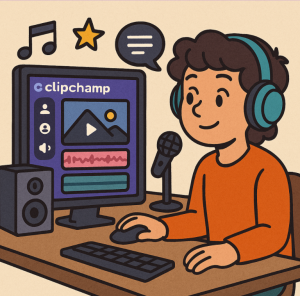
Sound On! – Adding Music, Voiceovers, and Audio Effects
Even a visually stunning video can fail without good audio. Clipchamp makes adding music, sound effects, and voiceovers easy.
Step 1: Add Background Music
- Go to Audio → Stock audio → search free tracks
- Drag to timeline below your video
- Tip: Use music to set mood (calm, upbeat, dramatic)
Step 2: Add Sound Effects
- Search effects → e.g., swoosh, applause, ding
- Place at specific moments for emphasis
Step 3: Record Voiceover
- Click Record & create → Voiceover
- Ensure microphone is properly set up
- Tip: Keep script ready for smooth narration
Step 4: Adjust Volume & Fade
- Click audio clip → adjust volume slider
- Add fade in/out for smooth transitions
Step 5: Sync Audio to Video
- Align sound effects with actions on screen
- Example: Ding sound when text pops up
Audio elevates your video’s engagement. Proper background music, synced effects, and a clear voiceover make your videos feel professional.
Extra posts:
 Mastering Clipchamp – From Beginner to Pro 2
  Mastering Clipchamp – From Beginner to Pro 4
  Mastering Clipchamp – From Beginner to Pro 1
  How to Use Clipchamp A Beginner’s Guide
  How to Record Audio and Screen Together in Windows 11: A Complete Beginner-to-Pro Guide
  Unlocking Creativity AI and Clipchamp – Use Cases & Step-by-Step Guide