

Microsoft is reimagining how users interact with their daily productivity tools. With the introduction of Microsoft 365 Companion Apps for Windows 11, the company aims to make everyday tasks—like checking your calendar, finding a file, or contacting a colleague—faster and more seamless than ever before.
These new lightweight apps bring the power of Microsoft 365 right to your desktop, no matter what you’re doing.
What Are Microsoft 365 Companion Apps?
The Microsoft 365 Companion Apps are a set of three mini-applications—People, File Search, and Calendar—that integrate directly into Windows 11. Rather than opening Outlook, Teams, or File Explorer, users can perform common tasks instantly from the taskbar.
Each companion app connects securely to Microsoft 365 services through Microsoft Graph, ensuring the experience is fast, consistent, and personalized across your organization.
Here’s a quick look at each app:
| App | Purpose | Key Features |
|---|---|---|
| People | Instantly find and connect with colleagues | Search by name, title, or department; view org charts; start emails or Teams chats |
| File Search | Quickly locate files across Microsoft 365 and your PC | Search OneDrive, SharePoint, or Downloads; preview files; filter by person, file type, or activity |
| Calendar | See what’s next at a glance | View your daily schedule; search for meetings; join Teams calls; edit or share calendar events |
The idea is simple: cut down on context switching—the productivity killer that happens when you jump between multiple apps just to complete a single task.
Why Microsoft Is Introducing Companion Apps
Over the past few years, Microsoft has been integrating AI and productivity features more deeply into Windows. The Copilot key, the revamped Microsoft 365 app, and now the Companion Apps are all part of the same strategy: to turn Windows 11 into a truly connected work environment.
Instead of treating Outlook, Teams, and OneDrive as separate silos, Microsoft 365 Companion Apps unify them into a single, lightweight layer that’s always accessible—without overwhelming users with extra windows or notifications.
For hybrid workers, this change makes even more sense. You can check your meeting schedule, message a colleague, or share a file without breaking your flow.
How the Companion Apps Work
Once installed, the Companion Apps live quietly in your Windows 11 taskbar. They can launch automatically at startup (users can disable this if desired) and remain available for one-click access throughout your workday.
All data—contacts, files, events—is pulled securely from your Microsoft 365 account. The apps use the same authentication, compliance, and security standards as the broader Microsoft 365 suite, meaning organizational policies such as data loss prevention (DLP), encryption, and conditional access continue to apply.
Rollout and Availability
Microsoft has started rolling out the Companion Apps to Windows 11 devices with Microsoft 365 already installed. The phased rollout began in late 2025 and is expected to finish by the end of the year.
- Automatic installation: For most business and enterprise customers, the apps will install automatically as part of Microsoft 365 updates.
- Admin control: IT administrators can manage this rollout through the Microsoft 365 Apps Admin Center under Modern App Settings. They can opt out of automatic deployment or deploy manually via Intune or other management tools.
- Requirements: Users need a Microsoft 365 subscription that includes Exchange Online and SharePoint Online / OneDrive for Business for the apps to function fully.
If your organization lacks one of these services (for example, Exchange Online), some Companion App features—like the Calendar view—won’t be available.
Benefits of Microsoft 365 Companion Apps
- Reduced context switching – You can stay in the flow of your work without hopping between full desktop apps.
- Faster access to data – Instantly pull up contacts, files, or events without searching through multiple interfaces.
- Lightweight and efficient – Minimal system impact compared to running multiple Office apps simultaneously.
- Integrated and secure – Works with your Microsoft 365 credentials and existing compliance policies.
- Consistent experience – Unified look and feel across all Companion Apps for easier adoption.
Tips for Admins and IT Teams
- Pilot first. Deploy to a small user group and gather feedback before organization-wide rollout.
- Educate users. Explain how the apps complement, not replace, Outlook and Teams.
- Control startup. Adjust autostart settings if users report slower boot times.
- Monitor performance and adoption. Track usage to measure productivity gains.
- Stay aligned with compliance policies. Ensure the Companion Apps follow your security standards.
The Microsoft 365 Companion Apps represent another step in Microsoft’s mission to make Windows 11 the most productivity-centric operating system ever. By surfacing information from across your digital workspace in a few quick clicks, they help users stay focused, informed, and connected.
For organizations invested in Microsoft 365, these apps could become quiet but powerful time-savers—helping teams get things done faster, with less friction.
Extra posts:
 How to Use Focus Sessions in Windows 11 to Stay Productive
  Reclaim Your Attention How Windows 11 Focus Sessions Help You Stay Productive
  Comparing Microsoft 365 Apps for Windows, Mac, and Web: Which One Is Right for You?
  Introduction to Microsoft 365 Apps for Business and Enterprise
  Supercharge Customer Experiences Integrate Microsoft 365 with Customer Engagement Apps
 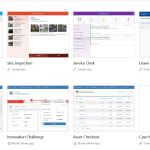 Microsoft Office 365 Power Apps