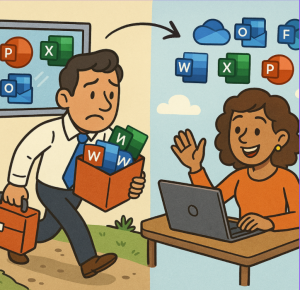
Microsoft’s cloud-era strategy has made Microsoft 365 more than just “Office in the cloud” — it introduces a shift in licensing, update cadence, collaborative features, and more. Below are the key differences you’ll notice, the benefits, and also possible trade-offs to consider.
What Microsoft 2016/2019 (Perpetual) Provides
Before looking at what you get when you move, let’s recap what you have with Office 2016/2019:
- One-time purchase: You pay once for the license; you own that version. No subscription fees.
- Fixed feature set: After release, no new major features are added. You will get security updates and bug fixes, but newer tools and features are reserved for Microsoft 365.
- Limited cloud integration: Some cloud features are available (OneDrive, etc.), but not to the extent Microsoft 365 offers.
- Support lifecycle: Office 2016 and 2019 have defined support periods. After those end, you’ll have no more updates, especially for features or non-security fixes.
What Microsoft 365 Adds / Changes
When you move to Microsoft 365, here’s what differs:
Licensing & Flexibility
- Subscription-based: Instead of a one-off purchase, you pay (usually per user) regularly. This gives you access as long as the subscription is active.
- Multiple installations / devices: Microsoft 365 often permits installing the apps on several devices (PC, Mac, tablets, phones) under the same user account.
Features & Updates
- New features regularly: Microsoft 365 gets ongoing feature updates—new tools, enhancements, and improvements. Office 2019 and 2016 more or less stay where they are after release.
- Cloud & collaboration: Real-time collaboration (co-authoring), version history, sharing via OneDrive, working from different devices, integration with Teams, and more.
- More cloud storage: Microsoft 365 typically includes 1 TB of OneDrive storage per user, making file access from anywhere much easier.
Support & Security
- More frequent security & performance updates plus bug fixes.
- Technical & subscription support from Microsoft as part of the subscription.
Other Useful Additions
- New apps & services: Some apps are only in Microsoft 365 (Teams, AI tools, advanced Excel functions, Editor, etc.).
- Cross-device work: Because of cloud syncing, mobile apps, and browser-based versions, it’s easier to work on the go, share documents, and collaborate.
What Changes You’ll Need to Manage / Trade-Offs
It’s not all free lunch. Moving to Microsoft 365 means:
- Continuing cost: Subscriptions mean ongoing payments; over time these costs may exceed what you paid once for the perpetual license.
- Dependence on internet / cloud services: Many features are cloud-based, so reliable connectivity helps.
- Change management / user training: Regular updates mean users may need to adapt to UI changes or new workflows.
- Data management / security / compliance: With cloud storage and collaboration comes more responsibility for permissions, backups, and compliance.
- Compatibility / feature differences: Some perpetual Office features may behave differently or need updating for Microsoft 365.
Timing & Strategic Reasons to Move
You might consider moving when:
- Your current version is approaching end of support.
- You need better collaboration, remote, or hybrid work support.
- You want access to newer features (especially those powered by AI and cloud).
- Your team uses multiple devices or works outside the office often.
Case Examples / What You’ll Actually Notice
Here are concrete differences users often experience after switching:
| Before (Office 2016/2019) | After (Microsoft 365) |
|---|---|
| Saving files locally or in shared drives; version control via manual file sharing | Auto-save, version history in OneDrive/SharePoint; edit everywhere |
| Waiting for major releases (every few years) for new features | Features arrive continuously (e.g. new Excel functions, refreshed UIs, AI tools) |
| Limited collaboration (co-editing slow or awkward) | Real-time co-authoring, better commenting, easier sharing |
| Mobile/web versions are limited or separate | Seamless experience across devices, better features in mobile/web apps |
| One install per machine; may need separate license or purchase for new version | License per user, install on multiple devices, across PC, Mac, and mobile |
What to Plan in the Transition
If you decide to move, here are things to plan for:
- License & Cost Analysis: Review how many users and which subscription plan you need.
- Inventory Existing Tools/Add-ons: Check compatibility of macros, templates, and integrations.
- Data Migration / File Location: Move files to OneDrive/SharePoint, set up structure and permissions.
- Training & Communication: Prepare users for new features and workflows.
- Security & Compliance Setup: Configure permissions, MFA, and data protection.
- Device/Network Readiness: Ensure devices and internet connections can handle cloud features.
Moving from Office 2016/2019 to Microsoft 365 isn’t just a software update — it’s a paradigm shift. You trade a fixed license for a subscription, pay continuously, but in return get flexibility, new features, better collaboration, stronger cloud integration, and more modern security. For many organizations and individuals, the benefits outweigh the costs — especially as Office 2016/2019 reach end of support.
Extra posts:
 Coming SharePoint and office 365 event in 2019
  Preparing Employees for Moving from Google Workspace to Microsoft 365
  How to be updated about Office 365 and Microsoft 365 Updates?
  Announcement from Microsoft: Kaizala rolls out to Office 365 customers globally and will become part of Microsoft Teams
  Microsoft Office 365 Power Apps
  Resolve Office activation issue in Office 365