
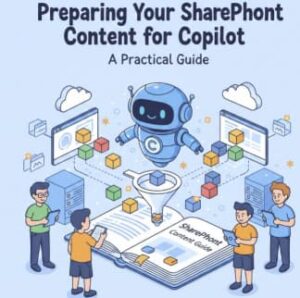
Microsoft Copilot for Microsoft 365 is changing how people search, analyze, and create content at work. Instead of manually digging through folders, users can now ask natural language questions like “Summarize all project risks from last quarter” or “Draft a proposal using our standard templates.”
But here’s the reality many organizations are discovering the hard way: Copilot is only as good as the SharePoint content it can access.
If your SharePoint environment is cluttered, poorly structured, or over-permissioned, Copilot won’t magically fix it. In fact, it may surface irrelevant information, miss critical documents, or confuse users with inconsistent results.
This guide walks through practical, technical steps to prepare your SharePoint content so Copilot delivers accurate, secure, and valuable insights from day one.
Why SharePoint Readiness Matters for Copilot
Copilot doesn’t create knowledge out of thin air. It works by:
- Reading content stored in SharePoint Online
- Respecting existing permissions
- Using metadata, document structure, and signals to interpret relevance
That means:
- Bad structure = bad answers
- Poor metadata = vague summaries
- Overexposed permissions = security risk
Preparing SharePoint is less about “turning on Copilot” and more about content hygiene, governance, and architecture.
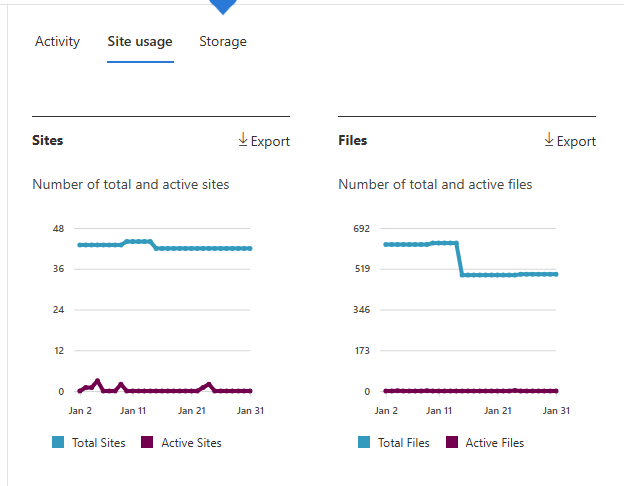
Step 1: Audit Your SharePoint Content Landscape
Before making changes, you need visibility.
What to Review
- Number of active sites vs abandoned sites
- Document libraries with duplicate or outdated files
- File types Copilot can read (DOCX, PPTX, XLSX, PDF, etc.)
- Sites with “Everyone” or overly broad permissions
Technical Actions
- Use Microsoft 365 Admin Center → Reports → SharePoint activity
- Run Content Explorer in Microsoft Purview
- Export site and permission reports using PowerShell:
Get-SPOSite -Limit All | Export-Csv SPOSites.csv
Outcome
A clear understanding of what content Copilot will see—and what it shouldn’t.
Step 2: Clean Up and Rationalize Content
Copilot surfaces existing content. If outdated or duplicate documents remain, they will influence results.
Best Practices
- Archive or delete obsolete files
- Keep one authoritative version of key documents
- Remove personal work-in-progress files from shared libraries
Practical Tip
Create an “Archive” library with restricted access for old documents instead of deleting everything immediately. Copilot won’t prioritize archived content if metadata is set correctly.
Step 3: Design Clear Information Architecture
Copilot relies heavily on structure.
Site and Library Design
- Separate departmental, project, and organizational content
- Avoid dumping everything into one document library
- Use hub sites to group related sites
Example
Bad Structure
/Shared Documents/
  - Budget.xlsx
  - HR_Policy_Final_v7.docx
  - ProjectPhoenixNotes.docx
Good Structure
/HR Site/
  /Policies/
  /Templates/

/Finance Site/
  /Budgets/
  /Reports/

/Project Phoenix Site/
  /Planning/
  /Deliverables/
Clear structure helps Copilot understand context, not just content.
Check this blog:
Step 4: Use Metadata Like It Actually Matters (Because It Does)
Metadata is one of the most underused Copilot accelerators.
Recommended Metadata Fields
- Document Type (Policy, Report, Proposal)
- Department
- Project Name
- Confidentiality Level
- Status (Draft, Approved, Archived)
Technical Steps
- Create Site Columns
- Add them to Content Types
- Apply them consistently across libraries
- Use default metadata values where possible
Copilot uses metadata to filter, summarize, and rank responses—especially when users ask scoped questions.
Step 5: Standardize Naming and Templates
Copilot reads file names, headings, and document structure.
Naming Conventions
- Avoid vague names like
Final_v2_REALFINAL.docx - Use patterns such as:
HR-Policy-Leave-2025.docx FIN-Quarterly-Report-Q1-2026.pptx
Templates Matter
- Use standardized Word and PowerPoint templates
- Apply consistent headings (H1, H2, H3)
- Include executive summaries where applicable
Well-structured documents lead to better Copilot summaries and drafts.
Step 6: Fix Permissions Before Copilot Exposes Them
Copilot does not override permissions, but it does make access easier—which can expose poor security practices.
What to Watch For
- Sites shared with “Everyone except external users”
- Broken inheritance at file level
- Legacy sharing links
Technical Best Practices
- Prefer Azure AD security groups over individual permissions
- Use sensitivity labels with encryption where needed
- Run regular access reviews using Microsoft Entra ID
If a user shouldn’t see a document, Copilot shouldn’t either.
Step 7: Apply Sensitivity Labels and Retention Policies
Copilot respects Microsoft Purview controls.
Sensitivity Labels
- Public
- Internal
- Confidential
- Highly Confidential
Retention Policies
- Ensure critical knowledge isn’t deleted too early
- Prevent unnecessary data overload from old content
This ensures Copilot answers are compliant and trustworthy.
Step 8: Educate Content Owners (This Is Critical)
Even perfect architecture fails without human behavior change.
Train Users On:
- Where to store documents
- How to apply metadata
- When to archive content
- Why naming conventions matter
Copilot success is 70% people, 30% technology.
Step 9: Test Copilot with Real Business Questions
Once prepared, test Copilot using realistic prompts:
- “Summarize approved HR policies related to leave.”
- “Create a project update using documents from Project Phoenix.”
- “List financial risks mentioned in Q1 reports.”
If answers feel off, trace back to:
- Missing metadata
- Poor document structure
- Overloaded libraries
Preparing SharePoint for Copilot is not a one-time task—it’s a foundation for how your organization manages knowledge going forward.
By cleaning up content, structuring information properly, enforcing metadata, and securing permissions, you transform Copilot from a novelty into a reliable digital assistant that actually understands your business.
Copilot doesn’t replace governance—it rewards it.
Extra posts:
 How to Configure DLP Policies for Copilot-Generated Content: A Practical Guide for Secure AI Adoption
  Preparing Your Team for Microsoft 365 Copilot A Change Management Guide
  SharePoint Gets an AI Upgrade: New Copilot Citation Analytics Show Which Content Matters Most
  Supercharging Solution Architecture with Copilot A Practical Guide
  How Do I Secure Copilot? A Practical Guide to Protecting Your AI Assistant
  Is My Code Safe with GitHub Copilot? A Practical Guide for Developers and Businesses