
Having access to the internet has become a daily necessity. Whether you are working remotely, attending online meetings, studying, traveling, or simply browsing the web, a stable internet connection is important. But what happens when your Wi-Fi connection is unavailable and you still need to get online?
Windows 11 provides a useful feature called Mobile Hotspot that allows you to share your computer’s internet connection with other devices. Similar to turning your smartphone into a hotspot, your Windows 11 PC can act as a wireless network source for phones, tablets, laptops, and other Wi-Fi-enabled devices.
In this guide, we will explain how to set up a mobile hotspot on Windows 11, customize the settings, connect other devices, and solve common problems.
What Is a Mobile Hotspot in Windows 11?
A mobile hotspot is a feature that allows your Windows 11 computer to share its internet connection through Wi-Fi. Instead of connecting every device separately to the internet, your PC creates its own wireless network.
For example, if your laptop is connected to the internet through Ethernet or Wi-Fi, you can enable mobile hotspot and share that connection with your smartphone or another laptop.
This feature can be especially useful when:
- Your phone has poor mobile reception but your laptop has internet access
- You need a temporary Wi-Fi connection
- You are traveling and only have one device connected
- You want to connect multiple devices quickly
Requirements Before Setting Up a Mobile Hotspot
Before turning on the Windows 11 mobile hotspot feature, make sure your computer meets a few basic requirements.
First, your PC should have an active internet connection. This can come from Wi-Fi, Ethernet, or a mobile broadband connection.
Second, your computer needs a working wireless adapter. Most modern laptops already include one, but desktop computers may require a Wi-Fi adapter.
Finally, make sure Windows 11 is updated. Keeping your system updated helps avoid compatibility issues and improves network performance.
How to Turn On Mobile Hotspot in Windows 11
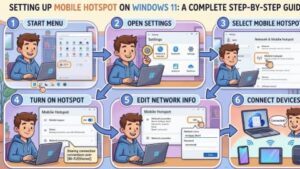
Setting up a hotspot on Windows 11 is simple. Follow these steps:
Step 1: Open Windows Settings
Click the Start menu and select Settings. You can also press the Windows key + I shortcut to open Settings quickly.
Step 2: Go to Network Settings
Inside Settings, choose:
Network & Internet → Mobile hotspot
This section contains all the options needed to create and manage your hotspot.

Step 3: Enable Mobile Hotspot
You will see the Mobile hotspot option with a toggle switch.
Click the switch to turn it on.
Once enabled, your computer will begin broadcasting a wireless network that other devices can detect.
How to Change Mobile Hotspot Name and Password
Windows 11 automatically creates a network name and password, but you can customize them.
Under the Mobile Hotspot settings:
- Find the Properties section
- Click Edit
- Change the network name
- Create a new password
- Save the changes
Choosing a strong password is recommended to prevent unknown devices from connecting to your hotspot.
A good password should include:
- Uppercase letters
- Lowercase letters
- Numbers
- Special characters
Connecting Another Device to Your Windows 11 Hotspot
After enabling the hotspot, connecting another device is easy.
On your phone, tablet, or another laptop:
- Open Wi-Fi settings
- Look for your Windows 11 hotspot name
- Select the network
- Enter the password
- Connect
Once connected, the device should have internet access through your Windows 11 computer.
Adjusting Hotspot Settings
Windows 11 gives you additional options to control how your hotspot works.
You can choose the internet connection you want to share. For example, you may share a Wi-Fi connection or Ethernet connection.
You can also control:
- Network name
- Password
- Frequency band
- Number of connected devices
The frequency band option allows you to choose between available wireless standards. If a device has trouble connecting, changing the band may help.
Automatically Turning Off Mobile Hotspot
Windows 11 includes a helpful feature that can automatically disable the hotspot when no devices are connected.
This helps save battery life, especially on laptops.
To manage this option:
- Open Mobile Hotspot settings
- Look for the power-saving option
- Enable or disable it based on your preference
If you frequently use your laptop as a hotspot, you may want to keep it enabled only when needed.
Troubleshooting Windows 11 Mobile Hotspot Problems
Sometimes the hotspot may not work as expected. Here are common solutions.
Hotspot Option Is Missing
If you cannot find the mobile hotspot option:
- Check that your Wi-Fi adapter is enabled
- Update network drivers
- Restart your computer
- Install Windows updates
Connected Device Has No Internet
If another device connects but cannot access the internet:
- Turn the hotspot off and on again
- Check your PC’s internet connection
- Restart the connected device
- Verify that the correct connection is being shared
Slow Hotspot Speed
Hotspot speed depends on your original internet connection and hardware.
To improve performance:
- Move closer to your computer
- Reduce the number of connected devices
- Use a stronger Wi-Fi band if available
- Close unnecessary background apps
Benefits of Using Mobile Hotspot on Windows 11
The mobile hotspot feature provides several advantages:
Convenience
You do not need extra equipment. Your Windows 11 computer can quickly become a Wi-Fi source.
Easy Sharing
You can share your connection with family members, coworkers, or your own devices.
Emergency Internet Access
A hotspot can be useful when your regular router is unavailable.
Better Productivity
For remote workers and students, quick internet sharing can help avoid interruptions.

Setting up a mobile hotspot on Windows 11 is a simple and practical way to share your internet connection. Whether you need temporary Wi-Fi access, want to connect multiple devices, or need a backup internet option, the built-in hotspot feature makes the process easy.
By adjusting your hotspot settings, creating a secure password, and following basic troubleshooting steps, you can turn your Windows 11 PC into a reliable wireless connection point whenever you need it.
Extra posts:
 Setting Up Windows Hello Face and Fingerprint Sign-In A Step-by-Step Guide
  How to Map Network Drives in Windows 11: A Complete Step-by-Step Guide
  How to Reset Windows 11 Without Losing Files: A Complete Step-by-Step Guide
  Setting Up Ransomware Protection in Windows 11 – A Simple and Complete Guide
  Customizing the Lock Screen in Windows 11 A Step-by-Step Guide to Personalize and Optimize
  How to Clean Install Windows 11 — Step-by-Step (The Friendly, No-Nonsense Guide)