
If your computer has started slowing down, freezing, or behaving unpredictably, you might be thinking about resetting Windows 11. The good news is that you don’t have to lose your personal files in the process. Windows 11 includes a built-in feature that allows you to refresh your system while keeping your documents, photos, and other important data intact.
In this guide, we’ll walk through exactly how to reset Windows 11 without losing files, why you might need to do it, and what to expect during the process.
Why Reset Windows 11?
Over time, your PC can accumulate unnecessary files, outdated drivers, and problematic software that affect performance. A reset helps restore your system to a clean state without requiring a full reinstall.
Here are some common reasons to reset your system:
- Your PC is running unusually slow
- Apps are crashing frequently
- You’re experiencing system errors or bugs
- Malware or unwanted software is affecting performance
- You want a fresh start without deleting personal files
Resetting Windows is often faster and more effective than troubleshooting multiple issues individually.
What Does “Reset Without Losing Files” Mean?
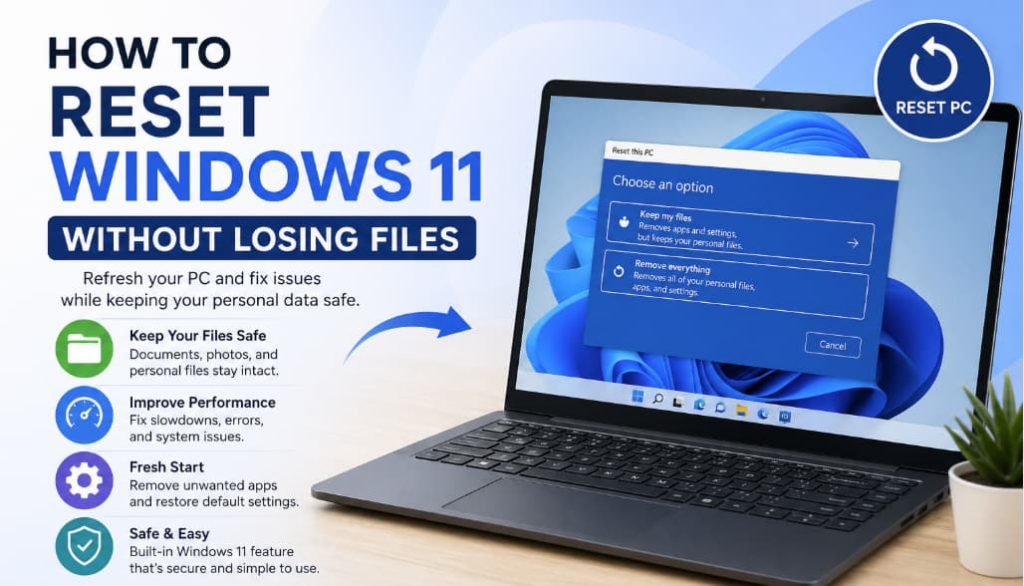
When you choose to reset Windows 11 and keep your files, the system will:
- Remove installed apps and programs
- Reset system settings to default
- Keep personal files in folders like Documents, Pictures, and Desktop
However, it’s important to note that while your files are preserved, your apps will be removed. You’ll need to reinstall any software afterward.
Before You Start: Important Preparation
Even though this process is designed to keep your files safe, it’s always smart to take precautions.
Here’s what you should do:
- Back up important files (external drive or cloud storage)
- Make note of installed apps you’ll need to reinstall
- Ensure your device is plugged in (for laptops)
- Check your Microsoft account login details
Taking a few minutes to prepare can save you from potential headaches later.
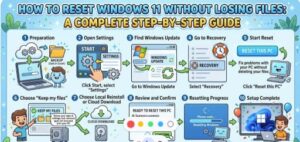
Step-by-Step: How to Reset Windows 11 Without Losing Files
Follow these simple steps to reset your system safely:
Step 1: Open Settings
- Click on the Start menu
- Select Settings
- Navigate to System
Step 2: Go to Recovery Options
- Scroll down and click on Recovery
- Under the “Recovery options” section, find Reset this PC
Step 3: Click “Reset PC”
- Click the Reset PC button
- A new window will appear with two options
Step 4: Choose “Keep My Files”
- Select Keep my files
- This ensures your personal data stays intact
Step 5: Choose Reinstallation Method
You’ll be given two options:
- Cloud Download – Downloads a fresh copy of Windows from Microsoft
- Local Reinstall – Uses files already on your device
If your system files are corrupted, cloud download is usually the better option.
Step 6: Review Settings
- Windows will show a summary of what will happen
- Confirm that it says your files will be kept
Step 7: Start the Reset
- Click Reset
- Your PC will restart and begin the process
This may take anywhere from 20 minutes to over an hour depending on your system.
What Happens During the Reset?
During the reset process:
- Your system reinstalls Windows 11
- Default settings are restored
- Apps are removed
- Personal files remain untouched
Your PC may restart multiple times—this is completely normal.
After the Reset: What to Do Next
Once your system is back up and running, there are a few things you’ll need to do:
1. Reinstall Applications
All third-party apps will be removed, so reinstall the ones you need.
2. Check for Windows Updates
Go to Settings → Windows Update and install the latest updates.
3. Restore Settings
Adjust system preferences like display, privacy, and notifications.
4. Verify Your Files
Check that all your important files are still present and accessible.
Common Mistakes to Avoid
While the process is straightforward, here are a few pitfalls to watch out for:
- Skipping backups – Always back up, even if files are supposed to remain
- Choosing the wrong option – Don’t select “Remove everything” by mistake
- Interrupting the reset – Avoid turning off your PC during the process
- Forgetting app licenses – Save product keys for paid software
When Should You Not Use This Method?
Resetting while keeping files is helpful, but not always the best solution.
You may want to remove everything if:
- You’re selling or giving away your PC
- Your system is severely infected with malware
- You want a completely clean slate
In those cases, a full reset or clean install is more appropriate.
Resetting Windows 11 without losing files is one of the easiest ways to fix performance issues and restore your PC to a smooth, reliable state. It’s a powerful feature that balances convenience with safety, allowing you to start fresh without sacrificing your personal data.
If your computer has been giving you trouble lately, this method is definitely worth trying before considering more drastic solutions.
With just a few clicks, you can breathe new life into your system—and get back to using your PC the way it was meant to be used.
Extra posts:
 How to Map Network Drives in Windows 11: A Complete Step-by-Step Guide
  Setting Up Mobile Hotspot on Windows 11: A Complete Step-by-Step Guide
  Recovering Deleted Files Using Windows File Recovery A Complete Guide
  Customizing the Lock Screen in Windows 11 A Step-by-Step Guide to Personalize and Optimize
  How to Clean Install Windows 11 — Step-by-Step (The Friendly, No-Nonsense Guide)
  How to Change Taskbar Position and Icons in Windows 11 (Step-by-Step Guide)