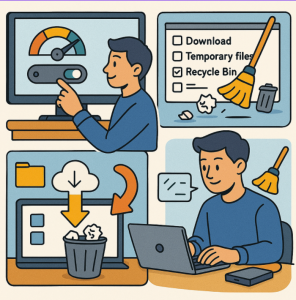
Running out of storage on your PC can slow things down, cause update errors, and make everyday tasks frustrating. Luckily, Windows 11 comes with powerful built-in tools—Storage Sense and Disk Cleanup—to help you reclaim space and keep your system running smoothly.
What is Storage Sense in Windows 11?
Storage Sense is an automated storage manager that clears temporary files, empties your Recycle Bin, and removes old system files without you lifting a finger. Once enabled, it runs in the background and keeps your PC clutter-free.
How to Turn On and Configure Storage Sense:
- Open Settings → Go to System → Storage.
- Find Storage Sense and toggle it On.
- Click on Storage Sense settings to customize:
- Run Storage Sense automatically: Choose frequency (Every day, Week, Month, or When disk space is low).
- Temporary files: Automatically delete app temp files.
- Recycle Bin cleanup: Set files to auto-delete after 1, 14, 30, or 60 days.
- Downloads folder cleanup: Decide if Windows should clear unused files here.
💡 Pro tip: If you use OneDrive, Storage Sense can make files available online-only when you haven’t opened them for a while, saving local disk space.
Using Disk Cleanup in Windows 11
While Storage Sense is the modern solution, Windows 11 still includes the classic Disk Cleanup tool for manual cleanups. It’s great for removing large system files like Windows Update leftovers.
Steps to Run Disk Cleanup:
- Press Windows key + S, type Disk Cleanup, and open the app.
- Select the drive you want to clean (usually C:).
- Check the boxes for items you want to remove, such as:
- Temporary Internet Files
- System error memory dump files
- Windows Update Cleanup
- Recycle Bin contents
- Click OK → Delete Files.
For deeper cleaning:
- Click Clean up system files in Disk Cleanup.
- This option lets you remove old Windows installation files and update caches that can take up several gigabytes.
Extra Windows 11 Storage Tips
- Check storage usage: In Settings → Storage, view which categories (apps, photos, temporary files) take up the most space.
- Uninstall unused apps: Go to Settings → Apps → Installed Apps and remove programs you no longer use.
- Enable OneDrive Files On-Demand: Keep files online-only until you need them.
- Move files to external storage: Large videos, photos, and archives are best stored on an external drive or cloud storage.
- Empty Recycle Bin regularly: Remember, files only free up space once the bin is emptied.
Windows 11 makes storage management simple. Storage Sense keeps your system clean automatically, while Disk Cleanup offers a deeper manual cleanup when you need it. By combining both, plus a few good storage habits, you can enjoy a faster, clutter-free PC with plenty of space for what really matters.
Extra posts:
 Free Up Disk Space with Storage Sense & Disk Cleanup in Windows 11 A Complete Guide
  Top 10 Windows 11 Tips Every Beginner Should Know
  Microsoft Defender Advanced Protection Tips for Windows 11
  Advanced Task Manager Tips for Power Users in Windows 11
  Advanced File Explorer Tips for Faster Navigation in Windows 11
  Advanced File Explorer Tips for Faster Navigation in Windows 11