
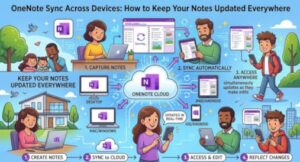
You start a note on your Windows laptop, add a few ideas from your phone, and later open your tablet expecting everything to be there. Instead, you see an older version—or worse, a notebook that hasn’t updated at all.
That is usually a synchronization problem, not a problem with OneNote itself.
Microsoft OneNote is designed to keep notebooks available across computers, phones, and tablets, but synchronization depends on a few important pieces working together: the correct Microsoft account, cloud storage, an internet connection, and a notebook that is actually stored in a location OneNote can synchronize.
Once you understand how those pieces fit together, keeping OneNote available across your devices becomes much easier.
How OneNote Sync Actually Works
OneNote notebooks can be synchronized through Microsoft’s cloud services, allowing changes made on one device to become available on another.
The basic workflow looks like this:
Device 1 → OneNote cloud storage → Device 2
For example, suppose you create a meeting checklist in OneNote on your Windows PC. After the notebook synchronizes, you can open that same notebook on your phone and continue editing it.
The important detail is that you’re not simply transferring a local file from one device to another. OneNote uses cloud-based synchronization to keep the notebook and its sections available across supported devices.
This is why signing into the same Microsoft account matters.
If your laptop uses one Microsoft account and your phone is signed into another, OneNote may appear to be missing notebooks even though the notebooks themselves haven’t been deleted.
1. Sign In With the Same Microsoft Account
Before troubleshooting anything else, check the account you’re using.
On each device:
- Open OneNote.
- Check the account currently signed in.
- Confirm that you’re using the same Microsoft account associated with the notebook.
- Look through the available notebooks and verify that the expected notebook appears.
This is particularly important if you have both a personal Microsoft account and a work or school account.
For example, a notebook created under your personal Microsoft account won’t necessarily appear when you open OneNote using your organization’s Microsoft 365 account.
A simple account check
If the notebook exists on your PC but not your phone, don’t immediately assume synchronization has failed.
First ask:
- Is the same Microsoft account signed in?
- Is the notebook stored in OneDrive or another supported cloud location?
- Does the notebook appear when you access OneNote from the web?
- Are you looking at the correct notebook rather than a similarly named one?
These checks can save you from unnecessary troubleshooting.
2. Make Sure the Notebook Is Stored in the Cloud
For cross-device access, the notebook needs to be available through a synchronization service.
OneDrive is commonly used for OneNote notebooks associated with personal Microsoft accounts and Microsoft 365 environments.
If a notebook is stored only locally, you shouldn’t expect it to automatically appear on another device.
When creating a notebook, pay attention to the storage location. If OneNote asks where to create or save the notebook, select an appropriate cloud location when your goal is to access it from multiple devices.
This also matters when you’re working with older notebooks. A notebook created years ago may have a different storage arrangement from one you create today.
Why cloud storage matters
Cloud storage provides the shared location that your devices can synchronize against.
Think of it as the central copy:
- Your PC uploads changes.
- The cloud stores the synchronized notebook data.
- Your phone retrieves those changes.
- Your tablet can then access the updated notebook as well.
That model is what makes OneNote useful for moving between devices throughout the day.
3. Check OneNote’s Sync Status
If everything is configured correctly but your notes aren’t updating, check synchronization status before making major changes.
Depending on your OneNote version, synchronization controls and menus can vary. Look for options related to Sync, Sync Status, or Sync This Notebook.
A manual sync can be useful when you want to confirm that recent changes have been uploaded.
For example, imagine you edit a project plan on your laptop just before leaving the office. You open OneNote on your phone and still see the old version.
Before copying the text manually or recreating the page:
- Return to the laptop.
- Check the notebook’s synchronization status.
- Trigger a manual sync if the option is available.
- Wait for the synchronization process to complete.
- Open the notebook again on your phone.
If the update still doesn’t appear, continue checking the account and connection rather than repeatedly editing the same page on different devices.
4. Check Your Internet Connection
OneNote can let you work with notes while you’re offline, but synchronization requires connectivity.
This creates an easy-to-miss situation: you make several edits while traveling, assume they’re already available everywhere, and then discover that the changes haven’t synchronized yet.
Before switching devices, especially when the information is important, give OneNote an opportunity to upload pending changes.
Check:
- Wi-Fi or mobile data connectivity
- Whether other apps can access the internet
- Whether your device is using a restricted or metered connection
- Whether OneNote is allowed to use network data
- Whether the notebook shows pending synchronization activity
A temporary connection problem can explain why a notebook looks different on two devices.
5. Keep OneNote and Your Devices Updated
Software updates can fix bugs, improve synchronization behavior, and address compatibility problems.
If OneNote repeatedly fails to synchronize on one particular device, check for available updates for:
- OneNote
- Windows, macOS, iOS, or Android
- Microsoft 365 apps, where applicable
You don’t necessarily need to update every device immediately whenever a minor update appears. But if you’re experiencing recurring sync errors, running an outdated application is worth investigating.
Also restart OneNote after installing an update. In some cases, a fresh application session is enough to clear a temporary problem.
What to Do When OneNote Says There’s a Sync Error
A sync error is more useful than it looks because it tells you that OneNote has detected a problem rather than silently assuming everything is fine.
Start with the least disruptive checks:
- Read the sync message carefully. It may identify the affected notebook or section.
- Confirm your account. Make sure you’re signed into the expected Microsoft account.
- Check your connection.
- Run a manual synchronization.
- Check OneNote on the web to determine whether your recent changes reached the cloud.
- Update OneNote if you’re running an older version.
- Restart the application and device if the problem persists.
Avoid immediately deleting and reinstalling OneNote when you have unsynchronized notes. If recent work exists only on one device, your priority should be protecting that information before making significant changes.
A Better Routine for People Using Multiple Devices
You don’t need to constantly monitor synchronization.
A simple routine works well.
When you finish an important piece of work:
Save → Sync → Verify
For example, if you update a client meeting notebook on your laptop and know you’ll need it on your phone later, allow OneNote to synchronize before closing the laptop.
For particularly important information, you can also verify the notebook from another device or OneNote’s web interface.
This habit is especially useful before traveling, switching computers, or working somewhere with unreliable internet access.
Practical Takeaway: Build Your OneNote Setup Around One Source
The easiest way to keep OneNote consistent across devices is to avoid treating each device as a separate notebook environment.
Use the same Microsoft account, store notebooks in an appropriate cloud location, keep OneNote updated, and pay attention to synchronization status when something looks out of date.
If your notes aren’t appearing on another device, troubleshoot in this order:
Account → Notebook location → Internet connection → Sync status → Software updates
That sequence covers many of the common causes without putting your existing notes at unnecessary risk.
Once the setup is correct, OneNote can become a dependable workspace rather than another place where you have to wonder which version of a note is the latest.
Extra posts:
 Microsoft Teams Rooms Gets Smarter: AI-Powered Facilitator Brings Real-Time Meeting Notes to Physical Meeting Rooms
  Using Microsoft 365 on Mobile Devices Effectively
  Create Learning Journals with Copilot in OneNote
  Microsoft 365 Copilot in PowerPoint Gets Stricter Brand Control With Notes Steering
  How to Fix Common OneNote Issues A Complete Troubleshooting Guide
  Smarter Note-Taking and Better Organization with Microsoft OneNote and Copilot