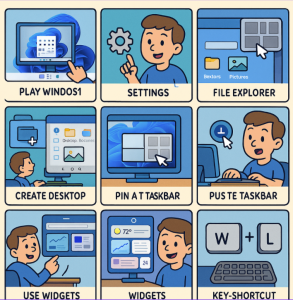
Windows 11 brings a fresh design, powerful productivity features, and subtle changes that can feel overwhelming if you’re just getting started. Whether you recently upgraded from Windows 10 or bought a new device with Windows 11 pre-installed, learning a few tips can help you get the most out of your PC.
Here are 10 Windows 11 tips every beginner should know:
1. Get Comfortable with the New Start Menu
The Start Menu now sits in the center by default, with pinned apps at the top and recommended files below. If you prefer the classic left-aligned look, go to:
Settings > Personalization > Taskbar > Taskbar behaviors and switch alignment to Left.
2. Master Virtual Desktops
Windows 11 makes it easier to create and manage multiple desktops. Hover over the Task View icon (two overlapping squares) on the taskbar to add a new desktop—for work, gaming, or personal tasks. You can customize each desktop with different wallpapers for better organization.
3. Use Snap Layouts for Better Multitasking
Hover over the maximize button of any window to see Snap Layouts, which let you neatly organize apps side by side. Perfect for working on documents while keeping an eye on a chat or browser window.
4. Customize Widgets for Quick Glance Info
Click the Widgets icon on the taskbar to view news, weather, calendar events, and more. You can personalize what shows up so you only see the info that matters most.
5. Boost Productivity with Focus Sessions
The new Focus Sessions feature in the Clock app helps you stay on task. It integrates with Spotify and Microsoft To Do, allowing you to set a timer, block distractions, and track productivity.
6. Use the New Clipboard History
Press Windows + V to open your clipboard history. Instead of just pasting the last thing you copied, you can pick from a history of copied text, images, and links.
7. Quickly Take Screenshots
Windows 11 makes screenshots easy. Press Windows + Shift + S to open the Snipping Tool, which lets you capture a full screen, window, or custom selection
8. Make the Most of Microsoft Store
The redesigned Microsoft Store now includes more apps, including third-party ones like Zoom, Canva, and even Android apps (on supported PCs). Browse around—you may find tools that simplify your workflow.
9. Personalize Your PC’s Look
Head to Settings > Personalization to change themes, wallpapers, colors, and dark/light modes. Windows 11’s design thrives on personalization, so tweak it to fit your style.
10. Try Voice Typing
Press Windows + H in any text field to start voice typing. It’s surprisingly accurate and even adds punctuation automatically, making it a handy tool for quick notes or hands-free typing.
Windows 11 is packed with useful features designed to make your computing experience smoother and more enjoyable. By mastering these tips, you’ll save time, stay productive, and customize your PC to fit your needs.
Extra posts:
 Exploring the Top Features of Windows 11 What’s New and What’s Improved
  Microsoft Defender Advanced Protection Tips for Windows 11
  Storage Sense and Disk Cleanup Tips in Windows 11
  Advanced Task Manager Tips for Power Users in Windows 11
  Advanced File Explorer Tips for Faster Navigation in Windows 11
  Advanced File Explorer Tips for Faster Navigation in Windows 11