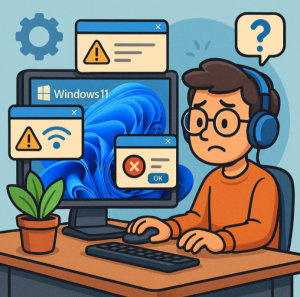
Windows 11 introduced a sleek new design, improved multitasking features, and tighter integration with Microsoft services. However, like any operating system, it isn’t without its quirks. Whether you’re a casual user or a power user, you may occasionally run into performance hiccups, compatibility issues, or unexpected errors. Below, we’ll walk through some of the most common Windows 11 problems and practical ways to troubleshoot them.
1. Slow Performance After Upgrading
Problem: After upgrading from Windows 10, some users notice their PC runs slower than expected.
Fixes:
- Check startup programs: Press
Ctrl + Shift + Esc→ Go to Task Manager > Startup apps and disable unnecessary apps. - Update drivers: Outdated graphics or chipset drivers can cause lag. Update them via Device Manager or the manufacturer’s website.
- Run Disk Cleanup: Search for Disk Cleanup, remove temporary files, and free up space.
- Enable Storage Sense: Settings → System > Storage > Storage Sense to automatically clean junk files.
2. Wi-Fi or Internet Connection Drops
Problem: Windows 11 may randomly disconnect from Wi-Fi or fail to connect.
Fixes:
- Restart your router and PC.
- Forget and reconnect to your Wi-Fi network: Settings > Network & Internet > Wi-Fi.
- Run the Network Troubleshooter: Settings > System > Troubleshoot > Other troubleshooters → Select Internet Connections.
- Update your network adapter drivers via Device Manager.
3. Bluetooth Not Working
Problem: Bluetooth devices won’t pair or frequently disconnect.
Fixes:
- Ensure Bluetooth is turned on: Settings > Bluetooth & devices.
- Remove and re-pair the device.
- Restart Bluetooth services: Press
Win + R, typeservices.msc, then restart Bluetooth Support Service. - Update Bluetooth drivers.
4. Compatibility Issues with Apps
Problem: Some apps may not run correctly or crash after installation.
Fixes:
- Run apps in compatibility mode: Right-click the app → Properties > Compatibility tab.
- Reinstall the app with the latest version.
- Ensure your system is updated: Settings > Windows Update.
5. File Explorer Crashes or Freezes
Problem: File Explorer may stop responding, especially when handling large files.
Fixes:
- Restart File Explorer: Press
Ctrl + Shift + Esc, find Windows Explorer, right-click, and select Restart. - Clear File Explorer history: Control Panel > File Explorer Options > Clear.
- Check for corrupt system files: Run
sfc /scannowin Command Prompt (Admin).
6. Windows Update Errors
Problem: Updates may fail to download or install.
Fixes:
- Run the Windows Update Troubleshooter: Settings > System > Troubleshoot > Other troubleshooters → Windows Update.
- Manually install updates from the Microsoft Update Catalog.
- Reset Windows Update components using Command Prompt.
7. Printer Not Working
Problem: Windows 11 sometimes fails to detect printers.
Fixes:
- Reinstall the printer driver from the manufacturer’s website.
- Run the Printer Troubleshooter: Settings > Devices > Printers & scanners > Troubleshoot.
- Ensure Print Spooler service is running: Open
services.mscand restart Print Spooler.
8. Start Menu or Taskbar Not Responding
Problem: The new Start Menu or Taskbar may freeze or fail to open.
Fixes:
- Restart Windows Explorer (see issue #5).
- Run system file check:
sfc /scannow. - Re-register Start Menu apps: Open PowerShell (Admin) and run:
Get-AppxPackage -AllUsers| Foreach {Add-AppxPackage -DisableDevelopmentMode -Register "$($_.InstallLocation)\AppXManifest.xml"}
Windows 11 is designed to be more user-friendly and secure, but occasional glitches are inevitable. Most issues can be fixed with simple troubleshooting steps—updating drivers, running built-in troubleshooters, or performing system scans. If all else fails, consider performing a System Restore or resetting Windows to factory settings.
By staying proactive with updates and maintenance, you can keep Windows 11 running smoothly and minimize disruptions to your workflow.
Extra posts:
 Troubleshooting Common Issues in SharePoint Online
  How to Fix Common OneNote Issues A Complete Troubleshooting Guide
  Troubleshooting Windows 11 Issues A Practical Guide for IT Pros
  Troubleshooting Power Apps Issues Like a Pro How to Troubleshoot Common Microsoft Teams Issues
  How to Resolve Common Microsoft Outlook Issues