
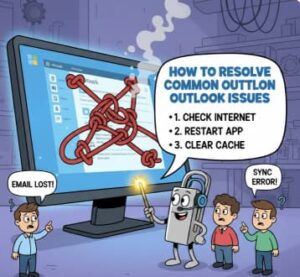
Microsoft Outlook is one of the most widely used email and productivity applications, trusted by individuals and businesses worldwide for managing emails, calendars, contacts, and tasks. Despite its powerful features and reliability, Outlook users may occasionally face technical issues such as application crashes, login errors, email syncing problems, or slow performance. These issues can disrupt productivity and cause frustration if not addressed promptly.
1. Outlook Not Opening or Crashing Frequently
One of the most common Outlook problems is when the application fails to open or crashes unexpectedly. This issue may occur due to corrupted files, incompatible add-ins, or outdated software.
Solutions:
- Restart Your Computer: Temporary system glitches can interfere with Outlook. Restarting your computer often clears background processes and resolves minor issues.
- Run Outlook in Safe Mode: Press Win + R, type
outlook.exe /safe, and press Enter. Safe Mode launches Outlook without add-ins, helping identify whether an add-in is causing the crash.

- Disable Add-ins: Navigate to File > Options > Add-ins, select COM Add-ins, and disable unnecessary or recently installed add-ins.
- Repair Outlook Installation: Go to Control Panel > Programs > Microsoft Office > Change, then choose Quick Repair or Online Repair to fix corrupted installation files.
- Update Outlook: Ensure Outlook is up to date by navigating to File > Office Account > Update Options > Update Now.
2. Email Syncing Issues in Outlook
If your emails are not syncing properly across devices, it may indicate connectivity or configuration problems.
Solutions:
- Check Your Internet Connection: A weak or unstable internet connection can prevent Outlook from syncing emails.
- Verify Account Settings: Go to File > Account Settings and confirm that server details, ports, and encryption settings are correct.
- Remove and Re-add Your Account: Deleting and reconfiguring your email account can resolve sync conflicts.
- Use Microsoft Support and Recovery Assistant: Download this official Microsoft tool to automatically diagnose and fix syncing issues.
3. Outlook Not Sending or Receiving Emails
When Outlook fails to send or receive emails, it can severely impact communication.
Solutions:
- Disable Offline Mode: Click on Send/Receive and make sure Work Offline is unchecked.

- Verify Server Settings: Confirm incoming and outgoing server details under Account Settings.
- Clear the Outbox: Messages stuck in the Outbox can block email flow. Delete or resend them.
- Restart Outlook and Your Device: This clears cached processes and often resolves temporary glitches.
4. Forgotten Password or Login Issues
Login errors are common, especially when passwords change or authentication methods are updated.
Solutions:
- Reset Your Password: Visit Microsoft’s official account recovery page to reset your Outlook password.
- Check Caps Lock and Keyboard Settings: Simple typing errors can prevent successful login.
- Verify Two-Factor Authentication: If enabled, complete verification using the registered phone, email, or authenticator app.
- Try a Different Browser or Device: Cached data or browser extensions can interfere with login attempts.
5. Outlook Freezing or Running Slowly
Performance issues such as freezing, lagging, or slow loading can reduce productivity.
Solutions:
- Reduce Mailbox Size: Delete unnecessary emails and archive older messages regularly.
- Disable Animations: Go to File > Options > Advanced and turn off animations for smoother performance.
- Disable Unnecessary Add-ins: Add-ins consume system resources and may slow Outlook.
- Optimize PST Files: Use scanpst.exe, Outlook’s built-in repair tool, to fix corrupted data files.
6. Calendar and Contacts Not Syncing
Outlook calendars and contacts may fail to sync due to account or server issues.
Solutions:
- Check Sync Settings: Ensure calendars and contacts are enabled for syncing under Settings > Accounts.
- Update Outlook: Using an outdated version may cause compatibility issues.
- Reconnect Your Account: Removing and re-adding the account refreshes sync configurations.
- Use Microsoft Exchange: Exchange accounts offer better synchronization across devices compared to POP or IMAP.
7. Outlook Search Not Working
If Outlook search fails to return results, it may be due to indexing problems.
Solutions:
- Rebuild Search Index: Go to Control Panel > Indexing Options, select Outlook, and rebuild the index.
- Verify Search Locations: Ensure Outlook is included in Windows Search settings.
- Repair Outlook Data Files: Run scanpst.exe to fix corrupted PST or OST files affecting search functionality.
8. Fixing INVALIDCREDENTIALS or INTERACTIONREQUIRED Errors
These authentication errors often appear with work or school accounts using modern security protocols.
Solutions:
- Sign Out and Sign Back In: Navigate to File > Account Settings > Manage Profiles, then sign out and re-authenticate.
- Enable Modern Authentication: Ensure modern authentication is enabled in Azure Active Directory for enterprise accounts.
- Clear Stored Credentials: Open Credential Manager, delete stored Outlook credentials, and restart Outlook.
- Re-authenticate Your Account: Complete multi-factor authentication steps when prompted.
- Update Outlook and Windows: Keeping both updated ensures compatibility with security protocols.
Microsoft Outlook issues can range from minor glitches to more complex authentication and syncing problems. Fortunately, most of these issues can be resolved with simple troubleshooting steps such as updating Outlook, repairing data files, or reconfiguring account settings. Regular maintenance—like cleaning your mailbox, disabling unnecessary add-ins, and keeping your software updated—can prevent many common Outlook problems before they occur.
By following the solutions outlined in this guide, you can quickly diagnose and resolve Outlook issues, ensuring smooth communication and uninterrupted productivity.
Extra posts:
 How to Resolve Microsoft Authenticator App Issues
  How to Troubleshoot Common Microsoft Teams Issues
  How to Fix Common OneNote Issues A Complete Troubleshooting Guide Troubleshooting Common Issues in SharePoint Online
  Create Poll in Office outlook and outlook.com
  Troubleshooting Common Windows 11 Issues