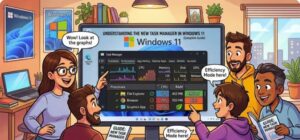
If you’ve been using Windows for years, you probably rely on Task Manager whenever your computer slows down, an app freezes, or you simply want to see what is happening behind the scenes. With Windows 11, Microsoft has redesigned the Task Manager with a modern interface, better performance monitoring, and improved navigation.
While the core purpose remains the same monitoring system resources and managing running applications the new Task Manager in Windows 11 is more powerful and easier to use once you understand its layout and features.
In this guide, I’ll walk you through the new Windows 11 Task Manager like a Windows expert would, explaining what each section does and how you can use it to optimize performance, troubleshoot problems, and take better control of your PC.
What Is Task Manager in Windows 11?
Task Manager is a built-in system monitoring tool that allows you to:
- View running applications and background processes
- Monitor CPU, memory, disk, and network usage
- End frozen or problematic tasks
- Manage startup programs
- Track system performance in real time
In Windows 11, Microsoft introduced a fresh UI, left-side navigation panel, efficiency mode, and dark mode support, making it more user-friendly than the older versions.
How to Open Task Manager in Windows 11
There are several ways to launch Task Manager. Knowing multiple methods is useful when your system becomes unresponsive.
Method 1: Keyboard Shortcut (Fastest)
- Press Ctrl + Shift + Esc
- Task Manager will open instantly.
This is the most efficient method recommended by Windows experts.
Method 2: Using the Start Menu
- Right-click the Start button
- Click Task Manager
Method 3: Using Run Command
- Press Windows + R
- Type:
taskmgr- Press Enter
Overview of the New Task Manager Interface
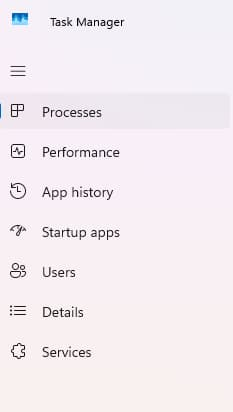
The Windows 11 Task Manager has a cleaner design with a navigation sidebar on the left side.
Main sections include:
- Processes
- Performance
- App History
- Startup Apps
- Users
- Details
- Services
Each tab serves a different purpose for monitoring and managing your system.
1. Processes Tab (The Most Used Section)
The Processes tab shows everything currently running on your system.
It is divided into three categories:
- Apps
- Background Processes
- Windows Processes
For each process, you can see:
- CPU usage
- Memory consumption
- Disk activity
- Network usage
- Power usage
How to End a Frozen Program
If an app stops responding:
- Open Task Manager
- Go to Processes
- Select the frozen application
- Click End Task
Expert Tip:
Avoid ending processes under Windows Processes unless you know what they do. Stopping essential system services may cause instability.
2. Performance Tab (Real-Time System Monitoring)
The Performance tab provides detailed information about your computer hardware.
You can monitor:
- CPU usage
- RAM usage
- Disk activity
- GPU performance
- Network activity
How to Check CPU Performance
- Open Task Manager
- Click Performance
- Select CPU
You’ll see:
- CPU usage percentage
- Speed
- Core count
- Logical processors
- Uptime
This is extremely useful when diagnosing slow PC issues.
Expert Advice:
If CPU usage constantly stays above 90%, one or more processes may be overloading your system.
3. App History Tab
The App History tab tracks resource usage for applications over time.
It shows:
- CPU time
- Network usage
This feature is especially useful for laptops and battery management, as it helps identify apps that consume the most resources.
4. Startup Apps (Speed Up Boot Time)
One of the most important sections for performance optimization is the Startup Apps tab.
This tab shows programs that automatically start when Windows boots.
Too many startup apps can significantly slow down boot time.
How to Disable Startup Programs
- Open Task Manager
- Go to Startup Apps
- Select a program
- Click Disable
Recommended programs to disable if not needed:
- Game launchers
- Updaters
- Messaging apps
- Media players
Expert Tip:
Keep security software and essential drivers enabled.
5. Users Tab
The Users tab displays all user accounts currently logged into the computer.
For each user, you can see:
- CPU usage
- Memory usage
- Disk usage
- Network usage
System administrators often use this tab to monitor multiple users on shared computers.
You can also:
- Disconnect users
- Sign them out
6. Details Tab (Advanced Users)
The Details tab is a more advanced version of the Processes tab.
It shows:
- Process ID (PID)
- Status
- CPU usage
- Memory usage
- Priority levels
Changing Process Priority
Sometimes you may want a program to run faster.
Steps:
- Open Task Manager
- Go to Details
- Right-click the program
- Select Set Priority
- Choose one of the options:
- Low
- Below Normal
- Normal
- Above Normal
- High
Warning:
Avoid setting programs to Realtime, as it can destabilize the system.
7. Services Tab
The Services tab lists background services running in Windows.
Services are small system components that support Windows features and applications.
From here you can:
- Start services
- Stop services
- Restart services
This is useful when troubleshooting software issues.
Example: Restarting a stuck service can fix some application problems without restarting the entire PC.
New Feature: Efficiency Mode
One of the best improvements in the Windows 11 Task Manager is Efficiency Mode.
Efficiency Mode helps reduce CPU usage by limiting the resources used by certain processes.
How to Enable Efficiency Mode
- Open Task Manager
- Go to Processes
- Right-click a process
- Click Efficiency Mode
This is useful for battery saving and improving system responsiveness.
Expert Advice:
Use Efficiency Mode on background apps that you don’t actively use, such as browsers running multiple tabs.
Dark Mode Support
The Windows 11 Task Manager also supports Dark Mode, which many users prefer for reduced eye strain.
Enable Dark Mode
- Open Settings
- Go to Personalization
- Click Colors
- Choose Dark Mode
Task Manager will automatically adapt to the theme.
Pro Tips From a Windows Expert
After years of working with Windows systems, here are a few practical tips:
1. Always Check Task Manager Before Restarting
Many problems can be fixed simply by ending a misbehaving application.
2. Monitor Memory Usage
If your system constantly runs above 80% RAM usage, you may need to:
- Close unnecessary apps
- Upgrade RAM
3. Watch Disk Usage at 100%
If disk usage stays at 100%, the likely causes are:
- Windows indexing
- Antivirus scanning
- Slow HDD drives
Upgrading to an SSD often solves this issue.
4. Use Task Manager for Malware Detection
Suspicious processes may appear with:
- Unknown names
- High CPU usage
- No publisher
If you notice such behavior, scan your system immediately.
he redesigned Windows 11 Task Manager is more than just a tool to close frozen apps—it is a powerful system monitoring utility that helps you understand how your computer operates.
With its modern interface, efficiency mode, performance monitoring, and startup management, it gives users better control over system resources than ever before.
Once you learn how to navigate its sections, Task Manager becomes an essential tool for troubleshooting, performance optimization, and system management.
Whether you’re a casual user or a power user, mastering Task Manager will help you keep your Windows 11 PC running smoothly and efficiently.
Extra posts:
 Advanced Task Manager Tips for Power Users in Windows 11
  Complete Guide to Windows 11 Themes and Wallpapers
  The Complete Guide to Widgets in Windows 11
  How to Build and Save Your Own Theme Pack in Windows 11 A Complete Guide
  Managing App Permissions for Better Privacy in Windows 11 A Complete Guide
  Setting Up Ransomware Protection in Windows 11 – A Simple and Complete Guide