
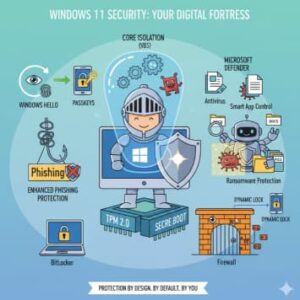
In today’s interconnected world, the security of your computer isn’t just a technical detail—it’s the digital foundation of your work, your memories, and your identity. With cyberattacks becoming more sophisticated, relying on old, basic security isn’t enough. When Microsoft launched Windows 11, they didn’t just give the operating system a shiny new look; they completely rebuilt its security from the ground up, aiming to make it the most secure version of Windows yet.
This isn’t about complicated anti-virus programs you have to buy and install. This is about security by design and security by default, meaning the most powerful protection is baked right into the software and hardware working together. For the average user, this translates to a much safer, simpler, and more resilient computing experience. Let’s break down the key features that act as your PC’s personal bodyguards, making Windows 11 a true fortress for your digital life.
Protection Starts at the Chip Level: The Hardware Requirements
The biggest change with Windows 11 security is that it demands modern hardware. These aren’t arbitrary requirements; they are essential for enabling the deepest, most powerful security features. Think of them as the reinforced steel beams and concrete foundation of a secure building.
1. The Trusted Platform Module (TPM) 2.0
If you’ve heard one thing about Windows 11 requirements, it’s likely the TPM 2.0 chip. But what is it?
- What it is: The TPM is a tiny, secure crypto-processor chip physically built into your computer’s motherboard. It’s a tamper-resistant vault for the most sensitive information.
- What it does: It stores things like encryption keys, digital certificates, and passwords. Because these vital secrets are stored on a separate, dedicated chip, they are isolated from software-based attacks. This means a hacker can’t simply run a program to steal your encryption keys, even if they manage to compromise the operating system.
2. Secure Boot
Imagine a corrupt or malicious program trying to sneak in and run before Windows even starts up—that’s what a “rootkit” or “bootkit” does. Secure Boot stops this initial infiltration.
- What it is: A feature in your PC’s UEFI firmware (the modern replacement for the old BIOS).
- What it does: It checks the digital signature of every piece of software—firmware, boot loaders, and drivers—that tries to load during startup. If the software isn’t signed by a trusted source (like Microsoft or your PC manufacturer), Secure Boot simply prevents it from running. This ensures your PC only boots with code that hasn’t been tampered with.
Core Isolation: The Brain’s Firewall
Once your PC is up and running, Windows 11 uses a crucial technology called Virtualization-Based Security (VBS) to create a protective barrier around the most critical parts of the operating system. This is often referred to as Core Isolation.
- What it is: VBS uses hardware virtualization (the same technology that runs a ‘virtual machine’) to create an isolated, secure area of memory separate from the main operating system.
- What it does: It runs sensitive processes, like the Windows kernel (the brain of the OS), and security solutions in this separate, protected bubble. If an attacker manages to exploit a vulnerability in a regular app, they can’t easily jump from that app to the core system processes, because they are isolated in a different virtual environment. This significantly limits the damage a piece of malware can cause. A key VBS feature is Memory Integrity (also known as Hypervisor-Protected Code Integrity, or HVCI), which actively verifies all code running in the kernel, making it nearly impossible for malicious code to slip in.
Say Goodbye to Passwords: Identity Protection
Passwords are the weakest link in almost every security chain. They get guessed, forgotten, and, most dangerously, stolen through phishing scams. Windows 11 is pushing hard toward a passwordless future.
1. Windows Hello
- What it is: Microsoft’s biometric authentication system.
- What it does: It allows you to sign in using your face, fingerprint, or a secure PIN that is specific only to that device. Since this data is isolated and protected by VBS and the TPM chip, it’s far more secure than a simple password. It’s also much faster—you just look at your camera or touch the sensor, and you’re logged in.
2. Passkeys and Enhanced Phishing Protection
- What it is: Passkeys are a new type of digital credential that replaces passwords on websites.
- What it does: Instead of typing a password that can be stolen, your PC uses a cryptographic key stored securely on your device. When you log into a website that supports passkeys, your PC authenticates you using Windows Hello. This is practically immune to phishing, because even if you land on a fake website, your passkey will not work there. Furthermore, Enhanced Phishing Protection actively monitors your password entry in real-time and warns you if you’re about to type your Windows password into a suspicious or malicious website, even in third-party browsers.
The Defender Suite: Real-Time Active Defense
Windows 11 comes with a powerhouse of built-in software tools under the umbrella of Microsoft Defender. You don’t need to download anything; this protection is active from the moment you set up your PC.
1. Microsoft Defender Antivirus
- What it is: The default, always-on anti-malware protection.
- What it does: It provides real-time protection against viruses, ransomware, spyware, and other malicious software. It continuously scans your files and activity to detect and block threats instantly. For home users, it’s often more than enough to stay safe.
2. Smart App Control (SAC)
This feature is a major leap forward for keeping bad apps off your PC.
- What it is: An intelligent protection layer that uses Microsoft’s cloud-based AI to check an application’s safety.
- What it does: It proactively blocks untrusted or unsigned apps that have a poor reputation or are known to be malicious. This means if a piece of unknown malware tries to run, SAC will stop it before it can do any damage. For new Windows 11 devices, this feature starts in “Evaluation Mode” and becomes fully active once it has determined your PC usage pattern is secure.
3. Ransomware Protection (Controlled Folder Access)
Ransomware is one of the most terrifying threats, encrypting your files until you pay a ransom. This feature fights back directly.
- What it is: A part of the Windows Security settings that you should absolutely turn on.
- What it does: It uses Controlled Folder Access to protect your essential folders (like Documents, Pictures, and Desktop) from unauthorized changes by unknown apps. Only apps you trust (like Word or Photoshop) are allowed to modify files in those folders. If a piece of ransomware tries to encrypt your data, it will be instantly blocked from accessing those protected folders.
The Final Layers: Everyday Security Tools
Beyond the foundational and identity protections, Windows 11 includes several practical features that solidify your defense.
- BitLocker Encryption: Available in Windows 11 Pro, this feature provides full-disk encryption. If your laptop is lost or stolen, all the data on the drive is scrambled and unreadable without the correct key, even if the thief tries to remove the hard drive and put it in another computer.
- Windows Defender Firewall: This acts as a protective barrier between your PC and the outside network. It monitors all incoming and outgoing connections, blocking unauthorized traffic and keeping hackers and malicious network data out.
- Dynamic Lock: A simple but effective feature. When you pair your smartphone with your PC, Dynamic Lock automatically locks your computer when your phone moves out of Bluetooth range. No more accidentally leaving your PC unlocked when you step away for a coffee!
Windows 11 isn’t just a new coat of paint for your operating system—it’s a fundamental shift toward hardware-backed, default-enabled security. For the average user, this means less worrying about downloading the latest antivirus, and more confidence that the system itself is using sophisticated, modern techniques to stay one step ahead of the bad guys. By leveraging the power of chips like TPM 2.0, isolation technologies like VBS, and user-friendly features like Windows Hello and Smart App Control, Windows 11 provides a level of protection that truly makes it the most secure Windows ever. The best part? Much of this protection is working tirelessly in the background, without you ever having to lift a finger.
Extra posts:
 How to Optimize Battery Life on Windows 11 Laptops
  Microsoft Defender for 365 Your All-in-One Security Shield for Modern Threats
  Exploring the Top Features of Windows 11 What’s New and What’s Improved
  24 Hidden Windows 11 Features You’ll Wish You Found Sooner
  Experimental Features via Canary Channels in Windows 11
  Registry Tweaks to Unlock Hidden Features in Windows 11