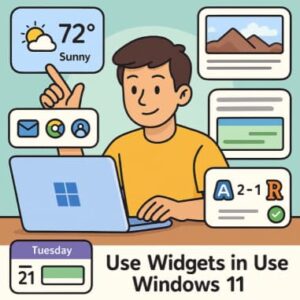
With Windows 11, Microsoft introduced the Widgets feature — a fly-out panel that gives quick access to personalized information like weather, news, calendar events, and more. While it might seem like a simple cosmetic addition, when used smartly, it can help streamline your workflow, keep you informed at a glance, and reduce unnecessary context-switching.
This guide will explain what Windows 11 widgets are, how to activate and configure them, and how to use them effectively for productivity and personalization.
What Are Widgets in Windows 11?
Widgets in Windows 11 are small interactive cards that display dynamic content such as text, graphics, and quick actions related to your apps or online services. They provide glanceable information and allow you to interact with content without opening full applications.
You can access the Widgets panel from the taskbar icon or by pressing Windows + W. Once open, the panel displays multiple widgets like weather, calendar, news, stocks, or task lists, all in one organized dashboard.
Why Use Widgets – The Benefits
1. Glanceable Information
Widgets deliver information at a glance — weather updates, calendar events, or news headlines — without switching between apps or browser tabs.
2. Reduced Context-Switching
Opening multiple apps for small tasks slows productivity. Widgets minimize that friction by centralizing information and quick actions in one place.
3. Personalization and Relevance
You choose which widgets appear and what content they display. Over time, your widgets learn your preferences and display more relevant updates.
4. Quick Actions
Some widgets allow actions directly from the panel, such as marking tasks complete, opening calendar events, or viewing your next meeting.
5. Workflow Integration
Widgets can serve as a daily command center. You can check the day’s schedule, the weather, and your to-do list — all in seconds.
How to Activate and Configure Widgets
Enable the Widgets Icon
If you don’t see the Widgets icon on your taskbar:
- Right-click an empty area on the taskbar and choose Taskbar settings.
- Under Taskbar items, toggle Widgets on.
- You can also open them instantly with Windows + W.
Add, Remove, and Resize Widgets
Inside the Widgets panel:
- Click Add widget or the “+” icon to select new widgets.
- Click the three dots (⋯) on a widget to remove, resize, or customize it.
- Drag widgets to rearrange them into your preferred order.
- Resize widgets to small, medium, or large, depending on their importance.
Personalize Your Feed
You can customize your news and content feed by selecting your interests, hiding irrelevant sources, or rating stories with “More like this” or “Fewer like this.” Over time, the feed becomes tailored to your tastes.
Adjust Notifications
If widgets send notifications or show taskbar badges, you can manage them from the Widgets settings. You can also disable the “open on hover” option if you prefer to open widgets manually.
Best Practices for Using Widgets Effectively
Choose Only What You Need
Adding too many widgets clutters the panel and makes it harder to focus. Select 3–5 high-value widgets such as Weather, Calendar, To-Do, or Traffic.
Arrange by Priority
Place your most important widgets at the top for quick visibility. For example, your calendar or tasks widget should appear above entertainment or news widgets.
Resize for Clarity
Make your most-used widgets large and keep less-important ones small. This creates a natural hierarchy for your attention.
Control Notifications and News
Unwanted updates or news can make widgets distracting. Fine-tune your interests, mute unimportant alerts, and only keep relevant widgets.
Incorporate Widgets Into Your Routine
Make checking your widgets part of your morning ritual — open the panel to get a summary of your day before diving into emails or meetings.
Use Keyboard Shortcuts
Use Windows + W to open widgets instantly. The faster your access, the more useful widgets become.
Regularly Update and Prune
Remove widgets that no longer serve you. A clean, updated widget board feels lighter and easier to use.
Common Pitfalls and How to Avoid Them
- Adding Too Many Widgets: Overloading your panel defeats its purpose. Keep it focused.
- Ignoring Personalization: If you never adjust your interests, the feed will remain generic and less helpful.
- Expecting Full App Functionality: Remember, widgets are for quick updates — for more detail, click through to the app.
- Notification Overload: Too many alerts create distraction. Manage them in settings.
- Comparing with Old Gadgets: Windows 11 widgets differ from the old desktop gadgets. They live in a dedicated panel for better organization.
Advanced Tips and Tricks
1. Try Third-Party Widgets
Explore widgets available in the Microsoft Store to extend your dashboard — like system monitors, note-taking tools, or finance trackers.
2. Use for System or Productivity Tracking
Some widgets can show CPU usage, emails, or to-do progress. Combining these gives a quick overview of your productivity.
3. Combine with Virtual Desktops
Use widgets on your “work” virtual desktop only. This keeps personal distractions off your professional workspace.
4. Explore Lock Screen Integration
In newer Windows 11 updates, certain widgets display summaries on your lock screen or taskbar, like the weather or calendar.
5. Automate Widget Launching
You can set the Widgets panel to open on login, so you start your day with an instant overview.
Real-World Examples
Freelance Designer:
- Weather: plan travel and client visits.
- Calendar: view upcoming meetings.
- To-Do: manage design deadlines.
Widgets serve as a “morning dashboard” before work begins.
Student or Researcher:
- Calendar: track assignment deadlines.
- News: follow academic trends.
- Photos: enjoy a brief mental break.
Widgets make it easier to stay balanced and informed.
Office Worker:
- Traffic: plan commute.
- Weather: decide on attire or travel.
- Outlook/Tasks: manage workload quickly.
Widgets streamline preparation and task planning.
The Future of Widgets in Windows 11
Microsoft continues improving the Widgets experience. Recent updates have introduced a redesigned layout, AI-powered recommendations, and tighter integration with other features like Copilot, the lock screen, and taskbar previews.
Future updates may bring new widget types, better customization, and enhanced third-party support. As the ecosystem grows, widgets could become a central hub for quick productivity insights.
Widgets in Windows 11 are more than just decorative panels. When used correctly, they act as a personalized information dashboard that boosts efficiency and focus.
To get the most out of them:
- Enable and customize only essential widgets.
- Arrange them logically by importance.
- Keep your feed relevant and decluttered.
- Incorporate widgets into your daily startup or planning routine.
Used wisely, widgets can turn your Windows 11 experience into a dynamic, organized, and productivity-friendly workspace — all accessible with a single shortcut.
Extra posts:
 Best Windows 11 Widgets (and How to Add Them)
  The Complete Guide to Widgets in Windows 11
  Turning Widgets into a Personal Productivity Dashboard in Windows 11
  From Start Menu to Widgets Customizing Windows 11 Like a Pro
  Unleash the Power of Windows Security: A Simple Guide to Using Defender Effectively
  How to Move the Start Menu to the Left in Windows 11 (Like Windows 10 Style)