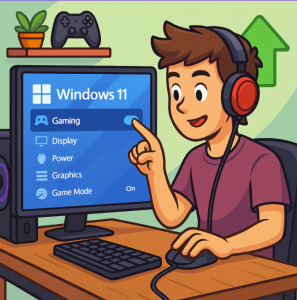
Windows 11 is already optimized for modern PCs, but if you’re serious about gaming, there are hidden tweaks and settings that can squeeze out extra frames per second (FPS) and reduce input lag. The good news? Most of these changes don’t require third-party software—they’re built right into Windows. Let’s walk through the settings that actually make a difference.
1. Enable Game Mode
Game Mode is Microsoft’s built-in performance booster. It prioritizes gaming processes and reduces background tasks.
- How to enable:
- Press
Win + I→ Settings → Gaming → Game Mode. - Toggle it On.
- Press
This ensures your CPU and GPU aren’t distracted by system updates or background processes while you’re in-game.
2. Turn On Hardware-Accelerated GPU Scheduling (HAGS)
HAGS reduces latency by offloading some GPU tasks directly to your graphics card instead of your CPU.
- How to enable:
Win + I→ System → Display → Graphics → Default graphics settings.- Toggle Hardware-accelerated GPU scheduling to On.
- Restart your PC.
This can improve smoothness, especially in GPU-heavy games.
3. Use the Right Power Plan
Windows defaults to a “Balanced” power plan, but for gaming, you want High Performance or Ultimate Performance.
- How to enable:
Win + R→ typepowercfg.cpl.- Select High Performance or create a custom plan.
- If available, enable Ultimate Performance with:
powercfg -duplicatescheme e9a42b02-d5df-448d-aa00-03f14749eb61
This prevents your CPU from downclocking during intense gameplay.
4. Tweak Your Graphics Settings Per Game
Windows 11 lets you assign GPU preferences per application. Perfect if you have a laptop with both integrated and dedicated GPUs.
- How to enable:
- Settings → System → Display → Graphics.
- Select your game → Options → Choose High performance (dedicated GPU).
No more wasted frames on integrated graphics.
5. Disable Background Apps You Don’t Need
Many apps run in the background and eat resources without you noticing.
- How to disable:
- Settings → Apps → Installed apps.
- Review what starts up automatically and disable what you don’t need.
- Alternatively, go to Task Manager → Startup Apps → disable unnecessary ones.
Every freed-up resource translates to more consistent FPS.
6. Enable Variable Refresh Rate (VRR)
If your monitor supports VRR (like FreeSync or G-Sync), enabling it reduces screen tearing and stutter.
- How to enable:
- Settings → System → Display → Graphics → Default graphics settings.
- Toggle Variable refresh rate on.
This works best on supported hardware and modern games.
7. Keep Your Drivers Updated
The most overlooked performance boost is simply keeping your GPU drivers updated. Both NVIDIA and AMD release frequent updates tailored to new games.
- For NVIDIA: Use GeForce Experience.
- For AMD: Use Radeon Software Adrenalin.
Driver updates can mean double-digit FPS gains in new titles.
8. Optional: Disable Visual Effects
Windows 11 is pretty, but those animations eat resources.
- How to disable:
- Settings → System → About → Advanced system settings.
- Under Performance, click Settings.
- Choose Adjust for best performance or selectively disable animations.
If you want raw performance, this helps—especially on older hardware.
Windows 11 is gamer-friendly by default, but with the right tweaks, you can reduce input lag, stabilize frame rates, and get smoother gameplay. Game Mode, GPU scheduling, and VRR alone can make a noticeable difference, while power plans and driver updates give you the consistency you need.
Whether you’re running the latest AAA title or grinding competitive matches, these settings ensure you’re not leaving performance on the table.
Extra posts:
 Windows 11 Privacy Settings You Should Change Right Now
  Privacy Settings to Review Right After Installing Windows 11
  How to Boost Performance with Built-In Tools in Windows 11
  Hidden Settings That Make Multitasking Easier in Windows 11
  Boost Your Productivity with Microsoft PowerToys The Ultimate Toolbox for Windows Power Users
  How to Move the Start Menu to the Left in Windows 11 (Like Windows 10 Style)