
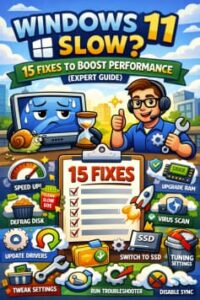
If your Windows 11 PC feels sluggish, you’re not alone. Many users notice slow startup times, laggy apps, or reduced responsiveness over time. The good news? You don’t need to be a tech genius or buy a new computer to fix it.
As someone who has worked extensively with Windows systems, I can tell you that most performance issues come down to misconfigurations, unnecessary background processes, or outdated settings. In this guide, I’ll walk you through 15 proven fixes to speed up Windows 11 and get your PC running like new again.
1. Disable Startup Programs
Too many apps launching at startup can significantly slow down your system.
Fix:
- Press
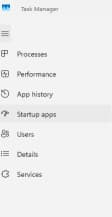
Ctrl + Shift + Esc - Go to Startup Apps
- Disable unnecessary programs
2. Update Windows 11
Updates often include performance improvements and bug fixes.
Fix:
- Go to Settings > Windows Update
- Click Check for updates
3. Free Up Disk Space
Low storage can cause serious slowdowns.
Fix:
- Open Settings > System > Storage
- Use Storage Sense to remove junk files
4. Uninstall Unused Apps
Unused software consumes resources in the background.
Fix:
- Go to Settings > Apps > Installed apps
- Remove anything you don’t need
5. Restart Your PC Regularly
It sounds simple, but many people skip this.
Why it works:
- Clears memory (RAM)
- Resets stuck processes
6. Turn Off Visual Effects
Windows 11 looks great—but those animations cost performance.
Fix:
- Search “Adjust the appearance and performance of Windows”
- Select Adjust for best performance
7. Upgrade Your RAM
If your system has 4GB or 8GB RAM, upgrading can make a huge difference.
Recommendation:
- Minimum: 8GB
- Ideal: 16GB+
8. Switch to SSD (If You Haven’t)
Still using an HDD? This is the biggest upgrade you can make.
Why SSD helps:
- Faster boot times
- Faster file access
- Overall smoother experience
9. Change Power Settings
Your PC might be set to power-saving mode.
Fix:
- Go to Control Panel > Power Options
- Select High Performance
10. Scan for Malware
Malware can silently drain system resources.
Fix:
- Use Windows Security or a trusted antivirus
- Run a full system scan
11. Update Drivers
Outdated drivers can cause lag and compatibility issues.
Fix:
- Open Device Manager
- Update critical drivers (GPU, chipset, network)
12. Disable Background Apps
Many apps run even when you’re not using them.
Fix:
- Go to Settings > Apps > Installed apps
- Adjust background permissions
13. Limit Browser Tabs and Extensions
Browsers (especially Chrome/Edge) can eat up RAM.
Fix:
- Close unused tabs
- Remove unnecessary extensions
14. Indexing Optimization
Search indexing can slow down older PCs.
Fix:
- Search Indexing Options
- Reduce indexed locations
15. Reset Windows 11 (Last Resort)
If everything fails, a fresh start can fix deep issues.
Fix:
- Go to Settings > System > Recovery
- Click Reset this PC
Pro Tips from a Windows Expert
- Keep at least 20% of your disk free
- Avoid installing “cleaner” apps—they often slow things down
- Use Task Manager regularly to monitor resource usage
- Restart after major updates or installs
Extra posts:
 How to Boost Performance with Built-In Tools in Windows 11
  Windows 11 Update Stuck? Here’s How to Fix It (Expert Guide)
  How to Speed Up Windows 11 Without Third-Party Tools (Complete Expert Guide)
  Windows 11 Best Graphics Settings for Laptops and PCs: The Complete Performance Guide
  How to Use Resource Monitor and Performance Monitor in Windows 11: A Complete Guide
  Running Windows with Slow or Unstable Internet Tips for Users in Low-Bandwidth Regions