
Transferring files between computers used to feel like a chore. USB drives would go missing. Email attachments would hit size limits. Cloud uploads would crawl at the worst possible moment. But if you’re using Windows 11, there’s a built-in solution that makes file sharing almost effortless: Nearby Sharing.
Whether you’re moving photos between laptops, sending a presentation to a colleague, or sharing documents across devices in the same room, Nearby Sharing can save you time and frustration. In this guide, we’ll break down what it is, how it works, and how you can start using it today for quick file transfers.
What Is Nearby Sharing in Windows 11?
Nearby Sharing is a wireless feature built into Windows 11 that allows you to share files, photos, documents, and links with other nearby Windows devices using Bluetooth and Wi-Fi.
Think of it as Windows’ answer to AirDrop but designed specifically for Windows PCs.
The best part? No third-party apps. No cables. No cloud storage required.
If both devices are within Bluetooth range and connected to Wi-Fi, you can transfer files directly between them in just a few clicks.
Why Use Nearby Sharing?
Here’s why so many Windows 11 users are starting to rely on Nearby Sharing:
1. Fast Local Transfers
Instead of uploading to cloud storage and downloading again, files transfer directly over your local network. This is especially useful for large files.
2. No Internet Required
You don’t need an active internet connection. As long as both devices are on the same network or within Bluetooth range, you’re good to go.
3. Secure and Controlled
You can choose whether to share with:
- My devices only
- Everyone nearby
- Or turn it off completely
You stay in control of who can send you files.
4. Built Right Into Windows 11
No need to install anything extra. It’s already part of Windows 11 you just need to enable it.
How to Turn On Nearby Sharing in Windows 11
Setting it up takes less than a minute.
Step 1: Open Settings
- Click the Start menu
- Select Settings
- Go to System
- Click Nearby sharing
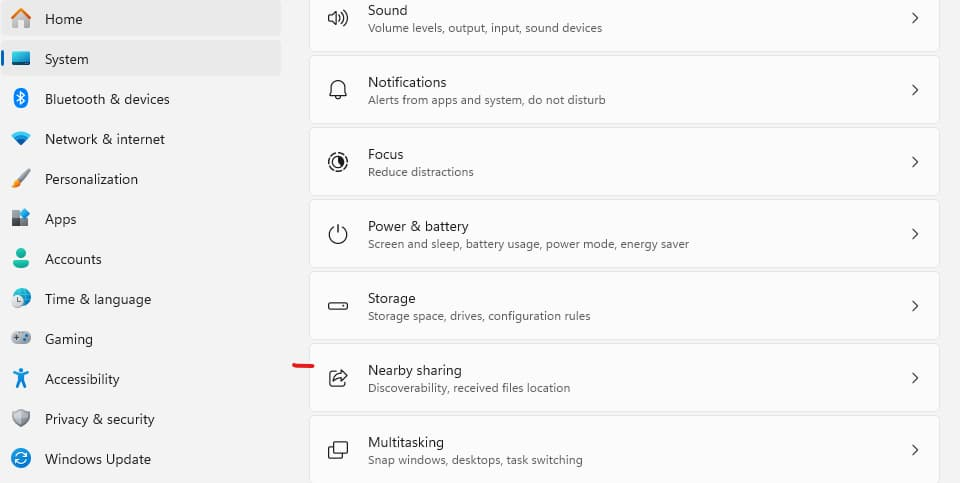
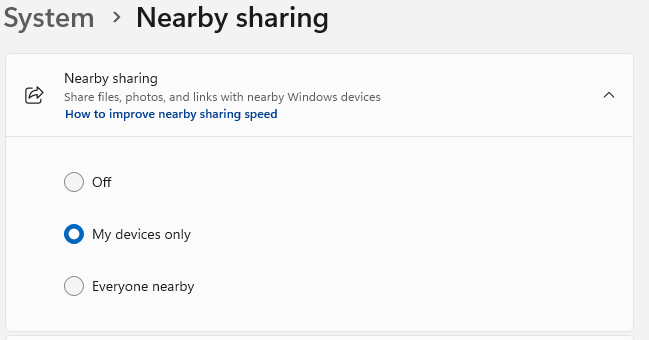
Step 2: Choose Sharing Mode
You’ll see three options:
- Off
- My devices only
- Everyone nearby
Choose what works best for you. If you’re sharing between your own laptops, “My devices only” is usually ideal.
Step 3: Choose Save Location
You can also choose where received files are saved. By default, they go to the Downloads folder, but you can change this.
Repeat these steps on both devices you want to use.
How to Share Files Using Nearby Sharing
Once it’s enabled, sharing files is simple.
Method 1: Share from File Explorer
- Right-click the file you want to share
- Click Share
- Select the nearby device from the list
- The recipient clicks Accept
That’s it.
Method 2: Share Photos
Open a photo in the Photos app:
- Click the Share button
- Choose the nearby device
- Recipient accepts
Method 3: Share Links from Microsoft Edge
When browsing in Microsoft Edge:
- Click the Share icon
- Select Nearby Sharing
- Choose a nearby device
It’s incredibly convenient during meetings or collaborative work sessions.
How Does Nearby Sharing Actually Work?
Nearby Sharing uses:
- Bluetooth to discover nearby devices
- Wi-Fi to transfer the files quickly
Bluetooth helps the devices find each other, but Wi-Fi handles the actual file transfer, which is why it’s much faster than traditional Bluetooth-only transfers.
If both devices are signed in with the same Microsoft account, sharing is even smoother.
Best Use Cases for Nearby Sharing
You might be surprised how often this comes in handy.
✔ Sending Large Files Between Your Own PCs
If you work on both a desktop and a laptop, you can transfer files without uploading to cloud storage.
✔ Sharing in Classrooms
Teachers and students can quickly exchange notes, PDFs, and presentations.
✔ Office Collaboration
Need to send a document to someone sitting across the room? No need to email it.
✔ Quick Photo Transfers
Move photos from one Windows device to another without cables.
Nearby Sharing vs. Cloud Storage
You might wonder: why not just use OneDrive or Google Drive?
Cloud storage is great but it has downsides:
- Requires internet
- Upload and download time
- Storage limits
- Privacy concerns for sensitive files
Nearby Sharing:
- Works offline
- Transfers directly
- No storage limits
- Faster for local transfers
For quick, same-room sharing, Nearby Sharing wins every time.
Troubleshooting Nearby Sharing Issues
Sometimes devices don’t show up. Here’s what to check:
1. Bluetooth Is Turned On
Both devices must have Bluetooth enabled.
2. Wi-Fi Is Active
Make sure both are connected to Wi-Fi.
3. Same Network
While not always required, being on the same Wi-Fi network improves reliability.
4. Update Windows
Ensure both PCs are updated to the latest version of Windows 11.
5. Check Sharing Mode
If set to “My devices only,” both PCs must use the same Microsoft account.
Privacy and Security Considerations
Nearby Sharing includes built-in safeguards:
- You must approve incoming files.
- You can disable sharing anytime.
- You can restrict sharing to your own devices only.
If you’re in a public place, avoid using “Everyone nearby” unless necessary.
Pro Tips for Faster Transfers
Here are some insider tips:
- Keep devices close together for better Bluetooth discovery.
- Use 5GHz Wi-Fi for faster speeds if available.
- Close heavy network applications during large transfers.
- Rename devices clearly so they’re easy to identify.
You can rename your PC by going to:
Settings → System → About → Rename this PC
Is Nearby Sharing Worth Using?
Absolutely.
It’s one of the most underrated productivity features in Windows 11. Many users overlook it because they assume file transfers require USB drives or cloud uploads.
But once you start using Nearby Sharing, it becomes second nature especially if you regularly move files between devices.
It’s simple.
It’s fast.
And it’s already on your computer.
In a world where we constantly move data between devices, convenience matters. Nearby Sharing in Windows 11 removes friction from file transfers and replaces it with speed and simplicity.
If you haven’t tried it yet, turn it on today and test it between two Windows PCs in the same room. You’ll likely wonder why you didn’t start sooner.
Sometimes the best productivity tools aren’t flashy new apps — they’re the built-in features waiting to be used.
Extra posts:
 Recover Deleted Files with Windows File Recovery A Lifesaver from Microsoft
  Recovering Deleted Files Using Windows File Recovery A Complete Guide
  Prevent sharing of OneDrive files outside your company
  Using BitLocker to Encrypt Your Files in Windows 11
  How to Transfer Files and Apps from Old PC to Windows 11
  How to Use File History for Backup in Windows 11