

In today’s AI-driven workplace, tools like Microsoft Copilot are quickly becoming essential for productivity. Whether you’re drafting documents, analyzing spreadsheets, summarizing meetings, or generating code, Copilot relies heavily on fast, stable network connectivity. Yet many organizations focus on licensing and deployment while overlooking one critical component: network optimization.
If Copilot feels slow, inconsistent, or unreliable, the issue is often not the AI itself it’s the network.
In this guide, we’ll walk through how to optimize network and connectivity for Copilot performance, explore technical configuration steps, and share practical best practices to ensure your users experience seamless AI assistance.
Why Network Optimization Matters for Microsoft Copilot
Microsoft Copilot operates as a cloud-based AI service integrated across Microsoft 365 applications. Every time a user prompts Copilot, data travels from the user’s device to Microsoft’s cloud infrastructure, is processed by AI models, and returns a response often in seconds.
This means performance depends on:
- Network latency
- DNS resolution speed
- Bandwidth availability
- Packet loss and jitter
- Firewall and proxy configurations
- Secure cloud connectivity
Even small inefficiencies in these areas can result in delayed responses, timeout errors, or degraded performance.
For organizations using Microsoft 365, ensuring optimized connectivity is not optional — it is foundational.
Key Network Requirements for Copilot
Before optimizing, you must ensure your network meets baseline requirements.
1. Direct Internet Access (Avoid Backhauling)
One of the most common mistakes is routing Microsoft 365 traffic through centralized data centers or VPN backhauls. This introduces unnecessary latency.
Recommended approach:
- Enable local internet breakout at branch offices.
- Use split tunneling for VPN configurations.
- Route Microsoft 365 traffic directly to Microsoft endpoints.
2. Optimize DNS Resolution
Slow DNS lookups increase total request time.
Technical Steps:
- Use enterprise-grade DNS resolvers.
- Enable DNS caching.
- Minimize internal DNS forwarding chains.
- Validate DNS resolution times (should be under 50 ms ideally).
You can test using:
nslookup microsoft.com
Or:
Resolve-DnsName microsoft.com
3. Ensure Low Latency to Microsoft Endpoints
Copilot performance improves significantly when latency to Microsoft’s front doors is minimized.
Best Practice Targets:
- Latency: < 50 ms (ideal), < 100 ms (acceptable)
- Packet loss: < 1%
- Jitter: Minimal variation
Use tools like:
- PathPing
- Traceroute
- Microsoft 365 network connectivity test
4. Allow Required Endpoints and Ports
Firewalls often cause silent performance issues.
Ensure:
- HTTPS (TCP 443) is fully open to Microsoft 365 endpoints.
- SSL inspection is bypassed for Microsoft traffic.
- No traffic throttling policies apply to AI services.
Blocking or deep-inspecting traffic to Microsoft AI services can introduce delays and authentication failures.
Technical Optimization Steps for IT Teams
Now let’s get more hands-on.
Step 1: Use Microsoft 365 Network Connectivity Test Tool
Microsoft provides a built-in testing tool that measures:
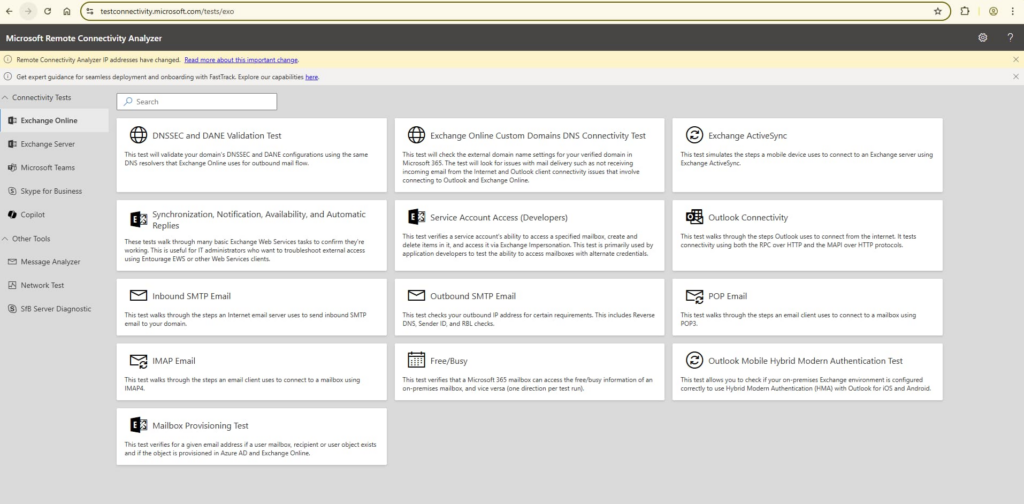
- Latency to Microsoft front doors
- DNS health
- TCP connection times
- Network perimeter issues
Run the test from multiple branch offices to identify bottlenecks.
Step 2: Configure Split Tunneling for VPN
If users are remote:
For VPN Clients:
- Exclude Microsoft 365 endpoints from VPN routing.
- Route traffic directly through local ISP.
- Validate traffic path using traceroute.
Split tunneling dramatically reduces latency for cloud-based AI tools.
Step 3: Implement Quality of Service (QoS)
Although Copilot traffic is HTTPS-based, prioritizing Microsoft 365 traffic can improve responsiveness during high congestion.
QoS Strategy:
- Prioritize TCP 443 traffic to Microsoft IP ranges.
- Avoid bandwidth caps on Microsoft domains.
- Monitor network saturation during peak hours.
Step 4: Monitor Network Performance Continuously
Use tools like:
- Azure Network Monitor
- Third-party network monitoring tools
- Synthetic transaction testing
Track:
- Response time spikes
- Connection resets
- Failed TLS handshakes
Regular monitoring prevents performance degradation from going unnoticed.
Proxy and Security Considerations
Many enterprises use secure web gateways and proxies. While security is essential, poorly configured inspection can harm Copilot performance.
Best Practices:
- Avoid SSL break-and-inspect for Microsoft endpoints.
- Use allowlists for Microsoft 365 domains.
- Ensure proxy authentication does not require repeated re-validation.
- Verify idle timeout settings (long-running AI queries need stable sessions).
If using cloud security solutions like Microsoft Defender for Cloud Apps, ensure policies are optimized for performance.
Bandwidth Planning for Copilot
Copilot interactions are lightweight compared to video streaming but require consistent throughput.
Estimate:
- Light prompt: Low data usage
- Large document analysis: Moderate burst traffic
- Enterprise-wide adoption: Significant aggregate usage
Capacity Planning Tips:
- Measure current Microsoft 365 traffic baseline.
- Simulate increased usage.
- Upgrade branch circuits if consistently above 70% utilization.
- Avoid asymmetric bandwidth limitations.
Cloud Architecture Alignment
Organizations using hybrid environments must align networking architecture with cloud-first design.
If leveraging Microsoft Azure:
- Ensure Azure ExpressRoute is properly configured.
- Avoid hairpin routing.
- Use regional Microsoft entry points closest to users.
- Validate routing tables for optimal path selection.
Remember: The shortest network path equals better Copilot response time.
Troubleshooting Common Copilot Performance Issues
Issue 1: Slow Response Time
Check:
- Latency
- DNS resolution time
- Proxy inspection
Issue 2: Intermittent Timeouts
Check:
- Firewall session timeouts
- Packet loss
- VPN routing
Issue 3: Inconsistent User Experience Across Locations
Compare:
- ISP providers
- Branch routing design
- Local breakout configuration
Often, a single branch office misconfiguration can affect dozens of users.
Security Without Sacrificing Performance
Security teams often worry about bypassing inspection for Microsoft traffic. However, Microsoft 365 traffic is already encrypted end-to-end with strong security standards.
Rather than deep inspection:
- Use endpoint protection.
- Implement Conditional Access policies.
- Monitor logs through Microsoft 365 admin center.
- Leverage Defender-based monitoring.
Balancing security and performance is key to successful Copilot adoption.
Best Practices Summary
To optimize network and connectivity for Copilot performance:
- Enable local internet breakout
- Configure VPN split tunneling
- Minimize DNS latency
- Avoid SSL inspection for Microsoft endpoints
- Prioritize Microsoft 365 traffic
- Monitor performance continuously
- Plan bandwidth for scale
- Validate firewall configurations
When implemented correctly, users experience near-instant AI responses improving productivity, adoption, and satisfaction.
AI productivity tools like Microsoft Copilot are only as powerful as the network that supports them. While organizations invest heavily in AI strategy, licensing, and training, network optimization often remains overlooked.
By proactively improving DNS resolution, routing efficiency, firewall configurations, and bandwidth allocation, IT teams can unlock the true performance potential of Copilot.
In the era of cloud-based AI, network performance is not just infrastructure it is a competitive advantage.
Extra posts:
 Microsoft 365 Copilot Network Connectivity Test Rolls Out to General Availability
  Optimizing Windows 11 for Gaming Performance
  Building an Enterprise ServiceNow AI Copilot Agent with Microsoft Copilot Studio: A Complete Guide to IT Operations Automation, Ticket Auditing, and Engineer Performance Intelligence
  AI Mistakes in Microsoft Copilot and How to Fix Them How Enterprises Are Leveraging Microsoft Copilot to Drive Innovation
  Supercharge Your IT Certification Prep How Copilot Can Be Your Study Buddy