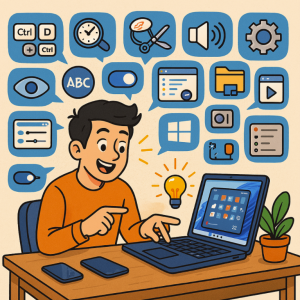
Windows 11 is sleek, modern, and packed with features that go beyond what you see at first glance. While most people know about the centered taskbar and updated Start menu, there’s a treasure trove of hidden tools and tricks that can make your PC experience smoother, faster, and more fun.
Here are 24 hidden Windows 11 features you’ll wish you found sooner:
1. Snap Layouts for Effortless Multitasking
Hover over the maximize button to instantly organize windows into pre-set layouts (like side-by-side or a 4-grid).
2. Virtual Desktops with Custom Wallpapers
Set up multiple desktops for work, gaming, or creativity—and assign each one a different background.
3. Focus Sessions in the Clock App
Integrated with Spotify and To Do, Focus Sessions help you stay productive with timers and music.
4. Hidden Right-Click Menu
Prefer the classic right-click menu? Just press Shift + Right-Click to see the old-style context menu.
5. Clipboard History
Hit Windows + V to view your clipboard history and paste previously copied items.
6. Dynamic Refresh Rate
If your laptop supports it, enable this to save battery while still enjoying smooth scrolling when needed.
7. Touchpad Gestures
Three- and four-finger swipes let you switch desktops, open task view, or minimize apps quickly.
8. Quick Bluetooth Device Pairing
Windows 11 detects nearby Bluetooth devices and lets you pair directly from the notification pop-up.
9. File Explorer Tabs
Open multiple folders in a single File Explorer window with built-in tabs—just like a web browser.
10. Hidden Volume Mixer Shortcut
Right-click the sound icon and select Open Volume Mixer to control app-specific audio levels instantly.
11. Improved Window Snapping with Keyboard Shortcuts
Press Windows + Arrow Keys to quickly snap windows into place.
12. Integrated Screen Recorder in Snipping Tool
No need for third-party apps—Snipping Tool now lets you record screen activity.
13. Storage Sense Auto-Cleanup
Automatically clears temporary files and recycle bin contents to save space.
14. Hidden Emojis, GIFs, and Symbols
Press Windows + . (period) to bring up the emoji, GIF, and special character picker.
15. Nearby Sharing
Send files instantly to nearby Windows devices without cables or USB drives.
16. Shake to Minimize
Grab a window and shake it to minimize all others—a fast way to clear clutter.
17. Advanced Battery Stats
In Settings > Power & battery, view detailed usage reports and per-app consumption.
18. Hidden PowerToys Utilities
Install Microsoft’s free PowerToys add-on for features like FancyZones (custom snapping grids) and Color Picker.
19. Task Manager Shortcut with Right-Click
Right-click the taskbar and quickly open Task Manager—restored in Windows 11 updates.
20. Hidden Startup Apps Control
Go to Settings > Apps > Startup to disable apps that slow boot times.
21. Compact View in File Explorer
Switch to Compact View for a tighter layout and more files on screen.
22. Direct Access to Advanced Settings
Press Windows + X for a power user menu with shortcuts to Device Manager, Disk Management, and more.
23. Night Light for Eye Comfort
Schedule warm screen tones at night to reduce eye strain and improve sleep.
24. Widgets Panel
Swipe from the left edge or press Windows + W to open a customizable panel for weather, news, and tasks.
Windows 11 is much more powerful than it looks on the surface. Whether you’re a productivity enthusiast, a gamer, or just someone who loves efficiency, these hidden features can transform the way you use your PC.
Extra posts:
 Registry Tweaks to Unlock Hidden Features in Windows 11
  Xbox Game Pass Integration and Hidden Features
  Hidden Settings That Make Multitasking Easier in Windows 11
  How to Reconfigure the Hidden Context Menu and Unlock Power Tweaks in Windows
  Unlocking Hidden Superpowers in Windows 11 Speech, Eye, and Voice Access Tools You Didn’t Know You Had
  Exploring the Top Features of Windows 11 What’s New and What’s Improved