
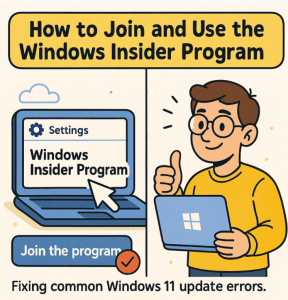
If you’re excited about getting early access to new Windows features before the general public, the Windows Insider Program is your gateway. It allows users to test upcoming builds, explore new features, and provide feedback that helps shape the future of Windows. Whether you’re a tech enthusiast, developer, or just curious, joining the program is easy. Here’s a step-by-step guide to get started.
What is the Windows Insider Program?
The Windows Insider Program is a free initiative from Microsoft that lets users preview pre-release versions of Windows. By joining, you can:
- Test experimental features before they roll out publicly.
- Provide feedback directly to Microsoft through the Feedback Hub.
- Stay ahead with insider builds for both personal and professional use.
Things to Know Before Joining
Before signing up, keep in mind:
- Insider builds may be less stable than official releases.
- Some features may change or be removed in the final release.
- It’s best to use a secondary device or a virtual machine if you rely on your main PC for work.
How to Join the Windows Insider Program
Step 1: Sign in with your Microsoft Account
- Visit the Windows Insider Program website.
- Click Register and sign in using your Microsoft account (the same one you use on your PC).
- Accept the terms and conditions.
Step 2: Enroll Your Device
- On your Windows PC, go to Settings > Update & Security > Windows Insider Program.
- Click Get started.
- Link your Microsoft account.
Step 3: Choose an Insider Channel
Microsoft offers three main channels, each suited for different types of users:
- Dev Channel – Ideal for advanced users and developers. Features are experimental and can be unstable.
- Beta Channel – More stable than Dev, with builds that are closer to final releases. Great for early adopters.
- Release Preview Channel – Most stable, offering upcoming features just before general release.
Choose the channel that matches your comfort level.
Step 4: Restart and Update
After selecting your channel, restart your PC. Then, head to Settings > Update & Security > Windows Update and check for updates. Your Insider build will start downloading.
How to Use the Windows Insider Program Effectively
- Stay Updated: Check for updates regularly to get the latest builds.
- Report Issues: Use the Feedback Hub app (pre-installed on Windows) to report bugs, suggest features, and upvote others’ feedback.
- Explore New Features: Try out the latest changes and keep an eye on Microsoft’s Insider Blog for announcements.
- Switch Channels Anytime: If you find a channel too unstable, you can switch to a more stable one (though some changes may require a fresh install).
Should You Join?
Joining the Windows Insider Program is perfect for tech enthusiasts who love being on the cutting edge. If you don’t mind a few glitches and enjoy exploring what’s next for Windows, it’s worth enrolling.
✅ Pro Tip: Always back up your files before installing Insider builds to avoid data loss if something goes wrong.
Extra posts:
 Become Microsoft Windows tester-windows insider program
  Join Microsoft Team using code
  Enhancing Data Security with Microsoft Purview Insider Risk Management
  Microsoft Bug Bounty Program
  Microsoft announces the Azure Migration program
  What’s Included in Microsoft 365 Free Trial and Developer Program