
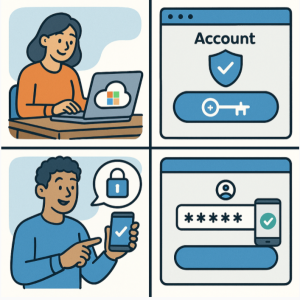
A compromised Microsoft 365 password can give an attacker access to email, Teams, SharePoint, OneDrive, and other business resources. Multi-factor authentication (MFA) adds another verification step, making a stolen password alone insufficient to complete a sign-in.
For Microsoft 365 administrators, the challenge isn’t simply turning MFA on. You also need to choose the right enforcement model, configure authentication methods, plan user registration, and verify that the policy behaves as expected.
Microsoft 365 uses Microsoft Entra ID to manage identity and authentication. Depending on your licensing and security requirements, you can enforce MFA with Security Defaults or use Conditional Access for more granular control. Microsoft also supports authentication methods such as Microsoft Authenticator, passkeys, and other methods through its authentication methods policy.
Here’s how to approach the setup without creating unnecessary disruption for your users.
What MFA Does in Microsoft 365
MFA requires users to provide additional evidence of their identity during sign-in. Instead of relying exclusively on a password, Microsoft Entra can require another authentication factor, such as an approval in Microsoft Authenticator or another supported method.
The basic flow looks like this:
- A user enters their Microsoft 365 username and password.
- Microsoft Entra evaluates the sign-in and applicable policies.
- MFA is required when the configured policy calls for it.
- The user completes the additional authentication step.
- Access is granted if all authentication and policy requirements are satisfied.
This extra verification step is particularly important for cloud identities because passwords can be exposed through phishing, credential stuffing, malware, or password reuse.
Choose Between Security Defaults and Conditional Access
Before changing your tenant configuration, decide how much control you need.
Security Defaults
Security Defaults provide a straightforward way to establish baseline identity protection. They are available with Microsoft Entra ID Free and are designed for organizations that don’t need customized access policies.
To check whether Security Defaults are enabled:
- Sign in to the Microsoft Entra admin center.
- Go to Entra ID > Overview > Properties.
- Find Security defaults.
- Select Manage security defaults.
- Set the status to Enabled.
- Save the configuration.
Microsoft notes that tenants created after October 2019 have Security Defaults enabled by default in many cases.
Security Defaults are useful when you want a relatively simple baseline and don’t need different MFA requirements for different applications, users, locations, or risk conditions.
Conditional Access
Conditional Access is the more flexible option when your organization has Microsoft Entra ID P1 or P2. It lets administrators create policies based on conditions such as users, groups, applications, locations, devices, and sign-in circumstances.
For example, an organization might create an MFA policy that applies to employees accessing Microsoft 365 applications while excluding a carefully controlled emergency-access account.
A typical deployment sequence is:
- Identify the users and applications that need MFA.
- Define the conditions under which MFA should be required.
- Configure exclusions for emergency or service scenarios where appropriate.
- Start with a controlled test group.
- Validate sign-in behavior.
- Expand the policy to the wider organization.
Microsoft recommends using the principle of least privilege when assigning administrative roles. Global Administrator is a highly privileged role and should be limited to situations that require it.
Configure the Authentication Methods
Turning on MFA enforcement is only part of the job. Users also need an authentication method they can use when Microsoft Entra requests additional verification.
Microsoft’s Authentication methods policy is the recommended way to manage authentication methods, including modern authentication options.
Common options include:
- Microsoft Authenticator
- Passkeys and FIDO2 security keys
- Software OATH tokens
- SMS and voice authentication in supported scenarios
- Other methods supported by your Microsoft Entra configuration
For many organizations, Microsoft Authenticator is a practical starting point because it supports push notifications and integrates directly with Microsoft Entra.
Microsoft also uses number matching with Authenticator to help reduce accidental MFA approvals and defend against MFA fatigue attacks.
To review authentication methods, open the Microsoft Entra admin center and navigate to the authentication methods configuration under Protection. From there, administrators can control which methods are available and which users or groups can use them.
Avoid changing authentication methods blindly. A method that looks unnecessary may still be part of a user’s recovery or registration path. Microsoft specifically warns that organizations using Security Defaults shouldn’t disable authentication methods indiscriminately because doing so can create lockout risks.
Register Users for Microsoft Authenticator
Once MFA enforcement and authentication methods are configured, users need to register their devices.
The registration process generally requires the user to authenticate and then add Microsoft Authenticator to their account. Administrators can also use Microsoft’s registration campaign to encourage eligible users to configure Authenticator during normal sign-in.
A registration campaign can target users who don’t already have Authenticator push notifications configured. Administrators can include or exclude specific users and groups, which makes staged deployment easier.
A practical rollout might look like this:
Phase 1 — IT administrators
Register the IT team first. This gives administrators an opportunity to identify problems before the wider deployment.
Phase 2 — Pilot users
Choose a small representative group from different departments and device types.
Phase 3 — General rollout
Expand the registration requirement after validating the pilot.
Phase 4 — Monitor
Review authentication activity and investigate failed sign-ins, registration issues, and unexpected access behavior.
The registration campaign can also be used to encourage users toward stronger methods such as passkeys. Microsoft documents both Authenticator and passkey registration campaigns.
Use Conditional Access to Protect MFA Registration
There is an important distinction between protecting access to Microsoft 365 and protecting the process used to register authentication methods.
Microsoft Entra supports Conditional Access policies that can control access to security information registration. This allows administrators to apply additional conditions when users register or modify authentication methods.
For example, an organization could restrict security-information registration to trusted network locations or require an appropriate authentication condition before allowing changes.
This matters because an attacker who gains control of an account shouldn’t be able to easily add their own authentication method and establish persistent access.
When designing this policy, pay particular attention to administrator accounts and emergency-access procedures. A security policy that prevents legitimate administrators from recovering an account can become an operational problem.
Test MFA Before Rolling It Out
Don’t switch a tenant-wide MFA policy on and assume everything is working.
Test it.
Use a controlled account and verify several scenarios:
- Standard Microsoft 365 browser sign-in
- Microsoft Outlook authentication
- Microsoft Teams access
- Mobile-device sign-in
- New-device sign-in
- MFA registration
- Authentication-method changes
- Recovery scenarios
- Access from outside your normal corporate network
For Conditional Access deployments, Microsoft provides tools and reports that can help administrators evaluate policy results and sign-in activity.
Pay special attention to exclusions. An exclusion that was created for a temporary testing scenario can become a permanent security gap if nobody removes it.
Avoid the Legacy Per-User MFA Trap
Microsoft 365 still documents per-user MFA, but Microsoft identifies it as a legacy approach and does not recommend it for new deployments when Security Defaults or Conditional Access are available.
This distinction is important because administrators may encounter the older MFA management experience while troubleshooting an existing tenant.
For a modern deployment, think in terms of:
Authentication methods + Security Defaults or Conditional Access + user registration
rather than simply enabling MFA for individual accounts one by one.
If you’re migrating an older tenant, first determine which MFA mechanism is already active. Mixing approaches without understanding the existing configuration can produce confusing registration and sign-in behavior.
Troubleshooting Common MFA Problems
Users aren’t receiving an Authenticator prompt
Check whether Authenticator is enabled for the affected user or group in the authentication methods policy. Also verify that the user has actually registered the application. Registration campaigns only target eligible users.
Users are unexpectedly blocked
Review the applicable Conditional Access policies and their exclusions. Check the sign-in logs to determine which policy produced the access result.
Administrators are locked out
Before enforcing tenant-wide policies, establish a documented emergency-access strategy. Test recovery procedures rather than assuming they will work when an incident occurs.
MFA registration isn’t appearing
Check whether the user is eligible for the configured registration campaign and whether another Conditional Access policy is affecting security-information registration. Microsoft notes that Conditional Access policies governing security-information registration can apply before the registration campaign prompt appears.
A Practical Microsoft 365 MFA Deployment Checklist
Before considering the rollout complete, verify:
- You know whether the tenant uses Security Defaults or Conditional Access.
- Legacy per-user MFA isn’t being used accidentally alongside the intended model.
- Appropriate authentication methods are enabled.
- Pilot users have successfully registered MFA.
- Administrative accounts have been tested.
- Emergency-access procedures are documented.
- Conditional Access exclusions have been reviewed.
- Sign-in logs have been checked after deployment.
- Users understand what an unexpected MFA request looks like.
- Authentication-method registration is protected appropriately.
Move From “MFA Enabled” to Identity-Aware Access
Setting up MFA in Microsoft 365 is not just a checkbox in the admin center. The stronger approach is to treat authentication as an identity-management workflow.
Start with the simplest enforcement model your organization needs. If Security Defaults meet the requirement, use them as a baseline. If your environment needs application-, user-, device-, or location-specific controls, Conditional Access provides the additional policy layer.
Then make authentication registration part of the deployment plan. Configure supported methods, test the user experience, protect security-information registration, and monitor sign-in activity.
For organizations already using Microsoft Entra ID, the next logical step is to review the tenant’s existing authentication methods and Conditional Access policies before making changes. That assessment will tell you whether you’re starting from a clean baseline or modernizing an older MFA configuration.
Extra posts:
 How to Enable Two-Factor Authentication (2FA) in Windows 11
  General Availability of Multi-Geo Capabilities in SharePoint Online and Office 365 Groups
  Managing Microsoft 365 on the Go The Power of the Microsoft 365 Admin Mobile App
  Microsoft Authenticator App A Complete Guide to Secure Authentication
  Microsoft Copilot Studio Gets a Security Boost with Entra-Based User and S2S Authentication
  Microsoft 365 E7 and Agent 365 Are Now Generally Available: The Future of AI-Powered Work Has Arrived