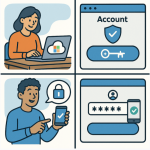
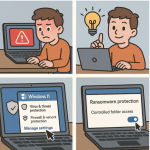
Cybersecurity has become more important than ever. With so much of our work, personal communication, banking, and private information stored on our computers, simply having a password is no longer enough. Passwords can be guessed, stolen, or leaked. That is why Two-Factor Authentication (2FA) has become such an important part of protecting your digital life.
Two-Factor Authentication adds an extra security step to your login process. Instead of just typing your password, you also confirm your identity using something else—like a code sent to your phone, an authentication app, or a physical security key. Even if someone discovers your password, they still can’t access your system without this second step.
In Windows 11, 2FA is mainly enabled through your Microsoft Account. Since Windows uses your Microsoft login for many features, setting up 2FA there helps secure your computer, OneDrive, email, and other Microsoft services. In this guide, you will learn what 2FA is, why you need it, and how to easily turn it on in Windows 11.
What Is Two-Factor Authentication (2FA)?
Two-Factor Authentication is a security method that requires two steps to prove who you are. It usually includes:
- Something you know – your password
- Something you have – such as a phone or security key
This means that even if someone gets your password, they still can’t log in without the second verification.
Common types of 2FA include:
- Codes sent by SMS
- Authentication apps (Microsoft Authenticator, Google Authenticator, etc.)
- Email verification
- Biometric verification, like fingerprints or face unlock
- Hardware security keys (USB devices)
With 2FA turned on, hackers have a much harder time breaking into your account.
Why You Should Enable 2FA in Windows 11
Enabling 2FA gives you stronger protection against online attacks. Here are some benefits:
1. Better Protection Against Password Theft
Cybercriminals use many tricks—phishing emails, keyloggers, and leaked databases—to steal passwords. With 2FA, even if they know your password, they still can’t log in.
2. Protect Your Personal and Work Data
If you use your computer for work, study, or storing personal photos, banking information, or private emails, 2FA adds an extra safety layer.
3. Peace of Mind
2FA reduces the chances that someone will break into your account without permission. It helps you feel more confident that your system is safe.
How 2FA Works in Windows 11
Windows 11 does not have a direct 2FA switch in the Settings app. Instead, Two-Factor Authentication is linked to your Microsoft Account. This means when you enable 2FA for your Microsoft Account, it automatically protects your Windows login as well.
So the real setup is done online through your Microsoft profile.
Step-by-Step Guide: How to Enable 2FA in Windows 11
Follow these steps:
Step 1: Sign in to Your Microsoft Account
- Open a web browser on your PC.
- Go to the Microsoft Account website.
- Log in using your email and password.
If you are already signed in, you will go straight to the dashboard.
Step 2: Open Security Settings
- At the top, click Security.
- Then select Advanced security options.
This is where all your account protection settings are located.
Step 3: Turn on Two-Step Verification
- Find the section called Two-step verification.
- Click Turn on.
- Microsoft will now guide you through a setup wizard.
Step 4: Choose Your 2FA Method
Microsoft allows several verification options:
Option A: Authentication App
This is the most secure method.
- Download Microsoft Authenticator (or another app like Google Authenticator).
- Scan the QR code shown on the screen.
- Approve the login request on your phone.
Option B: Phone Number
You can choose to receive:
- SMS codes
- Phone call verification
Enter your number and follow the prompts.
Option C: Email Verification
You can add a second email address to receive confirmation codes.
Option D: Hardware Security Key
If you own a FIDO2-compatible USB security key, you can register it here for maximum protection.
Choose one or more methods to keep your account accessible even if one fails.
Step 5: Save Backup Recovery Codes
Microsoft will give you backup recovery codes. These can save you if:
- Your phone is lost
- Your authentication app stops working
- You cannot access your registered device
Download the codes or write them somewhere safe. Do not store them on your computer where others can find them.
Step 6: Confirm Activation
Once setup is complete, Microsoft will activate 2FA on your account. From now on, whenever you sign in to Windows 11 or Microsoft services, you will be required to confirm your identity using the second verification step.
How to Use 2FA When Logging Into Windows 11
After enabling 2FA, the next time you log in:
- Enter your Microsoft account password.
- You will receive a verification prompt (app notification, SMS code, etc.).
- Approve the login.
If you check “Don’t ask again on this device,” Windows will stop asking for 2FA repeatedly unless there is a suspicious login attempt or system reset.
How to Disable Two-Factor Authentication (Not Recommended)
If you ever need to turn 2FA off:
- Sign in to your Microsoft Account online.
- Go to Advanced security options.
- Select Turn off two-step verification.
This will remove the extra security layer, so only do this if you fully understand the risk.
Tips for Using 2FA Safely
- Add more than one verification method (e.g., phone + authenticator app).
- Store your recovery codes in a safe place.
- Avoid using SMS alone, since text messages can sometimes be intercepted.
- Never share your verification codes with anyone.
Enabling Two-Factor Authentication in Windows 11 is one of the easiest and most effective ways to protect your computer and personal data. It only takes a few minutes to set up but adds huge security benefits. With cyber threats increasing every year, 2FA should not be optional anymore—it is a necessary part of modern digital safety.
Take a few minutes today to turn it on and enjoy better peace of mind knowing that your online identity is safer.