

Microsoft Teams has become the central hub for collaboration in many organizations, and one of its biggest strengths is extensibility. Beyond chats, meetings, and file sharing, you can enhance your team’s productivity by creating custom Teams apps and tabs tailored to your workflows.
In this post, we’ll explore what Teams apps and tabs are, why you might build them, and how to get started.
What Are Teams Apps and Tabs?
- Teams Apps: Packages of functionality that integrate directly into the Teams environment. These can include bots, messaging extensions, web experiences, and more.
- Tabs: A type of app surface in Teams that lets you embed web content into a channel, group chat, or personal app. For example, you might create a dashboard tab that surfaces KPIs directly in a project channel.
By building custom apps and tabs, you can bring your existing business tools into Teams without context-switching.
Why Build Custom Teams Tabs?
- Centralized access – Put your internal tools and dashboards right where people collaborate.
- Improved productivity – Reduce the friction of switching between apps.
- Custom workflows – Build features specific to your organization, such as approval systems or knowledge bases.
- Consistency – Provide a unified experience inside Teams without requiring users to learn new interfaces.
Ways to Build Custom Teams Apps
You can approach Teams app development in a few ways:
1. Low-Code/No-Code with Power Platform
- Use Power Apps to build simple apps without deep coding.
- Add them as a tab in Teams for easy access.
- Combine with Power Automate to streamline workflows (e.g., approvals, notifications).
2. Custom Development with the Teams Toolkit
- Install the Teams Toolkit extension in Visual Studio Code.
- Scaffold a project in minutes with support for Node.js or C#.
- Use React, Angular, or any web technology to build the tab’s UI.
- Deploy to Azure or your hosting environment.
3. Directly Embedding Existing Web Apps
- If you already have a responsive web app, you can wrap it in a Teams tab.
- Create an app manifest, point it to your web app’s URL, and install it in Teams.
- Apply Teams-specific authentication (Azure AD) for secure access.
Key Steps to Create a Custom Tab
- Set up your development environment
- Install Node.js, Visual Studio Code, and the Teams Toolkit extension.
- Register your app in Azure Active Directory for authentication (if needed).
- Create a new Teams app project
- Use the Teams Toolkit to generate boilerplate code.
- Choose “Tab” as the capability when prompted.
- Build your tab UI
- Develop using React, Angular, or vanilla HTML/JavaScript.
- Ensure it’s responsive and Teams-friendly.
- Configure your app manifest
- Define metadata such as app name, description, icons, and valid domains.
- Specify the tab URLs and scopes (channel, group chat, or personal).
- Test in Teams
- Use Teams Toolkit to run your app locally with tunneling (via ngrok).
- Sideload the app into Teams for testing.
- Publish and Distribute
- Package the app (.zip) with your manifest and icons.
- Upload it to your organization’s app store or submit to Microsoft AppSource.
Best Practices
- Keep it simple – Focus on solving a specific problem for your users.
- Design for Teams – Match Teams’ UI patterns and accessibility standards.
- Handle authentication gracefully – Use Microsoft identity platform (MSAL) for secure sign-ins.
- Test across devices – Make sure your tab works well on desktop, web, and mobile clients.
Real-World Examples
- HR Dashboard: A tab showing onboarding checklists and employee resources.
- Project Tracker: Embedded Kanban board with tasks synced from an external system.
- Sales Dashboard: A tab with real-time CRM data and deal tracking.
Building custom Teams apps and tabs is a powerful way to bring your organization’s tools into the flow of work. Whether you’re using Power Apps for quick solutions or coding full-featured apps with the Teams Toolkit, the result is the same: smoother workflows and better collaboration.
If your team spends most of their day in Teams, why not make it the home for your business applications too?
Extra posts:
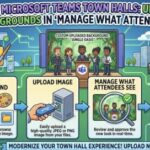 Microsoft Teams Town Halls Get a Branding Upgrade: Custom Backgrounds Are Finally Here
  Creating Custom Plugins and Connectors in Copilot Studio
  Creating Custom Themes & Wallpapers in Windows 11
  How to Add a Custom Domain in Microsoft 365 and SharePoint
  What’s New in Microsoft Teams – May 2025 Update (With How-To Guide)
  Telling Your Story with Microsoft Teams Storyline