
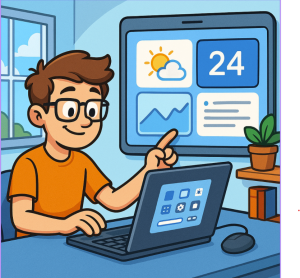
Windows 11 brought a sleek redesign and fresh features to Microsoft’s operating system, but what really makes it shine is how customizable it is. Whether you’re aiming for productivity, minimalism, or just a personal touch, Windows 11 gives you plenty of tools to make your desktop feel like your own. Here’s how you can go from tweaking the Start Menu to fine-tuning widgets—and everything in between—like a pro.
1. Personalize Your Start Menu
The Start Menu is the hub of Windows 11, and it’s more customizable than ever.
- Pin and Unpin Apps: Right-click on any app to pin it for quick access or remove the ones you don’t use.
- Folder Groups: Drag and drop app icons to create neat groups. Perfect for keeping work, entertainment, and creative tools organized.
- Layout Adjustments: Head to Settings > Personalization > Start to choose whether you want more pinned items or more recommendations.
Pro Tip: If you prefer the classic look, tools like Start11 can bring back Windows 10-style menus.
2. Taskbar Tweaks
The taskbar in Windows 11 is centered by default, but you can adjust it to your liking.
- Alignment: Go to Settings > Personalization > Taskbar and switch the alignment back to the left for a more traditional look.
- Icons & Features: Toggle visibility for Search, Task View, Widgets, and Chat to declutter.
- System Tray Customization: Choose which icons show up in the corner so only the essentials stay visible.
Pro Tip: Want transparency or extra effects? Third-party apps like TranslucentTB let you take taskbar design to the next level.
3. Themes, Colors, and Wallpapers
Windows 11’s design language shines with its rounded corners and modern feel, but the real magic happens when you personalize it.
- Themes: Under Settings > Personalization > Themes, choose from built-in themes or download more from the Microsoft Store.
- Accent Colors: Pick a custom accent color that flows across buttons, taskbars, and highlights.
- Dark/Light Mode: Switch between modes—or even schedule them for day and night—for comfort and style.
- Dynamic Wallpapers: Try apps like Lively Wallpaper for animated or interactive backgrounds.
4. Widgets That Work for You
Widgets in Windows 11 give you quick-glance information—but they’re only as useful as you make them.
- Adding/Removing Widgets: Open the widgets panel, hit the profile icon, and customize what shows up (weather, sports, calendar, traffic, and more).
- Rearranging: Drag and drop to prioritize what matters most.
- Third-Party Widgets: Microsoft is rolling out support for more apps—keep an eye on updates to expand functionality.
Pro Tip: If you’re not a fan, you can turn widgets off completely in the taskbar settings.
5. Virtual Desktops for Maximum Productivity
If you juggle work, school, and personal projects, virtual desktops are your secret weapon.
- Create Multiple Desktops: Use Win + Tab and click New Desktop.
- Customize Each Desktop: Rename desktops and set different wallpapers for each.
- Gesture Navigation: Swipe with four fingers on a trackpad to move between desktops seamlessly.
6. Beyond Built-In Tools
While Windows 11 has plenty of customization options, third-party apps unlock even more possibilities:
- Rainmeter: Create highly detailed desktop skins and interactive widgets.
- PowerToys: Add advanced utilities like window snapping, bulk renaming, and custom layouts.
- AutoHotkey: Automate repetitive tasks and create powerful shortcuts.
Customizing Windows 11 isn’t just about looks—it’s about creating a space that works for you. From the Start Menu to widgets, taskbar tweaks to virtual desktops, every small change adds up to a system that feels more personal, more productive, and more fun to use.
So go ahead—make Windows 11 yours.
Extra posts:
 Best Windows 11 Widgets (and How to Add Them)
  Using Widgets Effectively in Windows 11
  The Complete Guide to Widgets in Windows 11
  How to Move the Start Menu to the Left in Windows 11 (Like Windows 10 Style)
  Turning Widgets into a Personal Productivity Dashboard in Windows 11
  Customizing the Lock Screen in Windows 11 A Step-by-Step Guide to Personalize and Optimize