

A file saved to OneDrive can look deceptively simple. You create a document, sync it to your laptop, and access it from another device. But behind that familiar workflow are two very different services: OneDrive for Business and OneDrive for personal use.
The distinction matters more than it first appears. For an individual storing photos, tax documents, or personal projects, personal OneDrive may be all that is needed. For an organization managing confidential documents, collaborating across teams, applying retention policies, or integrating cloud storage with Microsoft 365, OneDrive for Business operates in a very different environment.
Understanding the difference helps IT teams choose the right storage model, avoid accidental data exposure, and design better document-management workflows.
OneDrive Personal and OneDrive for Business: What’s the Difference?
At a high level, both services provide cloud-based file storage, synchronization, sharing, and access across devices. The major difference is who owns and controls the data.
OneDrive personal storage is associated with an individual’s Microsoft account. It is designed for personal files and everyday consumer use.
OneDrive for Business is associated with an organization’s Microsoft 365 environment. It is designed for work files and is managed through an organization’s identity, security, compliance, and administrative controls.
That distinction affects almost everything beyond basic file synchronization.
| Area | OneDrive Personal | OneDrive for Business |
|---|---|---|
| Primary use | Personal files | Work and organizational files |
| Account | Personal Microsoft account | Work or school account |
| Administration | Individual user | Organization/IT administrators |
| Microsoft 365 integration | Consumer-focused | Deep Microsoft 365 integration |
| Collaboration | File and folder sharing | Organizational collaboration and Microsoft 365 workflows |
| Security controls | Consumer account controls | Enterprise identity and security controls |
| Governance | Limited organizational governance | Policies, compliance, retention, and administrative controls depending on Microsoft 365 configuration |
The important point is that OneDrive for Business isn’t simply a larger version of personal OneDrive. It belongs to a broader Microsoft 365 architecture.
How OneDrive for Business Fits Into Microsoft 365
One of the most common architectural mistakes is treating OneDrive for Business as an isolated file server in the cloud.
It isn’t.
OneDrive for Business is closely connected to SharePoint Online. In practical terms, an employee’s OneDrive provides a personal work storage area, while SharePoint sites and document libraries are generally better suited to content owned and managed by a team, department, or organization.
That distinction is useful when designing a Microsoft 365 information architecture.
Consider two scenarios:
- An engineer is drafting a technical specification that only they are actively working on. Their OneDrive for Business is an appropriate location.
- A finalized architecture document needs to be maintained by the engineering team and accessed by multiple employees. A SharePoint document library may be more appropriate.
This leads to a simple rule:
OneDrive is generally user-centric. SharePoint is generally team- or organization-centric.
The exact implementation should still reflect the organization’s governance model, but this mental model prevents many common storage-design problems.
Synchronization Is Not the Same as Backup
The OneDrive sync client makes cloud files appear in Windows File Explorer and keeps selected content synchronized across devices. That is extremely useful, but IT teams should avoid treating synchronization as a complete backup strategy.
Synchronization is designed primarily to keep files and changes available across connected devices and services.
If a user deletes or modifies a file, those changes can propagate through synchronization. Microsoft provides recovery capabilities such as the recycle bin and version history, but organizations should evaluate whether those capabilities meet their specific recovery objectives.
For business-critical data, consider:
- Version history for recovering previous file states.
- Recycle bin and recovery features for accidental deletion.
- Microsoft 365 retention and compliance capabilities where appropriate.
- A dedicated backup strategy when business requirements demand independent recovery or longer-term protection.
The key architectural question isn’t simply, “Are our files in the cloud?”
It’s:
“How quickly and reliably can we recover the data after deletion, corruption, ransomware, or an administrative mistake?”
Identity Changes the Security Model
The account behind a file is one of the biggest differences between personal and business storage.
With personal OneDrive, the individual generally controls the Microsoft account and its content.
With OneDrive for Business, the account is part of an organization’s Microsoft Entra ID environment. That gives administrators significantly more control over authentication, access policies, device management, and security.
For example, an organization can combine OneDrive for Business with broader Microsoft security controls such as:
- Multi-factor authentication
- Conditional Access
- Managed devices
- Data Loss Prevention policies
- Retention and compliance policies
- Auditing and monitoring
- Information protection controls
The exact capabilities depend on the Microsoft 365 licensing and configuration in use.
This is particularly important when employees work from personal devices or outside the corporate network. A modern cloud storage strategy should evaluate identity and device trust, not just where the files physically reside.
Sharing Requires More Thought Than “Send a Link”
Both personal and business OneDrive allow users to share files and folders, but business environments introduce additional governance considerations.
For an IT team, the question isn’t only whether a document can be shared. It’s who can share it, with whom, under what conditions, and for how long.
Before rolling out OneDrive for Business, organizations should define policies around:
- Internal versus external sharing
- Anonymous or “anyone” links, where permitted
- Specific-person sharing
- Link expiration
- Guest access
- Sensitive document handling
- Ownership and lifecycle management
For example, sharing a public product brochure externally may be harmless. Sharing an internal architecture diagram through an unrestricted link is a very different risk.
A good OneDrive deployment therefore combines user education with technical controls.
When Should You Use OneDrive Personal?
OneDrive personal storage makes sense when the content belongs to the individual rather than an employer or business.
Typical examples include:
- Personal photographs
- Household documents
- Personal financial records
- Resumes and career documents
- Individual projects
- Personal device synchronization
It is also useful for people who simply want cloud access to their own files across computers and mobile devices.
The main boundary is ownership. Don’t use personal OneDrive as an unofficial repository for company data.
Doing so can create problems with access control, employee offboarding, regulatory requirements, discovery, and organizational ownership.
When Should You Use OneDrive for Business?
OneDrive for Business is the better fit when files are part of an organization’s Microsoft 365 environment and primarily belong to an individual employee’s working set.
Good examples include:
- Draft technical documents
- Individual project working files
- Meeting notes
- Personal work-in-progress material
- Documents that need collaboration with colleagues
- Files that benefit from Microsoft 365 integration
However, once a document becomes a long-term organizational asset, consider whether it belongs in SharePoint rather than an employee’s OneDrive.
This becomes particularly important during employee offboarding. If critical business documents exist only in an employee’s OneDrive, the organization may need additional processes to identify, transfer, retain, or remove that content.
A Practical Storage Decision Framework
For solution architects and IT teams, a simple decision framework can make storage decisions much easier.
Ask who owns the file.
If the answer is “me personally,” personal OneDrive may be appropriate.
If the answer is “me as an employee,” OneDrive for Business is usually a better fit.
If the answer is “my team or organization,” evaluate SharePoint or another governed collaboration platform.
Then ask three more questions:
- Who needs access?
- How long must the information be retained?
- What happens if the original user leaves the organization?
These questions move the conversation away from storage capacity and toward information architecture.
Practical Takeaway: Design Around Ownership, Not Just Storage
The most useful way to understand OneDrive for Business and Personal is to stop thinking of them as two versions of the same storage product.
Personal OneDrive is designed around the individual.
OneDrive for Business is designed around the employee’s work identity and Microsoft’s enterprise ecosystem.
SharePoint extends that model to team and organizational content.
For IT professionals, the right choice comes down to ownership, collaboration requirements, security, governance, and lifecycle management. Storage capacity matters, but it shouldn’t be the first architectural question.
If you’re designing or reviewing a Microsoft 365 environment, start by mapping where personal, individual work, team-owned, and business-critical documents should live. Once ownership is clear, the right storage platform—and the right security and retention controls—becomes much easier to determine.
Extra posts:
 Microsoft OneDrive Pay-As-You-Go Storage: Preview, Pricing Model and 2026 Rollout
  Unlocking Searchable Content OCR for OneDrive for Business Now Available in Microsoft 365 Admin Center
  OneDrive Personal Vault rolling
  Microsoft Work IQ vs Foundry IQ vs Fabric IQ: Understanding the Future of AI-Powered Business Intelligence
 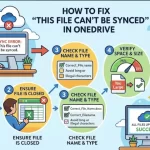 How to Fix “This File Can’t Be Synced” in OneDrive
  How to Fix OneDrive Stuck on Processing Changes: 10 Easy Solutions