
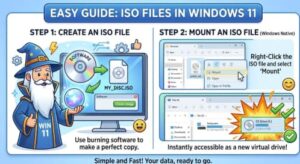
ISO files have become an essential part of modern computing. Whether you are installing Windows, creating a backup, accessing old software, or preparing a bootable USB drive, ISO images make handling large amounts of data much easier. In the past, working with ISO files required special programs and technical knowledge. However, with Windows 11, creating and mounting ISO files has become much simpler.
Windows 11 includes built-in features that allow users to open and mount ISO files without installing extra software. You can also create ISO images using trusted tools when you need to convert files or discs into a single image file.
In this guide, we will explain what ISO files are, how they work, and the easiest ways to create and mount ISO files in Windows 11.
What Is an ISO File?
An ISO file is a complete digital copy of a disc. It contains all the files, folders, and information stored on a CD, DVD, or Blu-ray. Instead of keeping a physical disc, you can save everything as one ISO image file on your computer.
The name “ISO” comes from the ISO 9660 file system, which was originally designed for optical discs. Today, ISO files are widely used beyond physical media.
Some common uses of ISO files include:
- Installing Windows or other operating systems
- Creating backup copies of DVDs
- Sharing software packages
- Running applications without the original disc
- Creating bootable installation media
- Archiving important data
For example, when Microsoft provides a Windows installation file, it is often available as an ISO image. You can use that ISO to install Windows 11, repair a system, or create a USB installer.
Why Use ISO Files in Windows 11?
Windows 11 is designed to work smoothly with ISO files. Unlike older versions of Windows, you do not always need third-party applications to open them.
Some advantages of using ISO files in Windows 11 include:
Easy storage:
Instead of keeping multiple discs, you can store digital copies on your hard drive or cloud storage.
Fast access:
Mounted ISO files behave like virtual drives, allowing you to open them instantly.
Better organization:
You can keep software installers, operating systems, and backups neatly stored in one place.
No physical media needed:
You can access disc content without a DVD or CD drive.
How to Create an ISO File in Windows 11
Windows 11 can mount ISO files by default, but it does not include a built-in tool for creating ISO files from folders or discs. To create ISO images, you can use third-party software.
Several reliable ISO creation tools allow you to convert files, folders, or discs into ISO format.
Method 1: Create an ISO from Files and Folders
To create an ISO file from your data:
- Download and install a trusted ISO creation program.
- Open the software.
- Choose the option to create a new ISO image.
- Add the files and folders you want to include.
- Select the destination location.
- Start the ISO creation process.
After completion, you will have a single ISO file containing all selected data.
This method is useful when you want to archive important files or create a custom installation package.
How to Create a Windows 11 ISO Using Microsoft’s Tool
If your goal is to create a Windows 11 installation ISO, Microsoft provides official tools for this purpose.
The general process is:
- Visit the official Windows download page.
- Download the Windows 11 media creation tool.
- Run the tool.
- Choose the option to create installation media.
- Select ISO file.
- Save the ISO to your computer.
Once created, the Windows 11 ISO can be mounted, copied, or used to create a bootable USB drive.
How to Mount an ISO File in Windows 11
Mounting an ISO file means opening it as if you inserted a physical disc into your computer. Windows 11 makes this extremely easy.
Method 1: Double-Click the ISO File
The easiest way:
- Open File Explorer.
- Find your ISO file.
- Double-click the file.
Windows 11 will automatically create a virtual DVD drive and open the ISO contents.
You can now:
- Browse files
- Run installers
- Copy data
- Access folders
The mounted ISO will appear under “This PC” as a new drive.
Method 2: Use the Mount Option
If double-clicking does not work:
- Right-click the ISO file.
- Select “Mount.”
- Open File Explorer.
- Look for the new virtual drive.
This method gives you direct control over mounting the image.
How to Unmount an ISO File
After you finish using an ISO file, you can remove it from the virtual drive.
To unmount:
- Open File Explorer.
- Go to “This PC.”
- Right-click the virtual DVD drive.
- Select “Eject.”
The ISO file remains on your computer, but the virtual drive disappears.
Using PowerShell to Mount an ISO File
Advanced Windows 11 users can also mount ISO files using PowerShell.
Open PowerShell and enter a command that mounts the image file. This method is useful for automation, system administration, or managing multiple ISO files.
PowerShell gives users more control, but for everyday tasks, File Explorer is usually the fastest option.
Common Problems When Mounting ISO Files
Sometimes an ISO file may not open correctly. Here are some common issues and solutions.
The Mount option is missing
If Windows does not show the Mount option:
- Right-click the ISO file
- Choose “Open with”
- Select Windows Explorer
The ISO file is damaged
A corrupted ISO may fail to mount. Try downloading the file again from a trusted source.
Another program is opening ISO files
Some applications change the default ISO file association. Reset it by choosing Windows Explorer as the default program.
Best Practices for Using ISO Files
To keep your ISO files safe and organized:
- Download ISO files only from trusted sources
- Keep backup copies of important images
- Rename files clearly
- Store large ISO files on drives with enough space
- Scan files before opening unknown images
ISO files are powerful tools, but they should be handled carefully like any other downloaded file.

Creating and mounting ISO files in Windows 11 is easier than ever. Thanks to built-in support, you can open ISO images directly without complicated steps or additional software. Whether you are installing Windows, backing up data, or accessing old software, ISO files provide a simple and efficient solution.
Learning how to work with ISO files can save time, reduce dependence on physical discs, and make managing digital content much easier. With Windows 11’s built-in features and a few trusted tools, anyone can create and mount ISO files quickly.
Extra posts:
 Using BitLocker to Encrypt Your Files in Windows 11
  How to Transfer Files and Apps from Old PC to Windows 11
  Recover Deleted Files with Windows File Recovery A Lifesaver from Microsoft
  Recovering Deleted Files Using Windows File Recovery A Complete Guide
  Zap Files in Seconds Using Nearby Sharing for Quick File Transfers in Windows 11
  USB Blocked on Windows 11 at Work? Here’s How to Move Your Personal Files (Without Risking Your Job)