
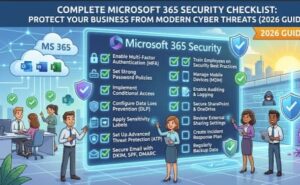
Microsoft 365 has become the backbone of modern businesses. From emails and file sharing to collaboration and cloud storage, organizations rely on it every day. However, as Microsoft 365 adoption grows, cybercriminals increasingly target it through phishing attacks, credential theft, ransomware, business email compromise (BEC), and data leaks.
Many organizations mistakenly assume that Microsoft automatically secures everything. While Microsoft provides a highly secure cloud infrastructure, securing user identities, devices, permissions, and data remains the customer’s responsibility.
That’s why having a comprehensive Microsoft 365 security checklist is essential.
In this guide, you’ll discover a practical checklist that helps businesses strengthen their Microsoft 365 environment, reduce security risks, and maintain compliance.
Why Microsoft 365 Security Matters
Cyberattacks are becoming more sophisticated every year. Attackers no longer focus only on large enterprises. Small and medium-sized businesses are increasingly targeted because they often lack advanced security controls.
A compromised Microsoft 365 account can result in:
- Unauthorized email access
- Financial fraud
- Data theft
- Malware distribution
- Ransomware attacks
- Compliance violations
- Reputation damage
Fortunately, many attacks can be prevented by implementing the right security configurations.
Complete Microsoft 365 Security Checklist
1. Enable Multi-Factor Authentication (MFA)
If there’s one security feature every organization should enable immediately, it’s Multi-Factor Authentication.
Passwords alone are no longer enough. Attackers frequently obtain credentials through phishing campaigns, password spraying, or leaked databases.
MFA requires users to verify their identity using an additional method such as:
- Microsoft Authenticator
- Push notifications
- Security keys
- Biometrics
Even if passwords are stolen, MFA significantly reduces the likelihood of unauthorized access.
Checklist
- Enable MFA for all users
- Require MFA for administrators
- Disable SMS-based authentication where possible
- Encourage Microsoft Authenticator instead
2. Use Conditional Access Policies
Conditional Access acts as the intelligent gatekeeper for Microsoft 365.
Instead of allowing everyone to sign in from anywhere, Conditional Access evaluates risk before granting access.
Examples include:
- Block logins from risky countries
- Require MFA outside corporate networks
- Allow access only from compliant devices
- Block legacy authentication
Proper Conditional Access policies dramatically reduce attack surfaces.
3. Disable Legacy Authentication
Legacy protocols like:
- POP3
- IMAP
- SMTP Authentication
- Basic Authentication
do not support modern security features such as MFA.
Attackers actively search for accounts that still allow legacy authentication because they are easier to compromise.
Checklist
- Audit legacy authentication usage
- Disable unused protocols
- Move applications to Modern Authentication
4. Protect Administrator Accounts
Administrator accounts are prime targets.
Instead of giving permanent administrator privileges, organizations should implement role-based access.
Best practices include:
- Separate admin and regular user accounts
- Use Privileged Identity Management (PIM)
- Enable MFA
- Review admin roles regularly
- Remove unnecessary global administrators
The fewer privileged accounts you have, the smaller your attack surface.
5. Review User Permissions Regularly
Employees change roles, leave departments, or leave the company entirely.
Without regular permission reviews, excessive access accumulates over time.
Review:
- SharePoint permissions
- OneDrive sharing
- Teams memberships
- Security groups
- Microsoft Entra ID roles
Apply the Principle of Least Privilege by giving users only the access they genuinely need.
6. Secure Email with Microsoft Defender
Email remains the number one attack vector.
Microsoft Defender for Office 365 offers advanced protection against:
- Phishing
- Malware
- Business Email Compromise
- Malicious links
- Dangerous attachments
Recommended settings include:
- Safe Links
- Safe Attachments
- Anti-phishing policies
- Anti-spam policies
- Spoof intelligence
These features significantly reduce email-based threats.
7. Enable Microsoft Defender for Endpoint
Endpoints remain attractive targets for attackers.
Microsoft Defender for Endpoint provides:
- Threat detection
- Endpoint detection and response (EDR)
- Automated investigation
- Device isolation
- Vulnerability management
Keep every company device monitored and protected.
8. Secure Microsoft Teams
Microsoft Teams stores conversations, meetings, shared files, and sensitive business information.
Review settings such as:
- External access
- Guest access
- File sharing
- Meeting policies
- Anonymous users
Limit guest permissions where appropriate and remove inactive guest accounts regularly
9. Protect SharePoint and OneDrive
Cloud storage simplifies collaboration but can introduce accidental data exposure.
Review:
- External sharing policies
- Anonymous links
- Sensitive document permissions
- Data retention settings
- Sharing expiration dates
Prevent confidential information from being shared publicly.
10. Implement Data Loss Prevention (DLP)
Data Loss Prevention policies help prevent sensitive information from leaving your organization.
DLP can detect:
- Credit card numbers
- Personal information
- Financial records
- Medical data
- Intellectual property
Actions can include:
- Blocking sharing
- Alerting administrators
- Encrypting documents
- Restricting downloads
11. Enable Microsoft Purview Information Protection
Classifying sensitive data improves visibility and protection.
Use sensitivity labels such as:
- Public
- Internal
- Confidential
- Highly Confidential
Labels can automatically apply encryption, watermarking, and sharing restrictions.
12. Monitor Security Alerts
Security tools are only useful if someone monitors them.
Regularly review:
- Microsoft Secure Score
- Sign-in logs
- Risky users
- Security incidents
- Audit logs
Early detection often prevents small incidents from becoming major breaches.
13. Keep Devices Compliant with Intune
Microsoft Intune helps manage corporate devices securely.
Requirements may include:
- Device encryption
- Antivirus enabled
- Updated operating systems
- PIN requirements
- Screen lock policies
Only compliant devices should access Microsoft 365 resources.
14. Backup Your Microsoft 365 Data
Many businesses assume Microsoft automatically backs up all their data.
While Microsoft provides availability and retention capabilities, organizations should have their own backup strategy to recover from accidental deletion, ransomware, or long-term data loss.
Back up:
- Exchange Online
- SharePoint
- OneDrive
- Teams
- Microsoft 365 Groups
Having a reliable backup solution improves business continuity and recovery options.
15. Conduct Regular Security Reviews
Security is not a one-time setup.
Create a recurring schedule to review:
- User accounts
- MFA status
- Admin privileges
- Conditional Access
- Secure Score
- Security incidents
- Compliance reports
- Device health
Monthly reviews help identify weaknesses before attackers do.
Common Microsoft 365 Security Mistakes
Many organizations unknowingly leave security gaps that attackers can exploit. Some of the most common mistakes include:
- Not enabling MFA for every user
- Allowing legacy authentication
- Giving too many Global Administrator roles
- Ignoring security alerts
- Leaving guest accounts active indefinitely
- Using weak passwords
- Failing to review permissions
- Not backing up Microsoft 365 data
- Sharing files publicly without restrictions
Avoiding these mistakes can significantly improve your organization’s security posture.
Benefits of Following This Checklist
Implementing this Microsoft 365 security checklist provides several long-term advantages, including:
- Reduced cyber risk
- Stronger identity protection
- Better compliance readiness
- Improved visibility into security events
- Safer collaboration
- Lower chances of ransomware infections
- Increased employee confidence
- Enhanced business continuity
Rather than reacting to cyber incidents, organizations can proactively build a resilient security foundation.

Microsoft 365 offers powerful productivity tools, but productivity should never come at the expense of security. Cyber threats continue to evolve, making it essential for businesses to adopt a proactive approach to protecting identities, data, devices, and communications.
By following this complete Microsoft 365 security checklist, organizations can strengthen their defenses, minimize vulnerabilities, and create a more secure digital workplace. Security isn’t a one-time project—it’s an ongoing process of monitoring, improving, and adapting to new threats.
Whether you’re a small business or a large enterprise, investing time in securing Microsoft 365 today can save significant costs, downtime, and reputational damage in the future.
Extra posts:
 Microsoft Defender for 365 Your All-in-One Security Shield for Modern Threats
  Microsoft 365 PC: The Modern Windows Experience for Work and Business
  Microsoft SharePoint: A Complete Guide to Features, Benefits, and Business Use Cases
  The Small Business Guide to Managing Customers with Microsoft 365
  A Complete Guide to Microsoft 365 Administrator Roles Microsoft 365 Migration Tool A Complete Guide