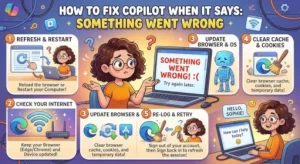
You ask Copilot a straightforward question, expect an answer, and instead get a vague “Something went wrong” message.
That error is frustrating because it tells you almost nothing about what actually failed. The problem could be a temporary Microsoft service issue, an expired authentication session, an account or licensing mismatch, an outdated Microsoft 365 app, a browser configuration problem, or a network restriction.
The good news: you don’t need to randomly reinstall everything to troubleshoot it.
For Microsoft 365 Copilot, the fastest approach is to work from the outside in: first establish whether the problem is service-wide, then check the user’s identity and license, followed by the browser or app, and finally the network and Microsoft 365 configuration.
First, Identify Where Copilot Is Failing
Before changing settings, narrow down the scope.
Ask these questions:
- Does Copilot fail only in Word, Excel, Outlook, or Teams?
- Does it fail in the Microsoft 365 web experience as well?
- Does another user experience the same problem?
- Does Copilot work when you use a different browser?
- Does the problem occur only on one device or network?
This matters because the scope often points directly toward the cause.
If several users across different devices suddenly encounter the same error, investigate the Microsoft 365 service before changing local configurations. If only one user is affected, account, licensing, authentication, browser, or device configuration becomes more likely.
Microsoft has also documented cases where Copilot errors were caused by service-side problems. For example, a May 2026 Outlook Copilot issue produced a “Sorry, something went wrong” message and was resolved through a Microsoft service-side change.
1. Restart Copilot and Reauthenticate
Start with the simplest fix.
Close the Microsoft 365 application completely, reopen it, and sign in again if prompted. For browser-based Copilot, sign out of the Microsoft account and sign back in.
A stale authentication session can prevent Copilot from communicating correctly with Microsoft services even though other Microsoft 365 features continue working.
If you’re troubleshooting a desktop Microsoft 365 application:
- Save your work.
- Close the affected application.
- Close other Microsoft 365 applications if necessary.
- Reopen the application.
- Confirm you’re signed in with the intended work or school account.
- Test Copilot again.
Microsoft’s own troubleshooting guidance for generic “Something went wrong” Microsoft 365 errors recommends restarting the device and signing in again before moving to more advanced repair steps.
Watch for multiple Microsoft accounts
This is particularly important on managed devices.
A user may have both a personal Microsoft account and a work or school account signed in. Copilot may be available to one account but not the other.
Confirm that the account currently being used by Microsoft 365 is the account that has the appropriate Copilot entitlement.
2. Verify the Copilot License
If authentication looks correct, check licensing.
For organizational deployments, Microsoft 365 Copilot requires an eligible Microsoft 365 subscription plus the appropriate Copilot license. Microsoft recommends using its Copilot License Details diagnostic to verify whether a particular user meets the access requirements.
For administrators, check:
- Is the user assigned a Copilot license?
- Is the license assigned to the correct Entra ID account?
- Is the underlying Microsoft 365 subscription eligible?
- Has the license assignment changed recently?
- Is the user testing Copilot with the same account that received the license?
Microsoft’s current licensing documentation distinguishes between Microsoft 365 Copilot and Copilot Chat. Work-based Copilot Chat scenarios that access organizational data require a Microsoft Copilot license, while web-based Copilot Chat is available with eligible Microsoft 365 subscriptions.
If the error appeared immediately after a licensing or account change, allow the environment to update before assuming the configuration is broken.
3. Test Copilot in a Private Browser Window
The browser is another useful isolation point.
Open Copilot in an InPrivate or Incognito window and sign in with the intended account.
If Copilot works there but fails in the normal browser session, the problem may be related to:
- Cached credentials
- Cookies
- Extensions
- Multiple signed-in Microsoft accounts
- Browser privacy settings
- Third-party cookie restrictions
Microsoft lists modern browsers such as Edge, Chrome, Firefox, and Safari as supported options for Microsoft Copilot. For Microsoft 365 web apps, third-party cookies also need to be enabled for certain Copilot experiences.
Don’t immediately wipe every browser profile. First use a private window to determine whether the normal browser environment is actually responsible.
4. Update or Repair Microsoft 365
If Copilot works on the web but fails inside Word, Excel, PowerPoint, or Outlook, focus on the desktop application.
First, make sure Microsoft 365 is updated.
In an Office application, check:
File → Account → Update Options → Update Now
Then restart the application and test Copilot.
If the issue continues, Microsoft recommends repairing Microsoft 365 when an Office application encounters persistent startup or functionality errors. The available repair options depend on the version of Windows and Microsoft 365 installed.
This distinction is useful for troubleshooting:
Web Copilot works + desktop Copilot fails = investigate the local Microsoft 365 installation.
Web and desktop Copilot both fail = investigate account, license, service, or network conditions first.
5. Check Microsoft 365 and Copilot Network Requirements
Enterprise environments introduce another layer: network controls.
Copilot isn’t simply a local application. Microsoft 365 Copilot relies on Microsoft services, authentication endpoints, and network connectivity. Microsoft specifically documents required network endpoints and WebSocket connectivity for Copilot scenarios.
This becomes particularly important if Copilot works from a home connection but fails inside a corporate network.
Ask your network or security team to check whether:
- Microsoft 365 endpoints are being blocked.
- Required Copilot domains are filtered.
- WebSocket connections are being restricted.
- A proxy is interfering with Microsoft authentication.
- SSL inspection or security policies are affecting Microsoft 365 traffic.
- DNS or firewall rules changed recently.
For administrators, Microsoft’s Copilot requirements documentation should be the reference point rather than creating ad-hoc firewall exceptions.
6. Check Exchange Online and Identity Prerequisites
Some Copilot capabilities depend on Microsoft 365 services beyond the Copilot interface itself.
For organizational Microsoft 365 Copilot deployments, Microsoft lists several prerequisites, including an appropriate license, a Microsoft Entra ID account, supported applications and browsers, network connectivity, and an Exchange Online mailbox. Microsoft notes that mailbox grounding requires the user’s primary mailbox to reside in Exchange Online; on-premises and hybrid mailboxes don’t support that particular grounding capability.
That means an enterprise troubleshooting checklist should include more than “Is Copilot enabled?”
Check the user’s:
- Identity
- Microsoft 365 license
- Copilot license
- Exchange Online mailbox
- Microsoft 365 application version
- Browser configuration
- Network access
- Tenant configuration
This is especially important for solution architects and IT teams supporting a large Copilot rollout.
7. Determine Whether It’s a Tenant-Wide Problem
If multiple users report the same error, stop troubleshooting individual machines.
Look at Microsoft 365 service health and compare the affected users.
Useful questions include:
- Did the issue begin at approximately the same time?
- Are users in the same tenant affected?
- Are users in different locations affected?
- Does the issue affect multiple Microsoft 365 applications?
- Does Copilot work for administrators or test accounts?
- Did Microsoft recently publish a known issue?
Microsoft’s documentation shows that Copilot-specific problems can sometimes be resolved through service-side changes, so a local reinstall isn’t necessarily appropriate.
This is one of the biggest time-saving principles in enterprise troubleshooting: correlate the failure before modifying the endpoint.
A Practical Copilot Troubleshooting Sequence
When you need a repeatable process, use this order:
1. Test the scope
Try another browser, device, or user.
2. Check Microsoft service health
Determine whether there’s a known service-side incident.
3. Confirm identity
Make sure the correct work or school account is signed in.
4. Verify licensing
Confirm the user has the required Microsoft 365 and Copilot entitlements.
5. Reauthenticate
Sign out, restart the application or browser, and sign in again.
6. Test browser configuration
Use a private window and verify supported browser settings.
7. Update Microsoft 365
Install available application updates.
8. Repair the installation
Use Microsoft 365 repair if the desktop application remains affected.
9. Investigate network controls
Review firewall, proxy, DNS, WebSocket, and endpoint restrictions.
10. Escalate with evidence
Document the affected user, application, timestamp, tenant, account, reproduction steps, and whether the issue occurs on web and desktop.
Practical Takeaway: Don’t Treat “Something Went Wrong” as the Diagnosis
“Something went wrong” is an error message, not a root cause.
The efficient way to fix Copilot is to isolate the failure layer. Start with service health and scope. Then verify identity and licensing. After that, investigate the browser or Microsoft 365 application. For enterprise environments, finish with network and tenant prerequisites.
Microsoft’s current Copilot requirements make this layered approach especially useful because Copilot depends on licensing, Entra ID, supported applications and browsers, network connectivity, and—in relevant Microsoft 365 scenarios—Exchange Online.
If you’re supporting multiple users, turn these checks into a standard troubleshooting runbook. That gives your help desk a consistent process and prevents every “Something went wrong” report from becoming a trial-and-error exercise.
Extra posts:
 AI Mistakes in Microsoft Copilot and How to Fix Them
  How to Fix Copilot When It Gives a Blank Screen
  How to Fix Copilot With Multiple Microsoft 365 Accounts
  How to Fix Microsoft Copilot Not Working on Windows: Easy Solutions That Actually Help
  How to Fix Copilot Not Working in Outlook: Easy Troubleshooting Guide
  How to Fix Copilot Not Showing in Microsoft 365