
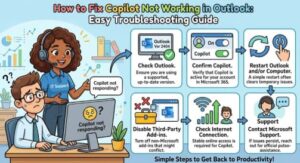
Microsoft Copilot can be a huge time-saver in Outlook. It can help summarize emails, find information, organize your inbox, draft replies, and make it easier to stay on top of a busy workday. So when Copilot is not working in Outlook, it can be surprisingly frustrating.
Sometimes the Copilot button disappears completely. In other cases, Copilot is visible but does not respond, shows a licensing error, or refuses to work with your emails. The good news is that most of these problems can be fixed with a few straightforward checks.
In this guide, we’ll walk through the most common reasons why Copilot may not be working in Outlook and explain what you can do to get it running again.
Why Is Copilot Not Working in Outlook?
There isn’t one single reason why Copilot stops working. The problem can be related to your Microsoft 365 account, Copilot license, Outlook version, privacy settings, internet connection, or even a temporary Microsoft issue.
For business users, there can also be organization-level restrictions. Microsoft notes that Copilot depends on appropriate licensing, supported Microsoft 365 apps, account configuration, and other requirements.
Before trying complicated fixes, start with the simple ones.
1. Check Your Microsoft 365 Account
The first thing to check is whether you’re signed into Outlook with the correct Microsoft account.
This is especially important if you use more than one account. For example, you may have a personal Microsoft account and a separate work or school account. Copilot access can be different for each account.
Open Outlook and check which account is currently signed in.
If you’re using a work or school account, your organization may need to assign the appropriate Copilot access. Microsoft also recommends checking the account associated with your Copilot license when troubleshooting license validation errors.
If you recently changed accounts, sign out and sign back in using the account that has Copilot access.
2. Check Whether Your Copilot License Is Active
One of the most common reasons for Copilot problems is licensing.
Having Microsoft 365 does not necessarily mean every Copilot feature will be available in exactly the same way. Your available Copilot capabilities depend on your Microsoft 365 subscription, account type, and, for work or school accounts, the licenses and policies assigned by your organization.
Microsoft currently states that eligible Microsoft 365 subscribers can access Copilot in Outlook, while the exact capabilities available can vary depending on the account and Copilot licensing.
If you’re using a company account and Copilot suddenly stopped working, ask your Microsoft 365 administrator to confirm that your license is still assigned.
For personal Microsoft accounts, check your Microsoft 365 subscription and make sure it is active.
3. Make Sure Outlook Is Updated
Running an outdated version of Outlook can cause compatibility problems with newer Microsoft 365 features.
Open Outlook and check for available Office or Microsoft 365 updates. After installing an update, completely close Outlook and open it again.
This is particularly important because Microsoft regularly changes where Copilot appears and how it integrates with Microsoft 365 apps.
However, there is an important current exception for some users of classic Outlook for Windows. Microsoft is investigating a known issue where Copilot buttons can disappear from classic Outlook after certain updates, including builds 20026.20182 and later. The recommended workaround is to use new Outlook or Outlook on the web while the issue is being investigated.
So, if you’ve tried everything and the Copilot button has simply vanished from classic Outlook, the problem may not actually be something you’ve configured incorrectly.
4. Check Outlook’s Privacy and Connected Experience Settings
Another setting that can affect Copilot is Microsoft’s connected experiences functionality.
Copilot relies on connected Microsoft 365 services, so privacy settings can affect whether certain Copilot features are available.
If connected experiences have been disabled by you or your organization’s administrator, Copilot may be unavailable or certain commands may be disabled. Microsoft specifically notes that some privacy controls can affect Copilot availability in Outlook.
In Outlook or another Microsoft 365 application, look for your account or privacy settings and review the options related to connected experiences.
If you’re using a work computer and the setting is controlled by your organization, you may not be able to change it yourself. In that case, your Microsoft 365 administrator will need to check the relevant policy.
5. Restart Outlook Completely
It sounds almost too simple, but restarting Outlook can sometimes solve temporary Copilot problems.
Don’t just close the Outlook window and immediately reopen it. Completely exit Outlook and then start it again.
If you’re on Windows, you can also check Task Manager to make sure Outlook isn’t still running in the background.
If the problem continues, restart your computer.
This can refresh your Microsoft 365 authentication session, network connection, and Outlook processes without requiring more complicated troubleshooting.
6. Try Copilot in Outlook on the Web
This is one of the quickest ways to determine whether the problem is with your account or your desktop Outlook installation.
Open Outlook on the web and sign in with the same account you normally use.
If Copilot works in the web version but not in the desktop application, that’s a useful clue. Your account and license are probably working, while the desktop Outlook installation or configuration may be causing the problem.
Microsoft supports Copilot across Outlook experiences, including Outlook on the web and supported desktop and mobile applications.
For users affected by the current classic Outlook Copilot button issue, Microsoft specifically recommends new Outlook or Outlook on the web as a workaround.
7. Check Whether You’re Using a Supported Mailbox
Copilot in Outlook does not work with every mailbox type in every scenario.
Microsoft says many Copilot scenarios in Outlook are available only with the user’s primary mailbox. Archive mailboxes, group mailboxes, shared mailboxes, and delegate mailboxes can have limitations. Copilot also requires supported Exchange Online mailbox configurations for certain experiences.
This can explain a confusing situation where Copilot works with your main inbox but doesn’t work when you’re viewing another mailbox.
If you are trying to use Copilot with a shared or delegated mailbox, check whether the particular Copilot feature you’re using supports that mailbox type.
8. Check Your Browser Cookies if You’re Using Outlook on the Web
If Copilot works in desktop Outlook but fails in Outlook on the web, browser settings may be worth checking.
Microsoft’s troubleshooting guidance for Copilot license validation errors includes checking browser cookie settings. Certain privacy configurations can prevent Microsoft services from working correctly.
Try using a supported, up-to-date browser and temporarily review cookie or tracking settings if you are experiencing login or license-validation problems.
You can also try opening Outlook in a private or incognito window. If Copilot works there, a browser extension, cached session, or privacy setting may be contributing to the problem.
9. Sign Out and Sign Back Into Microsoft 365
Sometimes the issue is simply a stale authentication session.
Sign out of your Microsoft 365 account, close Outlook, and then sign back in.
If you use several Microsoft 365 applications, close them before signing in again.
This can be particularly useful when you recently received a Copilot license or when an administrator has changed your account permissions.
Microsoft’s own troubleshooting guidance recommends verifying that you’re signed into the account that actually has Copilot access when license validation problems occur.
10. Ask Your Microsoft 365 Administrator to Check Your Account
If you’re using Outlook at work, don’t spend hours trying to fix something that may be controlled by your organization’s Microsoft 365 configuration.
Your administrator can check whether:
- Your Copilot license is assigned
- Your Microsoft 365 account is correctly configured
- Your mailbox meets the requirements
- Copilot has been disabled by organizational policy
- Connected experiences are restricted
- Your Outlook deployment is supported
- There are tenant-level service or configuration issues
Microsoft’s documentation lists licensing, identity, mailbox, app, privacy, and network requirements that organizations need to consider when deploying Copilot.
If Copilot stopped working shortly after an organizational change, this is especially worth checking.
11. Don’t Confuse a Missing Button With Copilot Being Completely Unavailable
Sometimes Copilot hasn’t stopped working — the button has simply moved.
Microsoft has been changing how Copilot is presented across Microsoft 365 applications. If you don’t see the familiar Copilot icon where you remember it, check the current Outlook interface before assuming the feature is gone.
Microsoft’s guidance also recommends checking your license, app build, update channel, and privacy settings when the Copilot button isn’t visible.
This is a small point, but it can save a lot of unnecessary troubleshooting.
12. What If Nothing Works?
If you’ve checked your account, license, updates, privacy settings, browser, and mailbox type and Copilot still isn’t working, there may be a temporary Microsoft service problem or a product-specific issue.
At that point, try Copilot in another supported Outlook experience.
For example, if you’re using classic Outlook for Windows, try new Outlook or Outlook on the web. If Copilot works there, you have a much clearer indication that the problem is specific to the desktop application.
For business users, contacting your Microsoft 365 administrator is usually the best next step. Home users can contact Microsoft Support if the issue continues after completing the recommended troubleshooting steps.
Quick Checklist: Copilot Not Working in Outlook
Before contacting support, run through this quick checklist:
- Check that you’re signed into the correct Microsoft account.
- Confirm your Microsoft 365 or Copilot license.
- Update Outlook and Microsoft 365.
- Restart Outlook and your computer.
- Check connected experiences and privacy settings.
- Try Outlook on the web.
- Check whether your mailbox is supported.
- Review browser cookie settings if using Outlook on the web.
- Sign out and sign back into Microsoft 365.
- Ask your Microsoft 365 administrator to check organizational settings.
- If you’re using classic Outlook, try new Outlook or Outlook on the web.

When Copilot is not working in Outlook, the problem can look more complicated than it really is. In many cases, the cause comes down to an account mismatch, licensing issue, outdated Outlook installation, privacy setting, mailbox limitation, or a temporary product issue.
The best approach is to troubleshoot in order rather than changing multiple settings at once. Start with your Microsoft account and license, then check Outlook updates and privacy settings. After that, test Copilot in Outlook on the web.
If Copilot works online but not in your desktop Outlook, you’ve already narrowed down the problem considerably.
And if you’re using classic Outlook for Windows and the Copilot button suddenly disappeared after a recent update, check Microsoft’s current known-issue guidance before spending hours reinstalling everything. Microsoft is currently investigating a specific issue affecting Copilot entry points in some classic Outlook builds.
With a few simple checks, you can usually determine whether the problem is with your account, Outlook installation, organization settings, or Microsoft itself — and get back to using Copilot without unnecessary frustration.
Extra posts:
 How to Fix Outlook Notifications Not Working: A Complete Troubleshooting Guide
  How to Fix Microsoft Copilot Not Working on Windows: Easy Solutions That Actually Help
  How to Fix Common OneNote Issues A Complete Troubleshooting Guide
  How to Fix Microsoft 365 Activation Failed: A Complete Troubleshooting Guide
  Troubleshooting Copilot Failures: A Guide to Diagnosing “Not Grounded” and “Permission Denied” Errors
  How to Fix Windows 11 Taskbar Not Working