
Microsoft Copilot can be a huge time-saver when you use Microsoft 365 for work, school, or everyday tasks. It can help draft emails, summarize documents, analyze information, create presentations, and speed up many routine tasks.
But what happens when Copilot is not showing in Microsoft 365?
You may have signed in with the right Microsoft account, purchased a Copilot license, and updated your Microsoft 365 apps, yet the Copilot button still does not appear in Word, Excel, PowerPoint, Outlook, or other Microsoft 365 applications.
The good news is that this problem is often caused by account settings, licensing, app updates, connected experiences, or a temporary synchronization issue. In many cases, you can fix it without reinstalling everything.
This guide explains the most common reasons why Microsoft Copilot is not showing and walks you through practical solutions step by step.
Why Is Copilot Not Showing in Microsoft 365?
Before trying random fixes, it helps to understand why Copilot might be missing.
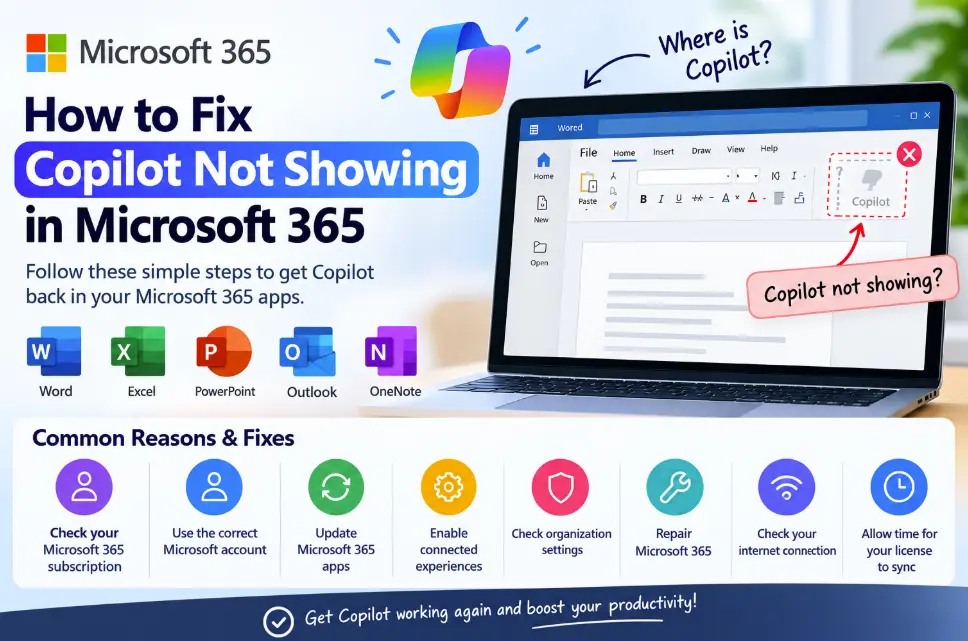
There are several possible causes:
- Your Microsoft 365 subscription may not include Copilot.
- You may be signed into the wrong Microsoft account.
- Your Copilot license may not have been assigned correctly.
- Microsoft 365 applications may need an update.
- Connected experiences may be disabled.
- Your organization may have restricted Copilot.
- The Copilot feature may not yet be available in your particular Microsoft 365 environment.
- Your account or license information may not have synchronized correctly.
- A temporary problem with Microsoft 365 services may be preventing Copilot from appearing.
Because there are several possibilities, it is best to work through the fixes in order.
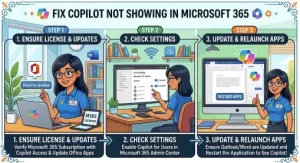
1. Check Your Microsoft 365 Subscription
The first thing to check is whether your account actually has access to Microsoft Copilot.
If Copilot is not included with your current Microsoft 365 subscription or your organization has not assigned the appropriate Copilot license, the feature may not appear in supported apps.
For personal accounts, sign in to your Microsoft account and review your subscription details.
For work or school accounts, your Microsoft 365 administrator may need to confirm that the appropriate Copilot license has been assigned to your account.
This is particularly important if other people in your organization can see Copilot while you cannot.
If your subscription or license was recently purchased or assigned, give Microsoft 365 some time to synchronize the change across its services before assuming something is broken.
2. Make Sure You Are Using the Correct Microsoft Account
This is one of the easiest things to overlook.
You may have multiple Microsoft accounts, such as:
- A personal Microsoft account
- A work account
- A school account
- An older Microsoft 365 account
You could have a valid Copilot license on one account while Word or Excel is signed in with another.
Open a Microsoft 365 application such as Word and check the account currently being used.
Look for your profile picture or account information and verify the email address.
If the wrong account is signed in, sign out and then sign back in using the account associated with your Microsoft 365 Copilot access.
After signing in again, close and reopen the Microsoft 365 application.
3. Update Microsoft 365 Apps
An outdated version of Microsoft 365 can also cause Copilot to disappear or behave unexpectedly.
To check for updates in a desktop Office application, open Word, Excel, or PowerPoint and look for the account or update options under the application’s settings.
On many versions of Microsoft 365, you can find the update option under:
File → Account → Update Options → Update Now
The exact wording can vary depending on your Microsoft 365 installation and operating system.
Install any available updates and restart the application.
Keeping Microsoft 365 updated is important because Microsoft regularly changes and improves its cloud-connected features.
4. Check Whether Connected Experiences Are Enabled
Copilot relies on Microsoft 365’s connected services. If certain connected experiences are disabled, Copilot may not appear or may not work as expected.
In a Microsoft 365 application, open the privacy or account settings and look for options related to connected experiences.
Depending on your version of Microsoft 365, you may see settings associated with:
- Connected experiences
- Experiences that analyze your content
- Experiences that download online content
If these features are disabled by your organization or by your account settings, Copilot functionality may be affected.
For work or school accounts, some settings may be controlled by your Microsoft 365 administrator. If you cannot change the setting yourself, your administrator may need to review your organization’s configuration.
5. Sign Out of Microsoft 365 and Sign Back In
Sometimes your Microsoft 365 license is valid, but the application has not refreshed your account information correctly.
A simple sign-out and sign-in can refresh the connection.
Open your Microsoft 365 application and sign out of your account. Close the application completely, reopen it, and sign in again.
If you use several Microsoft 365 applications, check Word, Excel, PowerPoint, and Outlook after signing back in.
This is especially worth trying if Copilot was previously available and suddenly disappeared.
6. Restart Your Computer
It sounds simple, but restarting your computer can resolve temporary Microsoft 365 issues.
Applications can sometimes keep old authentication information or background processes running even after you close the main window.
A full restart gives Microsoft 365 and related services a clean start.
After restarting:
- Open your Microsoft 365 application.
- Sign in if necessary.
- Open a supported document.
- Check whether Copilot is visible.
If the button is still missing, continue with the next steps.
7. Check Your Organization’s Microsoft 365 Settings
If you are using Microsoft 365 through your employer or school, Copilot availability may be controlled by an administrator.
An organization can manage which Microsoft 365 features users can access.
This means you might have a Microsoft 365 account but still not see Copilot because your organization’s administrator has not enabled or assigned the required service.
If colleagues have access but you do not, ask your administrator to check:
- Whether your account has the correct Copilot license
- Whether Copilot has been assigned to your user account
- Whether your Microsoft 365 apps are supported
- Whether relevant service settings are enabled
- Whether your organization’s policies restrict Copilot
This is often the most important step for business and education users.
8. Check Whether Copilot Is Available in the App You Are Using
Another common source of confusion is assuming that Copilot should appear in exactly the same place in every Microsoft 365 application.
Copilot features can differ between applications, subscription types, account types, platforms, and Microsoft 365 environments.
For example, the Copilot experience in Word may not look exactly like the experience in Outlook or Excel.
If Copilot is missing from one application, check another supported Microsoft 365 application associated with the same account.
This can help determine whether the problem is account-wide or limited to one application.
9. Repair Microsoft 365
If Copilot should be available but one Microsoft 365 application is behaving incorrectly, repairing the Microsoft 365 installation may help.
On Windows, you can generally access installed applications through Windows Settings and locate your Microsoft 365 installation.
Depending on your installation type, you may have options such as:
Quick Repair
or
Online Repair
Quick Repair is usually the less disruptive option. If the problem continues, an Online Repair can perform a more extensive repair of the Microsoft 365 installation.
Keep in mind that repair options and menus can differ between Microsoft 365 installations and Windows versions.
10. Check Microsoft 365 Service Status
Sometimes the problem isn’t your computer at all.
Microsoft 365 services can occasionally experience outages, maintenance, or service disruptions. If Copilot suddenly disappears for multiple users, checking the Microsoft 365 service health information can help determine whether Microsoft is experiencing an issue.
For organizational accounts, administrators can check the Microsoft 365 admin center for service health information.
If Microsoft is already investigating an issue affecting Copilot or Microsoft 365 services, repeatedly reinstalling Office probably won’t solve the underlying problem.
In that situation, waiting for the service issue to be resolved may be necessary.
11. Check Your Internet Connection
Although Microsoft 365 desktop applications can perform many tasks offline, Copilot depends heavily on cloud-based services.
A weak or unstable internet connection can prevent cloud-connected features from loading correctly.
Try opening a few websites in your browser to confirm that your connection is working.
If possible, switch to a more reliable network and restart the Microsoft 365 application.
If Copilot appears after changing networks, your original connection may have been contributing to the problem.
12. Give a Recently Assigned License Time to Sync
If you have just purchased Microsoft 365 Copilot or your administrator recently assigned a Copilot license, the change may not appear instantly in every application.
Sign out of Microsoft 365, restart your device, and sign back in after some time.
If the feature still does not appear after the license should have propagated, contact your administrator or Microsoft support and ask them to verify the license assignment.
13. What If Copilot Still Isn’t Showing?
If you have gone through all the steps above and Copilot is still missing, avoid making unnecessary changes to your computer.
Instead, identify exactly where the problem occurs.
Ask yourself:
- Is Copilot missing from every Microsoft 365 application?
- Is it missing only from Word, Excel, Outlook, or another app?
- Are you using a personal, work, or school account?
- Was Copilot previously available?
- Was your license recently purchased or assigned?
- Can other users in your organization access Copilot?
- Is your Microsoft 365 installation fully updated?
The answers can make it much easier to identify whether the issue is related to your account, subscription, application, organization, or Microsoft’s services.
When Copilot is not showing in Microsoft 365, the problem is not necessarily complicated. In many cases, the missing Copilot option can be traced to an incorrect account, licensing issue, outdated application, disabled connected experiences, or an organizational setting.
Start with the basics: verify your Microsoft 365 account and subscription, update your apps, sign out and back in, and restart your device. If you’re using a work or school account, ask your administrator to confirm that the appropriate Copilot license and settings are enabled.
If those steps don’t work, check Microsoft 365 service health and consider repairing your Microsoft 365 installation.
The key is to troubleshoot systematically instead of reinstalling everything immediately. Once you know whether the issue is related to your account, license, application, or Microsoft 365 service, finding the right solution becomes much easier.
Extra posts:
 How to Fix Copilot With Multiple Microsoft 365 Accounts
  How to Fix Microsoft Copilot Not Working on Windows: Easy Solutions That Actually Help
  AI Mistakes in Microsoft Copilot and How to Fix Them
  How to Fix Microsoft 365 Activation Failed: A Complete Troubleshooting Guide
  How to Fix Copilot When It Gives a Blank Screen
  How to Fix Copilot Not Working in Outlook: Easy Troubleshooting Guide