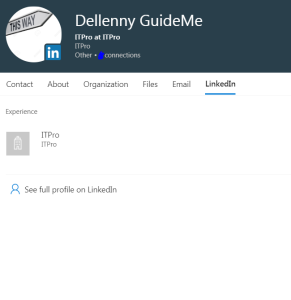
With different directories like your Office 365 contacts and you have your personal contacts in LinkedIn.
For certain you will need a feature to allow integration between your Office 365 data and LinkedIn.
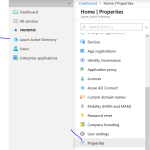
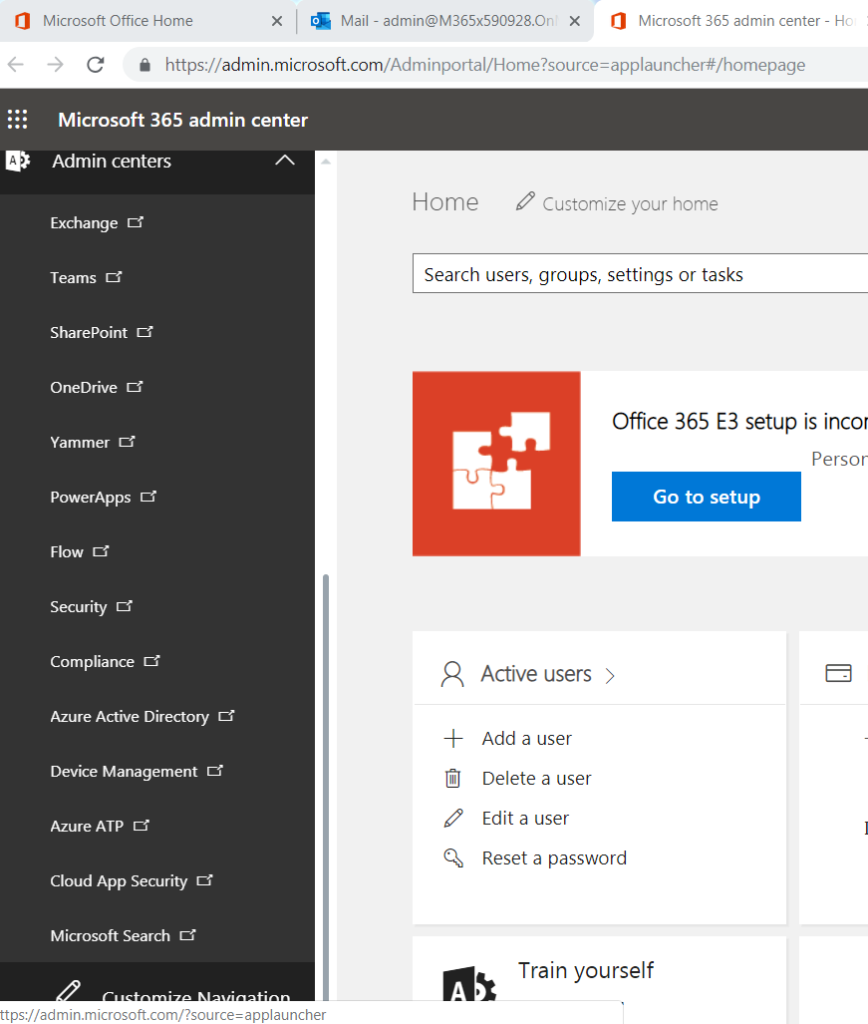
Microsoft allows that for you now to configure it, go to admin center then press Azure Active Directory
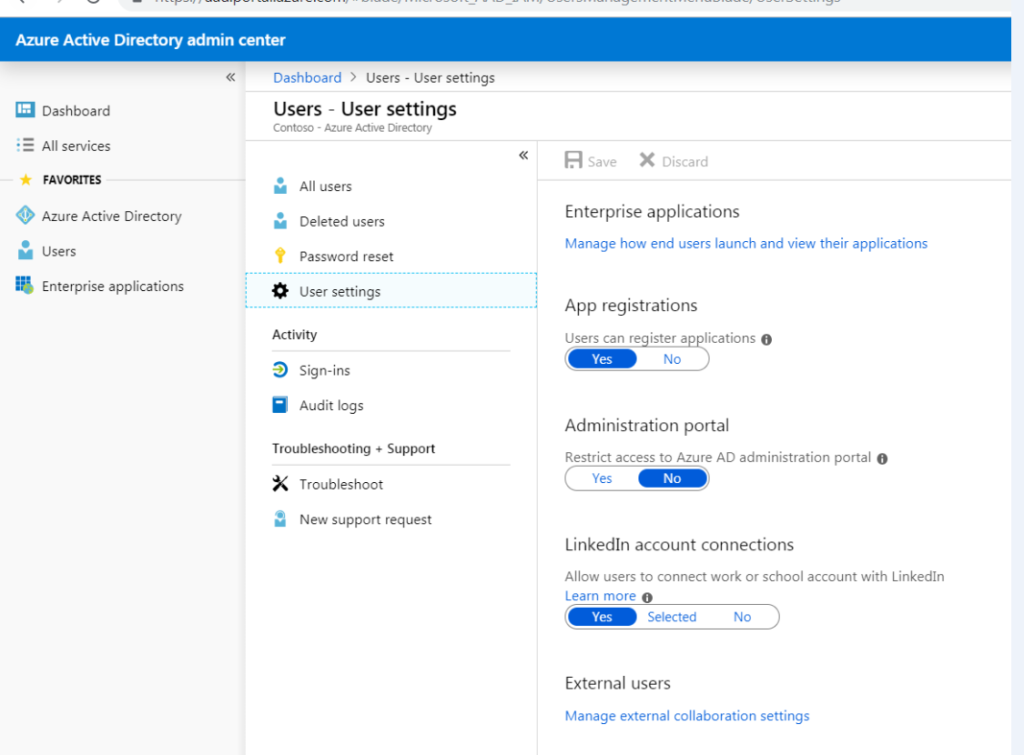
Once you open the Azure Active Directory, go to users then users settings
Then on LinkedIn account connection make sure it is set to yes or if you want specific accounts only then press on selected.
Then go to outlook and press on new email then write down your email that you want to integrate and hover over it you will get details of the contact
and scroll down you will see in the card details LinkedIn section.
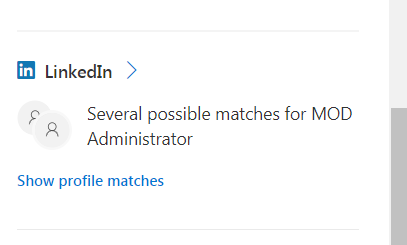
Then press continue
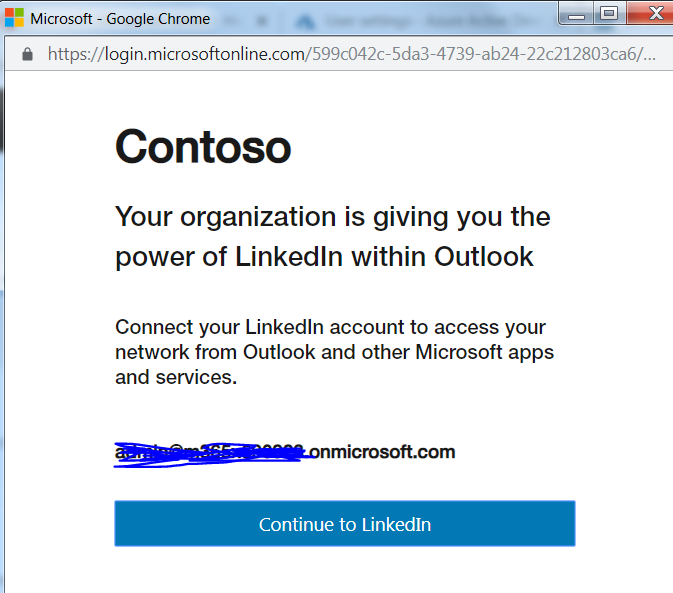
log in with your email and password
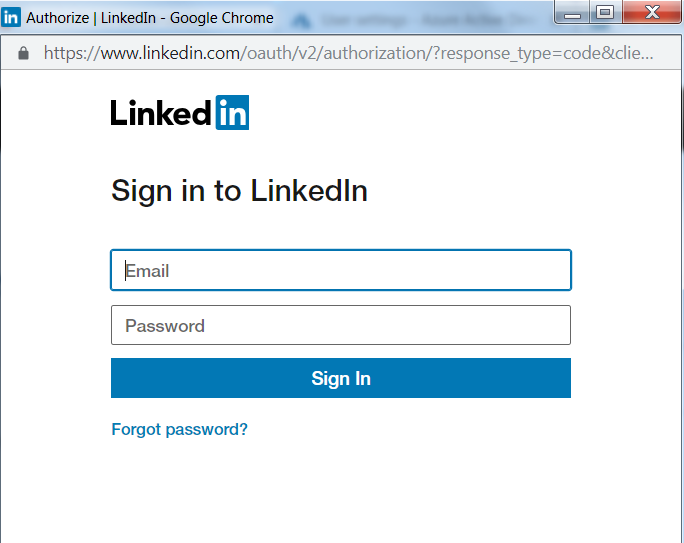
Then accept
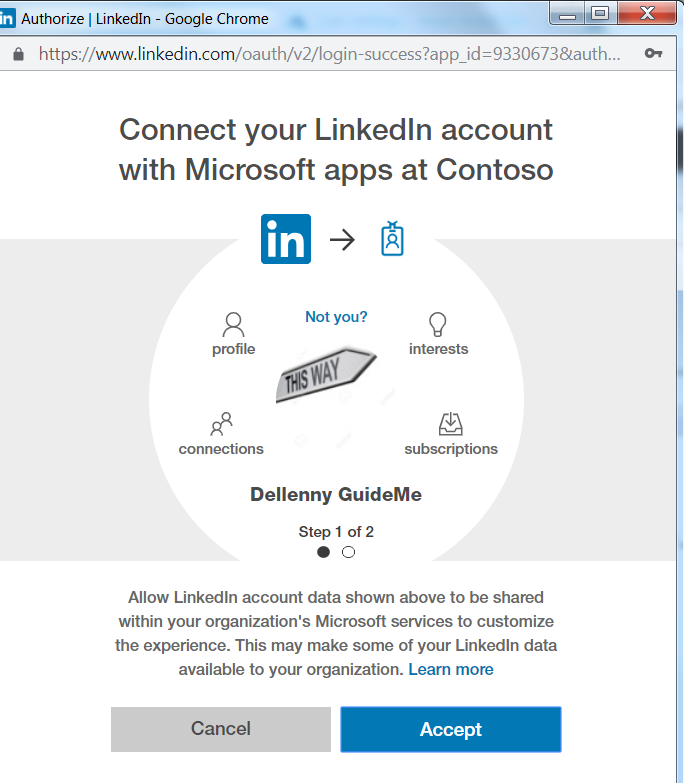
Then you will get other screen to accept step 2
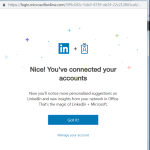
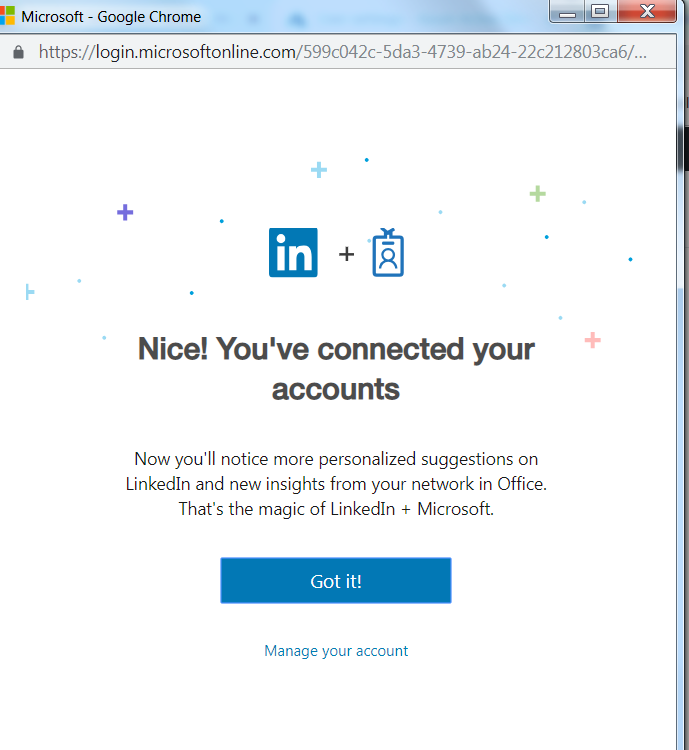
Once you accepted you will get this screen
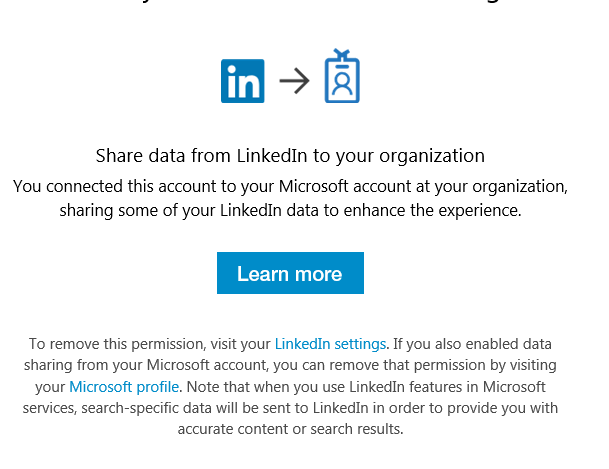
And you will receive similar email as this one:
Once you are done with those steps you will be able now when you write email and start typing name of your contact you will get the LinkedIn contacts and if you hover over the contact details you will see the data from LinkedIn like shared contacts, email contact and so on.