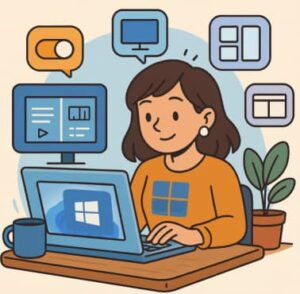
Windows 11 was designed with productivity in mind. Its modern interface and streamlined tools make it one of Microsoft’s most multitasking-friendly operating systems ever. But beneath the clean design lie hidden settings that most users never discover — powerful options that can make switching tasks, organizing windows, and managing workloads incredibly smooth.
If you often find yourself juggling multiple apps, tabs, and documents, these tweaks can help you unlock Windows 11’s full multitasking potential. Let’s explore the hidden settings that make multitasking easier, faster, and smarter.
1. Snap Layouts and Snap Groups: The Ultimate Window Organizer
One of Windows 11’s most celebrated features is Snap Layouts, which lets you quickly organize open apps into structured grids. While most users know the basics, the real magic lies in the advanced settings.
🔧 How to Enable and Customize Snap Layouts
- Go to Settings > System > Multitasking.
- Toggle “Snap windows” ON.
- Expand the option and check all boxes under it.
These extra toggles allow you to:
- Show snap layouts when you hover over a window’s maximize button.
- Automatically resize windows to fit layouts perfectly.
- Remember window positions for connected monitors — ideal for laptop + monitor setups.
Pro Tip: Snap Groups
When you snap multiple apps together (e.g., a browser and Word document), Windows 11 saves them as a Snap Group. You can return to the entire group from the Taskbar with a single click — perfect for managing different projects without rearranging windows every time.
2. Virtual Desktops: Keep Work and Personal Life Separate
Virtual Desktops have been around for a while, but in Windows 11, they’re smarter, more customizable, and easier to switch between.
⚙️ Enable and Manage Virtual Desktops
Press Win + Ctrl + D to create a new desktop instantly.
Use Ctrl + Win + ← / → to switch between them.
You can rename desktops, assign different wallpapers, or even drag apps between desktops.
To customize:
- Go to Settings > System > Multitasking > Desktops.
- Choose whether open windows appear on all desktops or only the one they’re opened on.
This flexibility is perfect for separating work, study, and personal environments — making multitasking smoother and less distracting.
3. PowerToys: Microsoft’s Secret Productivity Toolkit
While not pre-installed, Microsoft PowerToys is a free set of utilities created for power users. It adds hidden multitasking superpowers that dramatically improve workflow.
🪄 Top PowerToys Features for Multitasking
- FancyZones: A customizable version of Snap Layouts that lets you create complex window grids (e.g., three columns or a custom size for your main app).
- Always on Top: Pin any window so it stays above others using Win + Ctrl + T.
- Keyboard Manager: Re-map keys or create custom shortcuts for repetitive multitasking actions.
- PowerRename: Batch-rename files instantly — no more switching between folders.
Download from Microsoft Store or GitHub, then open PowerToys > FancyZones to start building your personalized workspace.
4. Clipboard History and Cloud Sync
The humble copy-paste function hides one of Windows 11’s most underrated multitasking tools: Clipboard History.
📋 Enable Clipboard History
- Go to Settings > System > Clipboard.
- Toggle “Clipboard history” ON.
- Press Win + V to view your clipboard log.
You’ll see a list of previously copied text, links, and images — ready to reuse anytime.
If you sign in with a Microsoft Account, you can enable Clipboard Sync to share your clipboard between devices.
This feature is invaluable for anyone writing reports, coding, or comparing data between multiple documents.
5. Focus Assist: Eliminate Distractions
True multitasking isn’t just about doing more; it’s about focusing on what matters. Focus Assist helps you block unnecessary notifications while working.
⚙️ Turn On Focus Assist
- Open Settings > System > Focus Assist.
- Choose:
- Priority only – allows calls, reminders, or apps you choose.
- Alarms only – hides everything except alarms.
In Windows 11’s Clock app, you’ll find Focus Sessions — an integrated timer that syncs with Microsoft To Do and Spotify. It encourages structured breaks, helping you maintain productivity throughout long multitasking sessions.
6. Task View and Timeline Shortcuts
Windows 11’s Task View (accessed via Win + Tab) lets you see all open apps and virtual desktops at once — perfect for visual multitasking.
Hidden Setting:
Go to Settings > Personalization > Taskbar > Task View, and ensure it’s toggled ON to keep it visible on your Taskbar for instant access.
Even though Microsoft removed the “Timeline” feature, Task View still provides a sleek way to switch apps visually and manage desktops effectively.
7. Optimize Performance for Smoother Multitasking
All these features shine only if your system runs efficiently. Windows 11 includes hidden performance options that can make multitasking noticeably smoother.
🚀 Adjust Visual Effects
- Press Win + R, type
sysdm.cpl, and press Enter. - Go to Advanced > Performance Settings.
- Select Adjust for best performance, or manually disable effects like animations and shadows.
This frees up RAM and CPU power, especially useful on older hardware.
💾 Storage Sense
Enable Storage Sense under Settings > System > Storage to automatically delete temporary files and cache — preventing slowdowns while multitasking.
8. Quick Settings and Taskbar Tweaks
Windows 11’s redesigned Taskbar offers several hidden customization options that help streamline multitasking.
🧩 Tips:
- Middle-click an app icon on the Taskbar to open a new instance.
- Shift + click launches multiple windows of the same app.
- Right-click the Taskbar → Taskbar settings → enable or disable system icons (Widgets, Chat, etc.) for a cleaner workspace.
You can also rearrange icons or move the Start button to the left under Personalization > Taskbar > Taskbar behaviors.
9. Virtual Memory Optimization
When you’re running dozens of tabs and programs, Windows 11 can use part of your disk as virtual memory to prevent slowdowns.
To adjust manually:
- Press Win + Pause/Break → choose Advanced system settings.
- Under Performance, click Settings > Advanced > Virtual memory.
- Set custom paging file sizes depending on available RAM.
This ensures Windows 11 stays responsive, even when multitasking heavily.
Multitasking on Windows 11 doesn’t just depend on how fast your computer is — it’s about how smartly you use its hidden features. By enabling tools like Snap Layouts, Virtual Desktops, Clipboard History, and Focus Assist, and by exploring PowerToys, you can transform your daily workflow into an organized, efficient system.
These tweaks don’t require third-party software (except PowerToys) and can be activated in minutes. Once configured, you’ll notice smoother transitions, fewer clicks, and a huge boost in productivity.
Windows 11 is more than just a visual upgrade — it’s a multitasking powerhouse waiting to be unlocked.
Summary Table
| Feature | Location | Shortcut | Benefit |
|---|---|---|---|
| Snap Layouts | Settings > System > Multitasking | Win + Arrow keys | Organize apps into grids |
| Virtual Desktops | Task View | Win + Ctrl + D | Separate workspaces |
| Clipboard History | Settings > System > Clipboard | Win + V | Access past copied items |
| Focus Assist | Settings > System > Focus Assist | — | Reduce distractions |
| PowerToys | Microsoft Store | Win + Ctrl + T (Always on Top) | Advanced multitasking utilities |
Extra posts:
 Windows 11 Setting Up Virtual Desktops for Better Multitasking
  24 Hidden Windows 11 Features You’ll Wish You Found Sooner
  Registry Tweaks to Unlock Hidden Features in Windows 11
  Windows 11 Privacy Settings You Should Change Right Now
  Privacy Settings to Review Right After Installing Windows 11
  Windows 11 for Gamers Settings That Actually Boost FPS