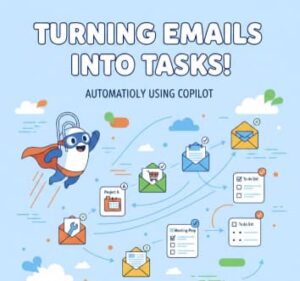
Definitely our mail inboxes get loaded faster than we can respond creating stress and important action items often get lost in the clutter, so get those emails turned into tasks automatically is not a dream and Microsoft Copilot makes this easier than ever. Making use of AI to streamline email management we can secure hours of productivity every week and ensure nothing slips.
Why Email Overload is a Productivity Killer
Emails are meant to facilitate communication but for many professionals it is becoming a source of distraction. Usually a typical office worker can get around more than 50 emails per day, with a significant portion requiring action. Manually going through messages, flagging them, or creating tasks can consume valuable time and mental energy.
Traditional methods of task management often involve copy pasting emails content into a to do list app or writing notes for later checking. Those methods can lead to time consuming and mistakes due to human errors. Missed tasks or delayed responses can harm business.
This is where Copilot can help.
How Copilot Converts Emails into Tasks
Copilot uses context aware AI to analyze the content of your emails and determine actionable items. Here’s how it works:
- Understanding Context: Copilot reads the email body and identifies key action points. As example if an email requests a report by Friday then Copilot will recognize details like the task, the subject, and the deadline.
- Task Creation: Once it identifies the action content, automatically creates a task in Microsoft To Do then assign it a priority level and set a reminder.
- Categorization and Tagging: Copilot can also categorize tasks based on project, client, or topic, making it easier to organize your workload.
- Integration with Calendar and Teams: Tasks created from emails can sync with your calendar for scheduling and generate follow up reminders in Teams ensuring seamless task management across platforms.
Technical Steps to Automate Emails into Tasks Using Copilot
Here is a guided steps to set up Copilot so your emails automatically become tasks:
1. Ensure You Have the Right Tools
To use Copilot effectively, you need:
- Microsoft 365 subscription with Outlook and To Do or Planner.
- Copilot enabled in your Microsoft 365 environment (usually via admin settings).
2. Enable Copilot in Outlook
- Open Outlook.
- Navigate to Settings → Copilot

- Ensure that Copilot features are enabled.
3. Set Up Task Automation
- Select the email: Open the email conversation that contains the relevant information for the task.
- Access Copilot:
- Select the Copilot icon from the toolbar above the email.
- Alternatively, open the Copilot chat pane and reference the currently viewed email in your prompt.
- Provide a prompt: Instruct Copilot to create a task based on the email content.
- Example: “Create a task from this email to follow up with regarding the proposal”.
- Confirm the task: Copilot will generate the task with pre-filled details (title, description, link to the email). Review and save the task when satisfied.
4. Sync with Calendar and Teams
- Open To-Do or Planner.
- Ensure your tasks are synced with your calendar.
- Enable Teams notifications for upcoming tasks. This way, reminders and follow-ups are automated across platforms.
5. Regularly Monitor and Optimize
- Periodically review tasks created by Copilot to ensure accuracy.
- Adjust Copilot settings if it misinterprets emails. Over time AI learns your preferences and improves task suggestions.
Bonus Tip: Using Natural Language in Emails
Copilot performs best when emails are written clearly. Phrases like:
- “Please review by Friday”
- “Schedule a meeting next week”
- “Update the report and send back by Tuesday”
those help Copilot detect action items and deadlines accurately.
Benefits of Automating Email-to-Task Conversion
Automating this process brings multiple advantages:
- Time Savings: You no longer have to manually extract tasks from emails. Copilot handles it in seconds, freeing you to focus on high-value work.
- Reduced Errors: Forgetting to follow up on an important email is a thing of the past. AI ensures every actionable email becomes a task.
- Improved Organization: Tasks are automatically categorized and prioritized, helping you maintain a clear workflow.
- Enhanced Productivity: With AI handling administrative work, you can concentrate on strategic and creative tasks.
Practical Use Cases
Here are some real-world scenarios where turning emails into tasks with Copilot is invaluable:
- Project Management: Team emails often contain updates, requests, and deadlines. Copilot converts these into tasks in Planner, ensuring projects stay on track.
- Client Communications: Emails from clients frequently require follow-ups. Automating task creation reduces the risk of missed deadlines and improves client satisfaction.
- Internal Collaboration: When colleagues assign you tasks via email, Copilot ensures they are captured and scheduled without extra effort.
Tips to Maximize Copilot’s Efficiency
To get the most out of Copilot’s email-to-task capabilities, consider the following tips:
- Use Clear Email Language: Copilot works best when emails clearly specify actions, deadlines, and responsibilities. For example, “Please review the report by Thursday” is ideal.
- Regularly Review Tasks: While Copilot automates task creation, it’s wise to review tasks periodically to ensure accuracy and adjust priorities.
- Leverage Tags and Categories: Use Copilot’s categorization feature to organize tasks by project, urgency, or client. This creates a highly structured workflow.
- Combine with Calendar Automation: Syncing tasks with your calendar ensures you allocate time for completion and prevents last-minute stress.
Finally Microsoft Copilot is setting the stage for a future where email is no longer a blocker but a tool that helps productivity. By automating processes professionals will focus on what is important.
Extra posts:
 How to Use Power Automate to Automatically Send Copilot-Generated Tasks to Microsoft To Do
  Work Smarter, Not Harder Automating Repetitive Tasks with Microsoft 365 Copilot
  Transform Your Email Game with Outlook Copilot
  Beyond Compliance Using Copilot to Automate GDPR and HIPAA Reporting from Teams and Outlook
  Automatically Reject meeting invites when busy in Outlook
  Listen to your office 365 outlook emails