
In today’s fast-paced digital workplace, organizations are constantly looking for ways to optimize processes without heavy reliance on IT or expensive developers. Luckily, Microsoft 365 offers a robust ecosystem of no-code tools that empower anyone—from business managers to project leads—to design and automate workflows with ease. With tools like Power Automate, Power Apps, SharePoint, and Teams, you can streamline tasks, improve collaboration, and boost productivity without writing a single line of code.
Here’s a step-by-step guide to building your first no-code workflow in Microsoft 365.
Step 1: Identify the Workflow You Want to Automate
Start by asking: What repetitive tasks consume the most time in my team? Common workflows include:
- Approving leave requests
- Document review and approval
- Expense submission and tracking
- Onboarding new employees
Pick one that has clear steps and measurable benefits from automation.
Step 2: Use SharePoint or Teams as Your Data Hub
Your workflow needs a place to store and manage information. SharePoint Lists are an excellent choice because they:
- Provide structured data storage (like an online database)
- Integrate seamlessly with other Microsoft 365 apps
- Allow permissions and version control
Alternatively, if your team primarily works in Microsoft Teams, you can add a SharePoint list or Power App as a tab directly inside your channel.
Step 3: Build an App with Power Apps (Optional)
If you want users to interact with a friendly interface instead of filling out raw data in SharePoint, use Power Apps. With its drag-and-drop builder, you can:
- Create forms for submitting requests
- Customize the user interface to match your process
- Add conditional logic (e.g., only show certain fields when needed)
This ensures a smoother user experience while capturing all required data.
Step 4: Automate the Process with Power Automate
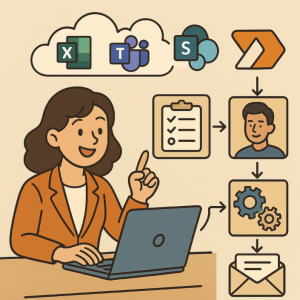
This is where the magic happens. Power Automate lets you connect apps and services with simple triggers and actions. Example:
- Trigger: When a new leave request is submitted in SharePoint
- Action 1: Send an approval request to the manager via Teams or Outlook
- Action 2: Update the SharePoint list with the manager’s decision
- Action 3: Notify the employee of the outcome
You can use pre-built templates in Power Automate to get started quickly, or design your own from scratch.
Step 5: Connect Notifications with Teams
Keep your team in the loop by integrating your workflow with Microsoft Teams. For example:
- Send automated notifications when tasks are assigned
- Post updates in a project channel when documents are approved
- Trigger alerts if deadlines are missed
This ensures transparency and faster response times, without endless email chains.
Step 6: Test, Refine, and Scale
Before rolling out your workflow to the entire organization:
- Test it with a small group.
- Gather feedback on usability and clarity.
- Adjust permissions, steps, or logic as needed.
Once it’s working smoothly, you can scale it across departments and even integrate with external tools like Salesforce or Dropbox.
Benefits of No-Code Workflows in Microsoft 365
- Time savings: Automate repetitive manual tasks
- Consistency: Standardize processes across teams
- Accessibility: Enable non-technical staff to build solutions
- Integration: Leverage the full Microsoft 365 ecosystem
Building a no-code business workflow in Microsoft 365 doesn’t require IT expertise—it only requires an understanding of your team’s needs and processes. By combining SharePoint, Power Apps, Power Automate, and Teams, you can design powerful, automated workflows that free up time and empower employees to focus on meaningful work.
Start small, iterate, and soon you’ll find that your organization is running smoother, faster, and smarter—all without writing a single line of code.
Extra posts:
 SharePoint 2013 Workflow Retirement: What It Means for Your Business
  Connecting Windows 11 with Microsoft 365 for Better Workflow
  Introduction to Microsoft 365 Apps for Business and Enterprise
  The Small Business Guide to Managing Customers with Microsoft 365
  Microsoft 365 PC: The Modern Windows Experience for Work and Business
  No-Code AI How Non-Developers Can Build Smart Chatbots with Copilot Studio