

Cloud computing might sound intimidating if you’re just getting started, but launching your first project on Microsoft Azure can actually be quick and beginner-friendly. Whether you’re a student, a developer testing ideas, or an IT professional exploring the cloud, Azure provides all the tools you need to spin up resources in minutes.
In this guide, we’ll walk through the basics and show you how to launch your first cloud project on Azure in about half an hour.
What Is Azure and Why Use It?
Microsoft Azure is one of the world’s leading cloud platforms, offering hundreds of services ranging from virtual machines (VMs) and databases to AI tools and DevOps pipelines.
For beginners, Azure is an ideal starting point because:
- It has a free tier with credits for new accounts.
- The Azure Portal provides a simple, graphical interface to manage resources.
- You can scale projects up or down without worrying about hardware.
Step 1: Create Your Free Azure Account (5 Minutes)
- Go to azure.microsoft.com/free.
- Sign up with a Microsoft account.
- Provide verification details (phone and card—don’t worry, the free tier won’t charge you unless you upgrade).
You’ll receive $200 in credits valid for 30 days, plus access to over 55 free services.
Step 2: Get Comfortable with the Azure Portal (5 Minutes)
Once signed in, you’ll land on the Azure Portal—a web dashboard where you create and manage everything.
Key features to explore:
- Search bar – Quickly find services like Virtual Machine, Storage, or Database.
- Resource groups – Think of them as folders that help organize your cloud resources.
- Marketplace – A library of prebuilt services and templates.
Step 3: Launch Your First Virtual Machine (15 Minutes)
A Virtual Machine (VM) is like renting a computer in the cloud. It’s a perfect first project because it’s simple, flexible, and shows you the power of Azure.
- In the Azure Portal, search for Virtual Machines and click Create.
- Select Azure Virtual Machine.
- Configure the basics:
- Subscription: Free Trial.
- Resource Group: Create a new one (e.g.,
my-first-project). - VM Name: Choose something like
MyFirstVM. - Region: Pick the one closest to you for best performance.
- Image: Select Ubuntu Server 22.04 LTS (Linux) or Windows 11 (if you prefer).
- Size: Choose the free-tier option (like B1s).
- Set up login credentials (username + password or SSH key).
- Review and click Create.
Azure will deploy your VM in a few minutes!
Step 4: Connect to Your VM (5 Minutes)
Once deployment is complete:
- For Linux VM: Use SSH (
ssh username@your-vm-ip) from your terminal. - For Windows VM: Download the Remote Desktop file from the portal and log in with your credentials.
Congrats—you now have a cloud-hosted computer up and running!
What’s Next?
You’ve just launched your first project on Azure in under 30 minutes. From here, you can:
- Host a website using Azure App Service.
- Store files in Azure Blob Storage.
- Set up a SQL Database for your apps.
- Explore AI services like Azure Cognitive Services.
The more you experiment, the faster you’ll gain confidence.
Starting your cloud journey doesn’t have to be overwhelming. By setting up a simple virtual machine, you’ve unlocked the door to exploring everything Azure offers—from hosting apps to building enterprise-scale solutions.
Take it step by step, and soon you’ll be comfortable deploying more complex projects in the cloud.
🚀 Ready to take your next step? Try hosting a basic website on your VM and share it with friends!
Extra posts:
 Optimizing Costs in Azure Practical Tips for Beginners
 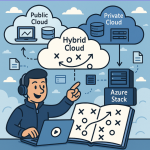 The Hybrid Cloud Playbook Mastering Azure Stack
  Azure Enterprise-Scale Landing Zone Building a Future-Ready Cloud Foundation
  How Microsoft Azure Ensures Data Privacy and Global Compliance | Secure Cloud Solutions
  How Solution Architects Can Use Microsoft’s Azure Globe Experience to Design Smarter Cloud Architectures
  How Microsoft Keeps Your Data Safe in the Cloud – A Deep Dive into Cloud Security Practices