
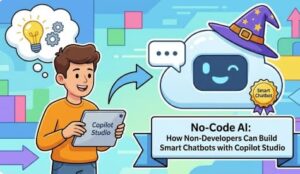
Artificial Intelligence is no longer reserved only for developers and data scientists. Over the last few years the no-code AI platforms have completely changed how businesses, creators, and everyday professionals interact with advanced technology. One of the most exciting examples of this shift is Microsoft Copilot Studio, a tool that allows non-developers to design, build, and deploy intelligent chatbots without writing complex code.
In this blog, we’ll explore what no-code AI really means, why smart chatbots matter, and—most importantly—a complete step-by-step guide showing how non-developers can build powerful AI chatbots using Copilot Studio.
What Is No-Code AI?
No-code AI refers to platforms that allow users to build AI-powered applications using visual interfaces, drag-and-drop components, and natural language configuration instead of traditional programming languages. The goal is to remove technical barriers so that anyone with business or domain knowledge can create intelligent solutions.
With no-code AI, users focus on:
- Defining goals and user needs
- Designing conversations
- Connecting existing data sources
- Improving experiences through testing and feedback
This approach empowers teams to innovate faster without depending entirely on developers.
Why Smart Chatbots Matter More Than Ever
Modern chatbots are no longer simple FAQ tools. AI-powered chatbots today can:
- Provide instant customer support 24/7
- Assist employees with internal knowledge
- Automate repetitive workflows
- Guide users through complex processes
- Integrate with CRM, HR, and support systems
As customer expectations rise, businesses need scalable, intelligent solutions—and no-code platforms make that possible for everyone.
What Is Microsoft Copilot Studio?
Microsoft Copilot Studio is a no-code and low-code platform that enables users to create AI-powered copilots (chatbots) quickly and securely. It is built on Microsoft’s Power Platform and integrates seamlessly with:
- Microsoft 365
- Power Automate
- Dataverse
- Azure AI services
What sets Copilot Studio apart is its focus on natural language design, making it accessible to non-technical users while still offering enterprise-grade capabilities.
Step-by-Step: How Non-Developers Can Build Smart Chatbots with Copilot Studio
Below is a unified, practical guide that combines strategy and execution into one smooth workflow.
Step 1: Define the Purpose of Your Chatbot
Start with clarity. Decide what your chatbot should do and who it will serve. Ask questions like:
- Is this chatbot for customers or employees?
- What problems should it solve?
- What success looks like?
Clear goals lead to better chatbot performance and user satisfaction.
Step 2: Access Copilot Studio
Log in to Copilot Studio through your Microsoft 365 or Power Platform account. Since it’s browser-based, there’s no installation required. You can create a new copilot project within minutes.
https://copilotstudio.microsoft.com

Step 3: Create a New Copilot Agent
Click Create Copilot Agent, assign a meaningful name, and add a short description. This helps collaborators understand the chatbot’s role and keeps projects organized.

Step 4: Design Conversation Topics Using Natural Language
Conversation topics define how users interact with your chatbot. Instead of code, you simply provide example phrases users might say. For each topic, you can:
- Add trigger phrases
- Define bot responses
- Ask follow-up questions
This makes chatbot design feel more like writing dialogue than programming logic.

Step 5: Build Logic with the Visual Flow Builder
Copilot Studio provides a drag-and-drop interface to manage conversation flow. You can easily:
- Ask questions and capture user input
- Add conditions (if/then logic)
- Route conversations dynamically
- Trigger actions like emails or database updates
Everything is visual, clear, and beginner-friendly.
Step 6: Connect Data and Knowledge Sources
To make your chatbot intelligent and accurate, connect it to your existing data. Copilot Studio allows easy integration with:
- SharePoint documents
- Dataverse
- Microsoft Graph
- Power Platform connectors
This ensures the chatbot delivers real-time, trustworthy information.
Step 7: Enable Generative AI Capabilities
With generative AI enabled, your chatbot can understand user intent and respond naturally—even when questions are phrased differently. This reduces the need for rigid scripting and creates a more human-like experience.
Step 8: Test the Chatbot Thoroughly
Before launching, test your chatbot using the built-in simulation panel. Testing helps you:
- Identify missing responses
- Improve conversation flow
- Fix misunderstandings early
Non-developers can make changes instantly without technical bottlenecks.
Step 9: Publish and Deploy
Once ready, publish your chatbot with a single click. Copilot Studio supports deployment across:
- Websites
- Microsoft Teams
- Internal business apps
Your chatbot becomes available to users immediately.
Step 10: Monitor, Learn, and Improve
After deployment, review analytics to see how users interact with the chatbot. Track common questions, drop-off points, and unresolved queries. Continuous improvement ensures long-term success.
Benefits of Using No-Code AI with Copilot Studio
- Faster chatbot development
- Reduced development costs
- Empowered business teams
- Secure, enterprise-ready platform
- Scalable from simple bots to advanced copilots
Challenges to Keep in Mind
While no-code AI simplifies development, success still depends on:
- Clear chatbot goals
- High-quality content
- Ongoing optimization
Collaboration between business users and IT teams can further enhance results.
The Future of No-Code AI
No-code AI platforms like Copilot Studio are redefining how software is built. As adoption grows, AI will increasingly become a business capability, not just a technical one.
No-code AI is transforming who can build intelligent technology. With Copilot Studio, non-developers can create smart, scalable chatbots that deliver real value—without writing code.
If you understand your users and their needs, you already have everything required to build a powerful AI chatbot.
Extra posts:
 No-Code AI How Non-Developers Can Build Smart Chatbots with Copilot Studio
  Low-Code vs Pro-Code How Copilot Studio Bridges the Gap
  How to Build Your First AI Agent in Copilot Studio in 15 Minutes
  Getting Started with Copilot Studio Build Your First AI-Powered Bot
  Using Copilot Studio with Dataverse: A Developer’s Guide
  Debugging and Testing Your Copilot Studio Bots Efficiently