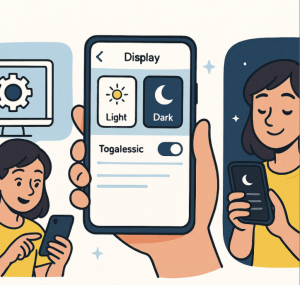
Dark Mode has become one of the most popular features across devices and apps. Beyond its sleek, modern look, it reduces eye strain in low-light environments and can even save battery life on OLED screens. Whether you’re using a phone, computer, or your favorite apps, enabling and personalizing Dark Mode is simple. Here’s a step-by-step guide to help you get started.
Benefits of Dark Mode
Before jumping into the steps, here’s why millions of users prefer Dark Mode:
- ✅ Reduces eye strain at night or in low-light environments.
- ✅ Saves battery life on OLED/AMOLED devices.
- ✅ Looks stylish and modern compared to light mode.
- ✅ Improves readability for some users, especially in dark surroundings.
Enabling Dark Mode on Different Platforms
1. On Smartphones
iOS (iPhone/iPad):
- Open Settings → Display & Brightness.
- Select Dark under “Appearance.”
- Toggle Automatic to schedule Dark Mode (e.g., sunset to sunrise).
Android:
- Go to Settings → Display → Dark Theme.
- You can also set it to turn on automatically at sunset or a custom time.
2. On Computers
Windows 10/11:
- Open Settings → Personalization → Colors.
- Scroll to Choose your color and select Dark.
macOS:
- Open System Settings (or System Preferences on older versions).
- Select Appearance and choose Dark.
- For automatic switching, choose Auto.
3. On Popular Apps
- YouTube: Click your profile → Appearance → Dark theme.
- Twitter/X: Go to Settings & Support → Settings & Privacy → Display → enable Dark Mode.
- WhatsApp: Open Settings → Chats → Theme → choose Dark.
Many other apps, from browsers to productivity tools, also have built-in Dark Mode options.
Personalizing Dark Mode
Once you’ve enabled it, you can take customization further:
- Adjust scheduling – Let Dark Mode switch on only at night or based on system settings.
- Accent colors – Some systems (like Windows and macOS) allow you to pick highlight colors to make Dark Mode feel more personal.
- Custom themes – Apps like Slack, Discord, and Chrome offer detailed theme customization.
- Adaptive settings – Some devices allow brightness adjustments or contrast tweaks while in Dark Mode.
Dark Mode is more than a trend—it’s a practical way to make your devices more comfortable and energy-efficient. Whether you’re a night owl, a designer who loves the aesthetic, or just someone looking to reduce screen fatigue, enabling and personalizing Dark Mode can make a big difference.
Try experimenting with scheduling and theme personalization to create a setup that feels just right for you.
Extra posts:
 How to Enable and Customize Dark Mode
  How to Personalize Your Windows 11 Desktop Like a Pro
  Customizing the Lock Screen in Windows 11 A Step-by-Step Guide to Personalize and Optimize
  How to Enable Ransomware Protection in Windows 11
  How to Enable Tabs in File Explorer in Windows 11
  How to Enable Two-Factor Authentication (2FA) in Windows 11