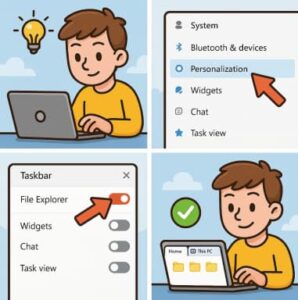
If you’ve ever wished File Explorer worked a little more like a modern web browser, you’re not alone. For years, Windows users requested a tabbed interface that would allow multiple folders to stay open in a single window. Fortunately, Microsoft finally introduced tabs in File Explorer in Windows 11, making file management smoother, cleaner, and far more efficient.
However, depending on your version of Windows 11, you may not see the tabs feature right away. Some users only get it after certain cumulative updates, while others may need to enable it manually or verify whether they are running the correct Windows build.
In this detailed, beginner-friendly guide, you’ll learn exactly how to enable tabs in File Explorer in Windows 11, how to check your system compatibility, and what to do if the feature isn’t showing up.
Let’s get started.
What Are Tabs in File Explorer?
Tabs in File Explorer allow you to open multiple folders inside a single window, just like using multiple tabs in Google Chrome or Microsoft Edge. For example, you can have one tab open for “Documents,” another for “Downloads,” and a third for “Pictures,” all in one convenient interface.
This eliminates window clutter and makes switching between locations faster and easier.
Key Benefits of File Explorer Tabs
- Cleaner workspace: No more juggling several overlapping Explorer windows.
- Improved workflow: Quickly switch between folders with a single click.
- Time-saving: Copy and move files between tabs without opening new windows.
- Modern interface: Makes Windows feel more intuitive and user-friendly.
Step 1: Check Your Windows 11 Version
Before you can enable File Explorer tabs, you must ensure your device is running Windows 11 22H2 or later, because the tabbed File Explorer feature was introduced starting with the 22H2 update.
How to Check Your Windows Version
- Press Windows Key + R to open the Run dialog.
- Type winver and press Enter.
- A window will appear showing your Windows version and build number.
You should see something like:
- Version: 22H2
- OS Build: 22621.xxx or higher
If you’re running Windows 11 21H2, the tabs feature won’t appear until you update.
Step 2: Update Windows 11 to the Latest Version
If your PC isn’t currently updated, you’ll need to install the latest cumulative updates to enable File Explorer tabs automatically.
How to Update Windows 11
- Click Start and open Settings.
- Go to Windows Update on the left sidebar.
- Click Check for updates.
- Download and install all available updates.
- Restart your PC if prompted.
After updating, File Explorer tabs should appear automatically when you open a new window. If not, continue reading for additional solutions.
Step 3: Confirm Tabs Are Enabled in File Explorer
Once your system is updated, enabling tabs is usually automatic—there’s no toggle in the Settings app to turn it on manually. To check whether it’s active:
Test If Tabs Are Working
- Open File Explorer.
- Look at the top of the window.
- You should see a plus (+) button next to the existing tab.
- Clicking the + opens a new tab.
If you see the tab bar, congratulations—you’re all set!
But what if you don’t see tabs yet? Let’s troubleshoot.
Step 4: Fix File Explorer Tabs Not Showing in Windows 11
If File Explorer tabs still aren’t available on your device after updating, there are a few common reasons:
1. Your Windows Build Is Outdated
You must have build 22621 or newer. Re-check using winver.
2. You Are Using Windows 11 Home or Pro Without Updates
Some users paused updates or delayed them unknowingly.
3. Group Policies or Registry Tweaks Disabled the Feature
Corporate or school-issued devices often block UI changes.
4. Windows Explorer Needs to Be Restarted
Sometimes a simple restart activates the new interface.
Restart Windows Explorer (Quick Fix)
Restarting the File Explorer process often triggers the new tabs UI.
How to Restart Windows Explorer
- Press Ctrl + Shift + Esc to open Task Manager.
- Click Processes.
- Scroll to Windows Explorer.
- Right-click it and select Restart.
Your screen may blink, and the taskbar will reload. Open File Explorer again to check whether tabs now show.
Optional: Enable Tabs Using ViveTool (Advanced Users)
If you’re comfortable using the command line, you can manually enable hidden features using ViveTool, a well-known utility for Windows feature activation. This step is only recommended for advanced users.
How to Enable Tabs with ViveTool
- Download ViveTool from the official GitHub page.
- Extract the folder.
- Open Command Prompt as Administrator.
- Navigate to the ViveTool folder using the
cdcommand. - Run this command:
vivetool /enable /id:37634385 - Restart your PC.
Once your device restarts, open File Explorer and tabs should appear.
How to Use Tabs in File Explorer Effectively
Now that the tabs feature is enabled, here are some productivity tips:
Open a New Tab
Click the + icon
OR
Press Ctrl + T (similar to browser shortcuts)
Close a Tab
Click the X on the tab
OR
Press Ctrl + W
Switch Between Tabs
Use your mouse
OR
Press Ctrl + Tab
Move Files Between Tabs
Drag and drop files from one tab into another.
This makes organizing folders dramatically easier.
Why Tabs Are a Game-Changer for Windows 11 Users
Tabbed File Explorer finally brings Windows in line with modern UI expectations. Whether you’re a student, office worker, content creator, or power user, this feature reduces clutter, improves productivity, and simplifies everyday tasks.
Managing dozens of folders is now as easy as managing browser tabs—and once you get used to it, there’s no going back.
Enabling tabs in File Explorer on Windows 11 is one of the simplest ways to improve your daily workflow. As long as your system is updated to version 22H2 or later, the feature should appear automatically. And even if it doesn’t show at first, the steps above will help you troubleshoot and activate it quickly.
Tabbed navigation makes Windows feel cleaner, faster, and more modern—so take advantage of it and enjoy a more organized desktop experience.
Extra posts:
 Advanced File Explorer Tips for Faster Navigation in Windows 11
  Advanced File Explorer Tips for Faster Navigation in Windows 11
  How to Enable Ransomware Protection in Windows 11
  How to Enable Two-Factor Authentication (2FA) in Windows 11
  How to Use File History for Backup in Windows 11
  Recovering Deleted Files Using Windows File Recovery A Complete Guide