

Microsoft is preparing to change how users access web content through its Copilot desktop application, making in-app browsing enabled by default for Windows and Mac users starting in January 2027. The update will allow users to open websites shared in Copilot conversations directly inside the desktop application, keeping web pages and AI-generated responses visible alongside each other.
The worldwide rollout is expected to begin in early January 2027 and finish by the end of the month. While individual users will not need to take any action to activate the feature, organizations that prefer to restrict or manage in-app browsing should review their device management policies ahead of the change.
The update, previously announced under Microsoft Message Center notification MC1474455, represents a shift from an optional browsing experience to a default feature within the Copilot desktop environment.
For businesses using Microsoft Copilot, the change introduces new considerations around productivity, browser behavior, security controls, and organizational policies.
What Is Changing in Microsoft Copilot?
Microsoft is making in-app browsing the default experience in its Copilot desktop application for Windows and Mac.
Under the updated functionality, websites shared through Copilot chats will open directly within the application rather than requiring users to switch to a separate browser window.
The browsing experience will appear alongside the existing Copilot conversation, allowing users to access web pages and AI-generated responses in one interface.
Previously, in-app browsing was an optional experience. With the January 2027 update, Microsoft will enable it by default.
The main objective is to simplify how users interact with information while working with Copilot. Instead of moving repeatedly between a desktop application and an external browser, users can keep their conversations and related web content together.
For people who regularly use Copilot to research topics, explore online resources, or work with shared links, this could make everyday workflows more convenient.
Microsoft Copilot In-App Browsing: Rollout Timeline
Microsoft has outlined a worldwide deployment schedule for the change.
According to the announcement:
- Rollout start: Early January 2027.
- Expected completion: End of January 2027.
- Availability: Worldwide.
- Affected platforms: Microsoft Copilot desktop application for Windows and Mac.
The change will apply to users of the desktop application on both operating systems.
Microsoft has also identified January 3, 2027, as the action date for organizations reviewing the update. Administrators who want to disable or manage the experience should consider their policy requirements before the default rollout begins.
The deployment is expected to happen progressively rather than becoming available to every user simultaneously.
Organizations should therefore prepare for the possibility that different users may encounter the updated experience at different points during January.
How the New Browsing Experience Will Work
The updated experience is designed to bring web browsing closer to the Copilot conversation.
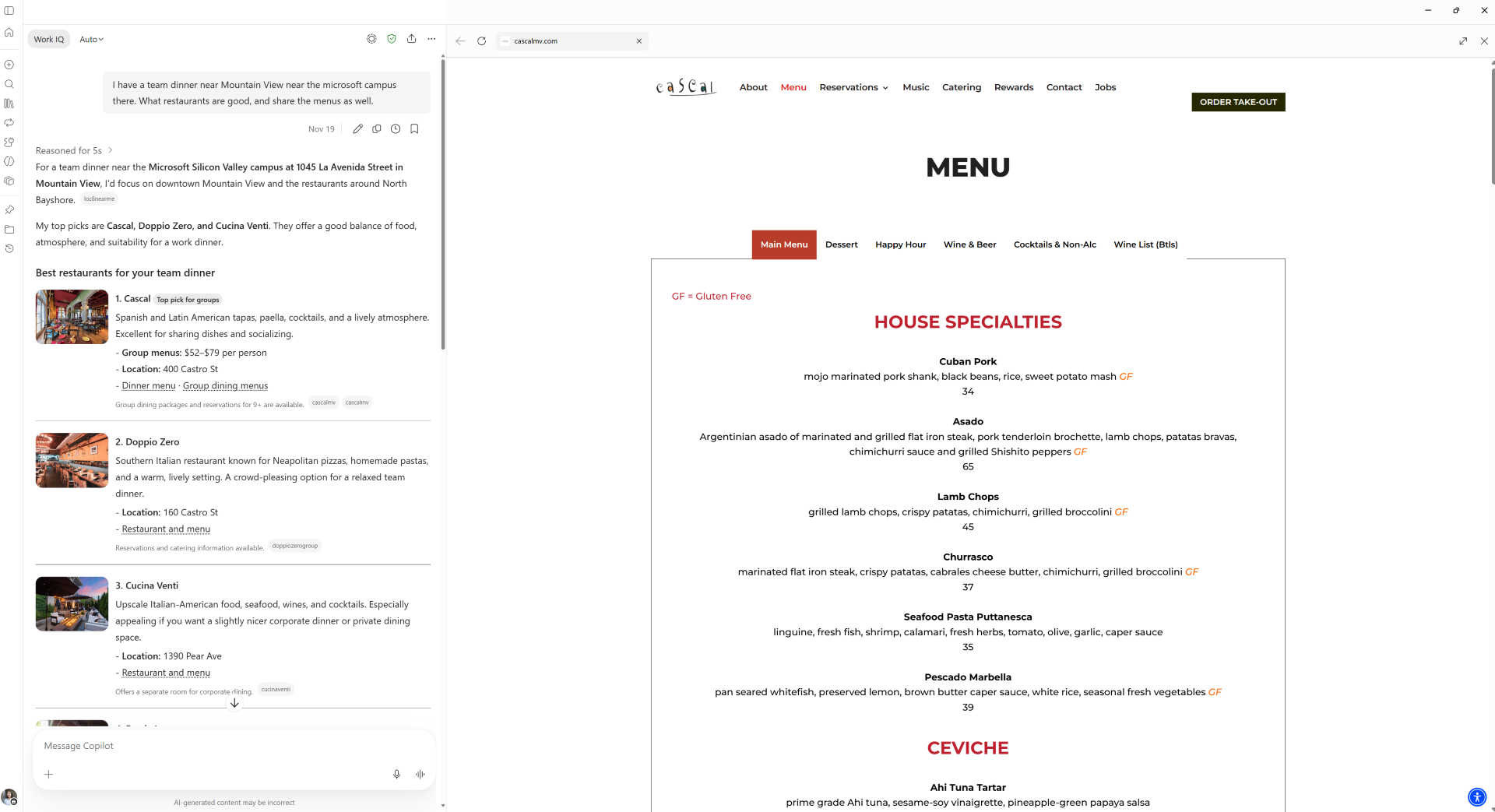
When a website is shared in a Copilot chat, users will be able to open it directly within the desktop application. The web content will appear alongside the conversation, allowing users to move between the page and Copilot’s responses without leaving the application.
This arrangement could be particularly useful in several everyday scenarios:
- Research and information gathering: Users can open websites shared during a conversation while continuing to interact with Copilot.
- Content analysis: Employees can refer to online material while discussing related information with the AI assistant.
- Workplace collaboration: Teams can access shared web resources without repeatedly switching between applications.
- Task management: Users can keep relevant web pages and AI-generated guidance within a single working environment.
The key difference is not a complete redesign of Copilot’s functionality. Instead, Microsoft is changing where shared web content opens and making that behavior the default.
The following is the general layout Microsoft is introducing:
View Microsoft’s updated Copilot in-app browsing experience
Why Microsoft Is Making In-App Browsing the Default
The update reflects a broader effort to make AI assistants more integrated into everyday desktop workflows.
Users increasingly rely on AI applications to research information, answer questions, and work with online resources. However, moving between an AI conversation and a traditional browser can interrupt the process.
By bringing web pages into the Copilot desktop application, Microsoft aims to reduce this friction.
There are several practical reasons behind the change.
1. Less switching between applications
Users will not need to leave their Copilot conversations every time they open a shared website. Keeping both experiences together could make research and information review more straightforward.
2. A more connected working environment
The ability to view web content alongside AI responses creates a more integrated experience. Users can keep relevant information accessible while continuing their conversations.
3. A simpler default experience
Making the feature available automatically removes the need for users to enable it manually. New and existing users can benefit from the updated behavior without having to configure the setting themselves.
However, the actual productivity benefits will depend on how individuals and organizations use Copilot in their daily work.
What the Update Means for Businesses and IT Administrators
Although the change is relatively straightforward from a user perspective, it deserves attention from IT administrators.
The most important consideration is that the default browsing behavior will change even if an organization does not modify its existing configuration.
Microsoft has confirmed that no action is required for organizations that are comfortable with in-app browsing being enabled.
However, businesses with specific security, privacy, or access requirements may want to review the available controls before the rollout.
Organizations should consider the following areas:
- Security: Review whether opening websites inside Copilot aligns with existing security requirements.
- Privacy: Assess whether the updated browsing experience is consistent with internal privacy policies.
- Access management: Determine whether restrictions are needed for particular users or groups.
- Authentication: Review how authentication requirements should be managed within the browsing experience.
- Network behavior: Consider whether existing network controls need adjustments.
- Downloads and permissions: Evaluate how downloaded content and application permissions should be handled.
These considerations are particularly relevant for organizations operating under strict IT governance requirements.
The announcement does not identify any new compliance considerations, but Microsoft recommends that organizations review the update according to their own requirements.
How to Disable Microsoft Copilot In-App Browsing
Organizations that do not want the new browsing experience enabled by default can manage it through their device management systems.
Microsoft has identified the following policy:
BrowsingEnabled
To disable in-app browsing, administrators should configure the BrowsingEnabled policy to Off.
This allows organizations to prevent the feature from being enabled by default.
Administrators can also configure the new in-app browsing policies to manage additional aspects of the experience, including:
- Security and privacy settings.
- Website access.
- Authentication behavior.
- Network configuration.
- Downloads.
- Application permissions.
The availability of these controls gives IT teams an opportunity to determine how the feature should operate within their existing environment.
Organizations should review the relevant policy documentation as Microsoft publishes further technical details.
Importantly, administrators do not need to disable the feature simply because it is changing. If the default experience meets their operational and security requirements, no configuration changes are necessary.
What Individual Copilot Users Should Expect
For everyday users, the update should require very little preparation.
Once the new behavior reaches their desktop application, websites shared in Copilot conversations will open within the application by default.
Users can expect a more centralized experience, with web content and AI conversations accessible from the same desktop environment.
This may be useful for people who frequently ask Copilot to help with research, explore online resources, or discuss information from external websites.
However, users should also recognize that in-app browsing is a change in how web content is opened, not an announcement of a completely new AI model or a major change to Copilot’s conversational capabilities.
The update focuses on the desktop application’s browsing experience.
Users whose organizations manage Copilot settings centrally may also find that their experience differs depending on the policies configured by their IT administrators.
What Organizations Should Do Before January 2027
With the rollout scheduled for January, organizations have an opportunity to assess the change before it reaches their users.
A practical preparation plan includes:
- Review the Microsoft announcement: Check Message Center notification MC1474455 and the associated update for any additional information.
- Evaluate internal requirements: Determine whether default in-app browsing is appropriate for the organization’s security and privacy policies.
- Review device management policies: Identify whether the
BrowsingEnabledsetting needs to be changed. - Assess additional controls: Examine the available policies for authentication, downloads, network behavior, permissions, and website access.
- Communicate with users: Inform employees about the updated browsing experience and explain any organization-specific restrictions.
- Monitor the rollout: Check the Copilot desktop application during January to confirm how the change is being introduced.
For organizations that want to retain their existing browsing arrangements, reviewing the policy configuration ahead of the rollout is particularly important.
What Happens Next for Microsoft Copilot?
Microsoft’s January 2027 update highlights how the company is continuing to integrate web access into its AI-powered desktop experience.
Making in-app browsing the default could encourage more users to keep their research, online resources, and AI conversations within Copilot rather than relying on separate application windows.
For businesses, the bigger question will be how this convenience fits into existing security and management practices.
The rollout itself is relatively simple: users receive the updated default experience, while administrators retain the ability to manage or disable it through the relevant policies.
Microsoft is also expected to update the announcement with additional documentation, which should provide organizations with more detailed guidance on configuring the new browsing policies.
As the January rollout approaches, IT administrators should pay attention to those documentation updates and ensure their configurations reflect their organization’s requirements.
The bottom line: Microsoft Copilot in-app browsing will become enabled by default across the Windows and Mac desktop applications in January 2027. Most users will not need to do anything, but organizations that want to control or disable the experience should review the BrowsingEnabled policy and related administrative settings before deployment is complete.
Discover more from Dellenny
Subscribe to get the latest posts sent to your email.
Extra posts:
 Microsoft Copilot Is Getting In-App Web Browsing on Windows and Mac
 Microsoft Authenticator for Android Gets Improved Backup and Restore Experience in January 2027
 Windows Settings Backup Is Now Enabled by Default in Windows 11 26H2
 Windows 10 Enterprise LTSC 2021 End of Support: What Businesses Need to Know Before January 2027
 Windows 10 Enterprise LTSC 2021 Has Just 60 Days Left: What Businesses Need to Do Before January 2027
 Microsoft to Retire Copilot Studio in Teams by February 2027: What Users Need to Know