
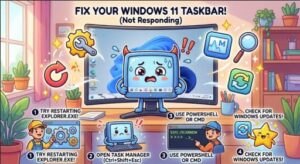
The Windows 11 taskbar is one of those features you probably do not think about until it suddenly stops working. You click the Start button, and nothing happens. The taskbar icons may disappear, stop responding, or freeze completely. Sometimes the taskbar is visible but refuses to open apps, switch between windows, or respond to right-clicks.
The good news is that a Windows 11 taskbar not working problem is usually fixable without reinstalling Windows. In many cases, the issue is caused by a temporary Windows Explorer glitch, a background process, corrupted system files, a recent update, or a problem with a Windows component.
In this guide, we will go through several practical solutions, starting with the easiest ones and moving toward more advanced fixes.
Why Is the Windows 11 Taskbar Not Working?
Before jumping into solutions, it helps to understand what might be causing the problem.
The taskbar is closely connected to Windows Explorer and several Windows background services. If one of these processes becomes unresponsive, the taskbar can freeze or stop responding.
Common causes include:
- A temporary Windows Explorer crash
- Corrupted or damaged Windows system files
- A problematic Windows update
- A stuck background process
- Issues with Windows Search or Start Menu components
- Outdated device drivers
- Conflicts caused by third-party applications
- User profile corruption
- Problems following a system upgrade
The exact cause is not always obvious, so it is best to work through the solutions one at a time.
1. Restart Windows Explorer
One of the quickest ways to fix a frozen Windows 11 taskbar is to restart Windows Explorer.
Windows Explorer controls several parts of the Windows interface, including the taskbar, Start menu, desktop, and File Explorer. If Explorer stops responding correctly, restarting it can bring the taskbar back to life.
Press Ctrl + Shift + Esc to open Task Manager. If Task Manager does not appear, press Ctrl + Alt + Delete and select Task Manager.
In Task Manager:
- Find Windows Explorer in the list of processes.
- Right-click it.
- Select Restart.
- Wait a few seconds for the desktop and taskbar to refresh.
Your screen may briefly flicker while Explorer restarts. This is normal.
Now try clicking the Start button or opening one of the taskbar icons.
2. Restart Your Computer
It may sound obvious, but a simple restart can resolve many temporary Windows problems.
If the taskbar is completely frozen and you cannot access the Start menu, press Ctrl + Alt + Delete. From the security screen, use the power button to restart the computer.
Alternatively, if necessary, press Win + R, type shutdown /r /t 0, and press Enter.
After Windows starts again, check whether the taskbar works normally.
A restart clears temporary processes and reloads Windows components, so it is worth trying before making more complicated changes.
3. Check for Windows Updates
Microsoft regularly releases Windows 11 updates that include security improvements, bug fixes, and reliability updates. If your taskbar stopped working after a recent issue, an available update may contain a fix.
If you can open Settings, press Win + I, then go to:
Windows Update → Check for updates
Install any available updates and restart your computer if Windows asks you to.
If the taskbar is preventing you from opening Settings, you can try pressing Win + R and entering:
ms-settings:windowsupdate
Press Enter to open the Windows Update section directly.
It is also worth remembering that Windows updates can occasionally introduce new bugs. If the taskbar problem started immediately after an update, the update itself could be involved.
4. Run System File Checker
Corrupted Windows system files can cause unusual interface problems, including a malfunctioning taskbar.
Windows includes a built-in tool called System File Checker (SFC) that scans protected system files and attempts to repair damaged files.
Press Ctrl + Shift + Esc to open Task Manager. Select Run new task from the appropriate menu, type:
cmd
Enable the option to run the task with administrative privileges, then enter:
sfc /scannow
Remove the leading space if copying the command.
Allow the scan to finish. It can take several minutes, so do not close the Command Prompt while the process is running.
When the scan finishes, restart Windows and check the taskbar again.
5. Use DISM to Repair Windows
If SFC finds problems but cannot repair everything, the Deployment Image Servicing and Management (DISM) tool can be useful.
Open an elevated Command Prompt and run:
DISM /Online /Cleanup-Image /RestoreHealth
This command checks the Windows component store and attempts to repair problems that could prevent system components from working correctly.
The process may take some time. Once it finishes, run:
sfc /scannow
again, making sure there is no space before the command.
Then restart your computer.
Using DISM followed by SFC is a useful approach when Windows system corruption is suspected.
6. Restart Relevant Windows Processes
Sometimes the taskbar problem is connected to a specific Windows process rather than Explorer itself.
Open Task Manager using Ctrl + Shift + Esc and look for processes associated with the Windows interface. Depending on your Windows version and current system state, you may see processes related to Start, Search, or other Windows components.
If a particular process is clearly frozen or consuming an unusually high amount of CPU or memory, restarting that process may help.
Be careful when ending processes in Task Manager. Avoid terminating processes you do not recognize, especially system-critical processes.
7. Check Your Display Drivers
Graphics drivers can sometimes cause problems with Windows’ visual interface.
If the taskbar disappeared, flickers, or becomes unresponsive after a graphics driver update, the driver may be worth investigating.
Open Device Manager by pressing Win + R, entering:
devmgmt.msc
and pressing Enter.
Expand Display adapters, right-click your graphics device, and check whether a driver update is available.
If the problem began immediately after a driver update, you may also have the option to roll back the driver.
After changing the driver, restart Windows and test the taskbar.
8. Perform a Clean Boot
If the taskbar works correctly after starting Windows but stops responding after certain applications load, a third-party program could be responsible.
A clean boot starts Windows with a limited set of startup programs and services. This can help identify software conflicts.
Press Win + R, type:
msconfig
and press Enter.
In System Configuration, use the Services tab to hide Microsoft services, then temporarily disable non-Microsoft services. You can also review startup applications through Task Manager.
Restart the PC and see whether the taskbar works.
If the problem disappears, re-enable services and startup applications gradually until you identify the application causing the conflict.
9. Create a New Windows User Account
Sometimes the problem is limited to a particular Windows user profile.
If you have tried the previous solutions and the taskbar still refuses to work, creating a new local user account can help determine whether the profile itself is damaged.
Open Settings → Accounts → Other users and create another account.
Sign into the new account and test the taskbar.
If the taskbar works normally there, your original Windows profile may have become corrupted. You can then move your personal files and settings to the new profile if necessary.
10. Use System Restore
If the taskbar worked normally a few days ago and suddenly stopped after installing software, drivers, or updates, System Restore may be worth considering.
System Restore can return Windows system settings and configuration to an earlier restore point without normally removing personal documents.
Search for Create a restore point, open the System Properties window, and select System Restore if a suitable restore point is available.
Choose a restore point from before the taskbar problem started and follow the instructions.
Keep in mind that System Restore is only useful if restore points are available.
11. Reset Windows as a Last Resort
If none of the previous methods works, you may need to consider resetting Windows 11.
Go to:
Settings → System → Recovery → Reset this PC
Windows provides options that can allow you to keep personal files while reinstalling Windows components. However, applications and certain settings may be removed depending on the reset option you select.
Before performing a reset, make sure important documents, photos, and other personal files are backed up.
A Windows reset should generally be treated as a last resort rather than the first solution to a taskbar problem.

A Windows 11 taskbar not working problem can be frustrating, especially because the taskbar is such an important part of the Windows interface. Fortunately, you usually do not need to perform a complete Windows installation to fix it.
Start with simple solutions such as restarting Windows Explorer and rebooting your PC. If that does not work, check Windows updates, repair corrupted system files with SFC and DISM, investigate drivers and third-party applications, and consider a new user profile or System Restore if necessary.
The most important thing is to avoid making major system changes too quickly. Work through the fixes in order and test the taskbar after each one. In many cases, a simple Explorer restart or system repair is all that is needed to get the Windows 11 taskbar working normally again.
Extra posts:
 Why Is My Windows 11 Sandbox Not Working? 10 Ways to Fix It
  How to Fix Outlook Notifications Not Working: A Complete Troubleshooting Guide
  How to Fix Windows 11 Not Responding
  How to Fix Windows 11 Running Slow and Speed Up Your PC
 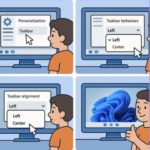 How to Change Taskbar Position and Icons in Windows 11 (Step-by-Step Guide)
 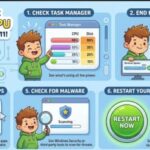 How to Fix 100% Disk or CPU Usage in Windows 11